Microsoft Drops Excel COPILOT(): Convert Your Formulas Before They Break
Microsoft is switching off the COPILOT() worksheet function in Excel on September 14, 2026, with barely a month’s warning. If you are on the Microsoft 365 Insider or Frontier channels and have COPILOT() formulas sitting in a workbook, assume they will break. Convert those results to static values now, before the deadline. Here is exactly what changes, what Microsoft is offering instead (spoiler: it is not a replacement), and the three checks to run this week.
This affects Excel 365 only, Windows, Mac and Web for users on the Frontier or Insider channels. Copilot() never reached public versions of Excel 365.
Microsoft has ‘decided not to move forward‘ with no technical reason, no migration plan and only a weak suggestion for what to use instead.
Deadline uncertainty
When it comes to ending Copilot(), Microsoft has been as clear as mud.
The Message Center notice says users will no longer be able to create new formulas using =COPILOT after September 14. The support page goes further and says the function simply will not be available.
Microsoft has not clearly stated whether formulas already sitting in your workbooks will keep returning results or start throwing errors. Will existing Copilot() formulas keep working after mid-September? If so, when will they stop working?
Assume Copilot() will break. Planning around the more optimistic reading is a bad bet.
What this means for you
If you never got into the Insider or Frontier programs, nothing changes. =COPILOT was never generally available. It sat in preview for about a year and never shipped to normal Microsoft 365 subscribers.
Do this before September 14
- Find every workbook with =COPILOT in it. Use Find (Ctrl/Cmd + F), click Options, search for COPILOT, set Look in to Formulas and set Within to Workbook rather than Sheet.
- Convert the results to static values. Select the output cells, Ctrl + C, then Ctrl + Shift + V for Paste Values. See Convert Excel’s COPILOT() Output into Static Cells – Stop Auto-Updates & Preserve Values
- Check for spilled ranges. COPILOT could return a dynamic array that spills across the grid, so a single dead formula can blank out a whole block of cells that other formulas reference.
What Microsoft offers instead of Copilot()
The official replacement is the Copilot side pane in Excel. Microsoft says it provides many of the same capabilities, including summarizing text, classifying data, generating content, and retrieving information from the web, and that the change helps streamline the Copilot experience in Excel.
That’s just a lame excuse. The Copilot side pane isn’t a reasonable replacement for the very useful Copilot() function.
A side pane chat is not a formula. A formula lives in the workbook, recalculates when its inputs change, spills into a range, and is visible to anyone who opens the file.
A chat answer is something a person has to read, judge, and paste in by hand. Calling the side pane a replacement for a worksheet function insults paying customers by taking them for fools.
Another laughable notion is that the Copilot bug (sorry, “Dynamic Action Button”), with its contextual suggestions, can replace Copilot(). “If you believe that, I have a bridge to sell you.”
Microsoft’s other excuse is that Copilot() was “only” available to people on the Microsoft 365 Insiders channel. That’s not a small group because Microsoft puts a lot of effort into getting paying customers to choose the Insiders option. Insiders deserve better treatment than to be dismissed when it suits Microsoft.
Check out Microsoft 365 Insiders: The Risks Microsoft Does Not Mention
Was Copilot() a bad fit for Excel?
There’s no doubt that Copilot() in Excel could be a problem for anyone not careful with AI, but the same can be said about other Copilot features in Microsoft 365 apps.
Copilot() could and did drop “alternative facts” into a workbook, just like any AI. Office Watch has mentioned this several times.
Excel’s COPILOT() Function Gets Facts Wrong: Our Tests Prove You Cannot Trust It
Excel’s Copilot() Function Can Be Dangerous in the Wrong Hands
There’s a big difference between an AI response that has to be copied and pasted into a sheet and something that appears automatically in a worksheet.
Every Copilot() call came with a warning: “AI-generated content may be incorrect” whether the answer is right or wrong.
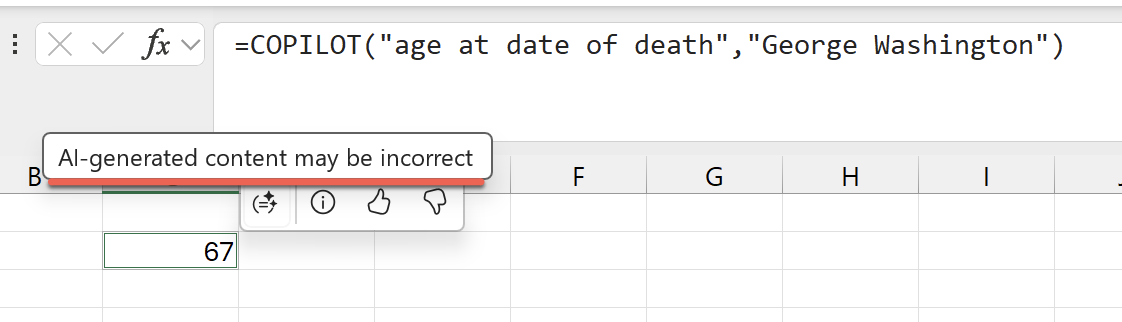
Copilot in Word, PowerPoint and Outlook can also drop AI-generated “facts” directly into docs, slides or emails. How is the Copilot() function so different from those other Microsoft 365 AI features?
That said, Copilot() could be very useful and gave Excel genuinely new powers, for example using Copilot() in Excel for analyzing text.
Many other Excel features and functions can be misused, but Microsoft keeps them available. There’s a specific disclaimer shown each time Stock or Currency data types are used.

That mechanism could have been extended to using Copilot() in addition to the existing tooltip.
Why is Copilot() being dropped?
The company is silent on the reasons for dropping Copilot(), especially after such a long gestation. Microsoft explaining themselves properly to paying customers is apparently too much to ask <sigh>.
We can hazard a few guesses, starting with the reason Microsoft does almost everything: money.
Cost: Copilot() function calls to Microsoft’s AI were costing the company too much. That’s despite using an older, cheaper GPT-4.1 mini model and being throttled to 100 calculations every 10 minutes.
Risk: Microsoft is risk-averse. For example, there is a persistent disclaimer every time a workbook is opened with a Stock or Currency data call (see above). Despite the warnings and disclaimers, there’s concern that incorrect information dropped into a workbook could result in lawsuits or bad PR.
Security: there’s increasing concern in the AI world about misuse of the technology to infiltrate computer systems. It’s possible that Microsoft was worried about hacked Copilot() calls that could gain access to a computer. Even if that’s just a theoretical concern, some Attack Surface Reduction (ASR) is a good precaution.
Thanks to Susan Bradley at AskWoody.com for reminding us of this possibility.
Real alternatives for Copilot()
The in-grid AI function idea is not dead across the industry. It’s just dead at Microsoft.
The most direct formula-level substitute is the GPT for Excel add-in, which offers =GPT(), =GPT_TRANSLATE() and similar functions. Its makers point out that it is not capped at 100 calls per 10 minutes, that you can pick the model per formula, and that it does not require a Copilot license. Treat the claims with the usual caution, but the functional gap it fills is genuine.
Google is still testing its equivalent AI() function in Sheets through Workspace Labs.
Hopefully, Claude will also fill the gap with its own version within its Excel add-in.
The practical lesson
Remember one of the long-standing Office Watch warnings:
“Microsoft giveth and Microsoft taketh away”
If a feature is not generally available, do not put it anywhere near a doc, sheet or deck that matters.
Preview features in Microsoft 365, especially Frontier and Insider ones, are not commitments. Microsoft’s roadmap page says so explicitly, and the fate of Copilot() is what that disclaimer looks like in practice. If a feature makes it to the main Insiders track it is usually bound for public release. Copilot() shows that ‘usually’ is not ‘always’.
If Microsoft does decide to drop a feature, it will often do so on short notice. As we’ve seen with Copilot(), the company doesn’t properly explain its withdrawal timeline, let alone its reasons.
Before You Lose COPILOT(): Essential Reading
The most urgent job is turning live COPILOT() results into cells that will still be there next month, and there is a full walkthrough in Convert Excel’s COPILOT() Output into Static Cells covering Paste Values, PowerQuery and the Index() trick. If you are not sure what the function was doing in your workbook in the first place, Discover the COPILOT Function in Excel is the original explainer with the full syntax.
What COPILOT() was actually good at, and where it fell down
Before you mourn it too hard, read our testing in Excel’s COPILOT() Function Gets Facts Wrong: Our Tests Prove You Cannot Trust It, which shows how confidently the function returned wrong lists and bad sorting. The genuinely useful side is covered in How to use Copilot() in Excel for analyzing text, where classifying messy customer feedback is the sort of job no ordinary Excel function can do, and How to Fix Excel Copilot “#Connect” Errors explains the throttling limits that Microsoft never advertised.
The same AI choice in other Office apps
Copilot in the side pane still works, and picking the right model behind it makes a real difference to your results. Which Copilot Model Should You Use in Excel? Auto, GPT or Claude breaks down which model handles formulas, data cleanup and analysis best, so you get more out of the tool Microsoft is pushing you toward.
Microsoft giveth, Microsoft taketh away
COPILOT() is not the first feature to vanish at short notice. Microsoft Kills Free Copilot Chat in Word, Excel and PowerPoint covers a withdrawal that hit millions of business users, and Microsoft Publisher Ends October 2026: How to Keep It Working shows what a longer, better managed shutdown looks like by comparison. For everything else with a ticking clock, keep the Microsoft Office support end date checklist bookmarked.
Should you be on Insider or Frontier at all?
Being early has a cost, and Copilot() is a textbook example. Microsoft 365 Insiders: The Risks Microsoft Does Not Mention sets out what you are actually agreeing to when you opt in, and why preview features should stay out of any workbook that matters.