Save Reusable Email Snippets in Outlook: 5 Real Workarounds
Outlook gives you two built in ways to save reusable email text, and both are frustratingly limited. My Templates only stores plain text, with no bold, links, images or tables. The other way works for new messages but not replies. So if you send the same content over and over, you need a better way to save email snippets in Outlook. Here are five practical workarounds. None are perfect, but every one of them beats what Microsoft currently offers.
The core problem is Outlook’s My Templates feature. It can only save plain text, nothing suitable for a modern email like bold, italics or web links let alone images or tables. Mail Templates are only for new messages, not replies.
There are many needs for reusable or repeated email text. For example, a small business might have prepared text with links for chasing unpaid bills.
- Payment due yesterday
- Due last week
- Last notice
- Referred to debt collection
If you’re part of a club, there might be a standard message to new members, the start of a season or about an upcoming event.
In a job, I had a book of reusable text to work from. We dictated to a typing pool (it was long ago), giving the number of the ‘standard letter’ plus the name, address and any other details. These days, that would be an online collection of content that can be pasted into emails.
Since Outlook’s My Templates is so limited, how can people save formatted content in a mailbox?
Save as Drafts
Any message blocks can be saved to the Drafts folder.
Start a new message.
In the subject, put a description of the text or its purpose.
Type the standard text into the message area.
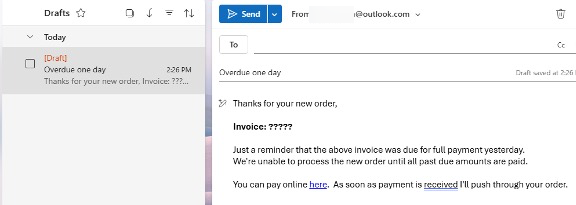
Don’t put anything in the TO, CC or BCC areas.
Outlook will automatically save any incomplete message to the Drafts folder.
Make as many ‘drafts’ as you like.
To reuse the text, select any draft and copy the content from the reading pane.
Save to special folder
The Drafts folder can get cluttered with other draft messages, so you might prefer to save the standard text to another folder.
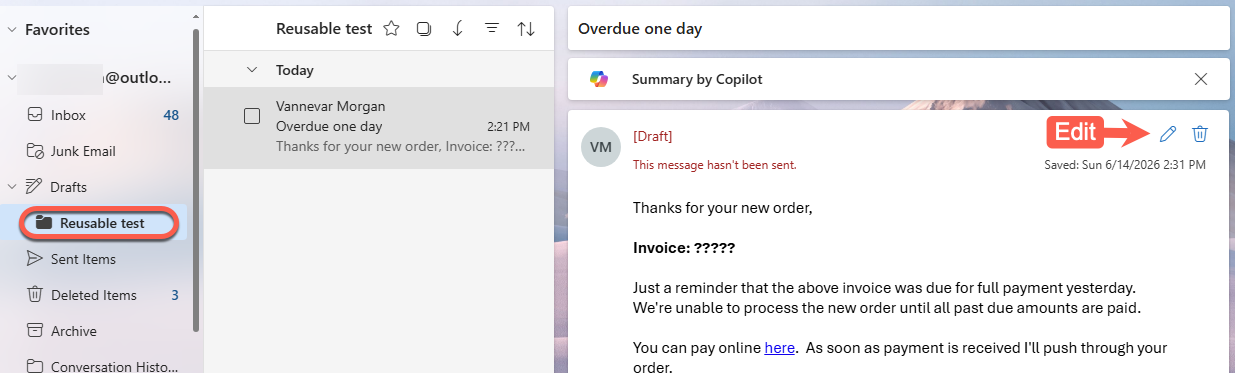
That folder can be anywhere, we’ve made a sub-folder under “Drafts” but it could be elsewhere in the mailbox folder tree.
The easiest way to save a message to another folder is to drag it from Drafts.
Change the existing reusable text by clicking the ‘Edit’ pencil icon.
Signatures
Another workaround is to use Signatures. In Settings | Accounts | choose a mailbox | then add more signature options with the text you want.
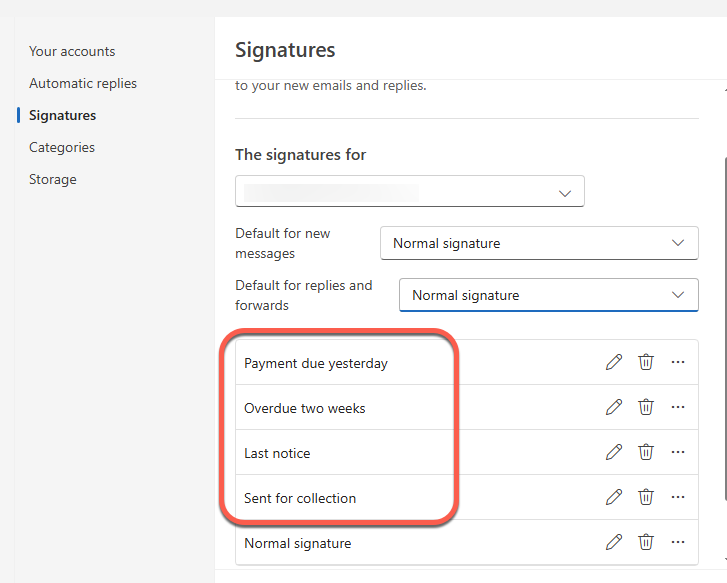
Of course, this text goes at the bottom of an email by default, but can be moved.
Don’t forget to include the usual signature ending because only one saved Signature can be inserted into a message.
Signatures are saved to Microsoft hosted mailboxes and appear in both classic and new Outlook.
Quick Parts – classic only
In Outlook (classic) for Windows, there are Quick Parts (on the Insert tab).
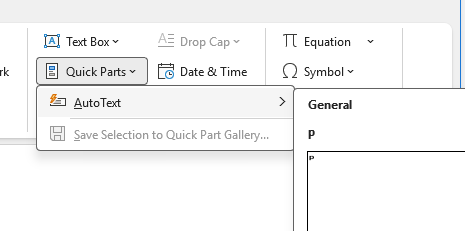
It’s there because the email editor is really Microsoft Word in disguise, and Quick Parts is part of Word. New Outlook works very differently and so Quick Parts hasn’t moved across.
In any event, Quick Parts has some problems. Parts are saved in the NormalEmail.dotm template file and not in the mailbox. So the parts don’t sync between devices.
The flyout menu has a large preview box which looks good in Microsoft product demos but not so useful when there’s more than a few parts saved.
Use Word or OneNote
Another workaround is to save standard text blocks in a separate location. This might be better if there are many reusable text elements, some additional comments or explanation is needed or to share between people in an organization.
The reusable elements can be saved to a Word document or OneNote that’s shared among all who need it.
Even a special in-house web page would work. A web page or Word doc can include a Table of Contents to quickly jump to the right place.
The real fix….
The real fix is for Microsoft to repair the crippled My Templates feature to allow saving of formatted text, headings, links and other things common in emails.
Email templates give you faster messages in Outlook
Signatures for all occasions in Outlook
Microsoft Outlook tips and news
Word 365’s New ‘Overpaste’ Trick Makes Hyperlinks in One Step
FIFA World Cup 2026: How to Add Matches to Your Outlook Calendar