Copilot in Outlook Is Changing this month: Here’s What Moves
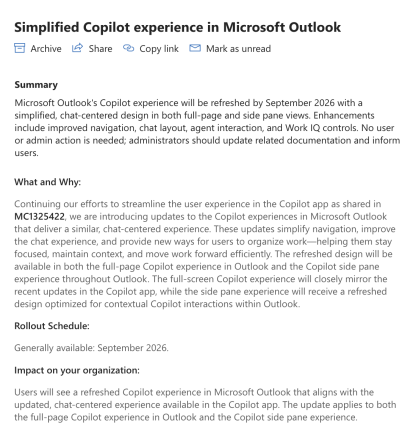
Microsoft is changing the look and layout of Copilot inside Outlook, with general availability set for sometime this month. The change lands automatically but Microsoft won’t say which of their many “Outlook” apps are affected.
Which $&*@! Outlook? Microsoft Won’t Say
Before we explain the changes, there’s one question we’d like to answer but can’t because Microsoft won’t say.
The entire notice MC1458470 in the Microsoft 365 admin center Message Center only talks about “Outlook” but not which Outlook! Presumably the people at Microsoft know there’s more than one “Outlook” product, so they are being deliberately unclear.
There are four currently supported versions of Outlook for Windows alone: Outlook classic, Outlook new, Outlook 2024 and Outlook 2021. Beyond that there are various macOS versions of Outlook plus Outlook in a browser.
The notice doesn’t even specify that the changes are for desktop Outlooks. It’s possible that mobile Outlooks for iPhone, iPad and Android are being changed too … there’s no way to tell from the little that Microsoft has said.
Customers should not have to guess, but most likely these Copilot changes apply to Outlook new for Windows and Outlook in a browser. Maybe also the newer Outlook for Mac?
Copilot in Outlook, what actually changes
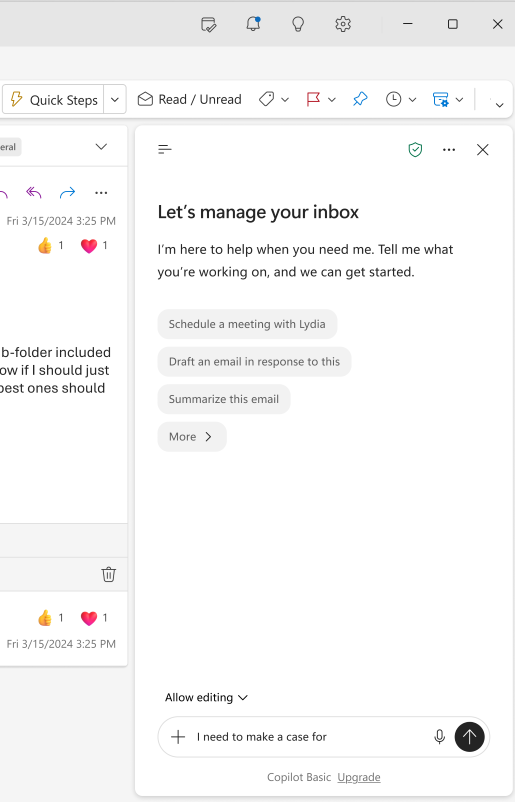
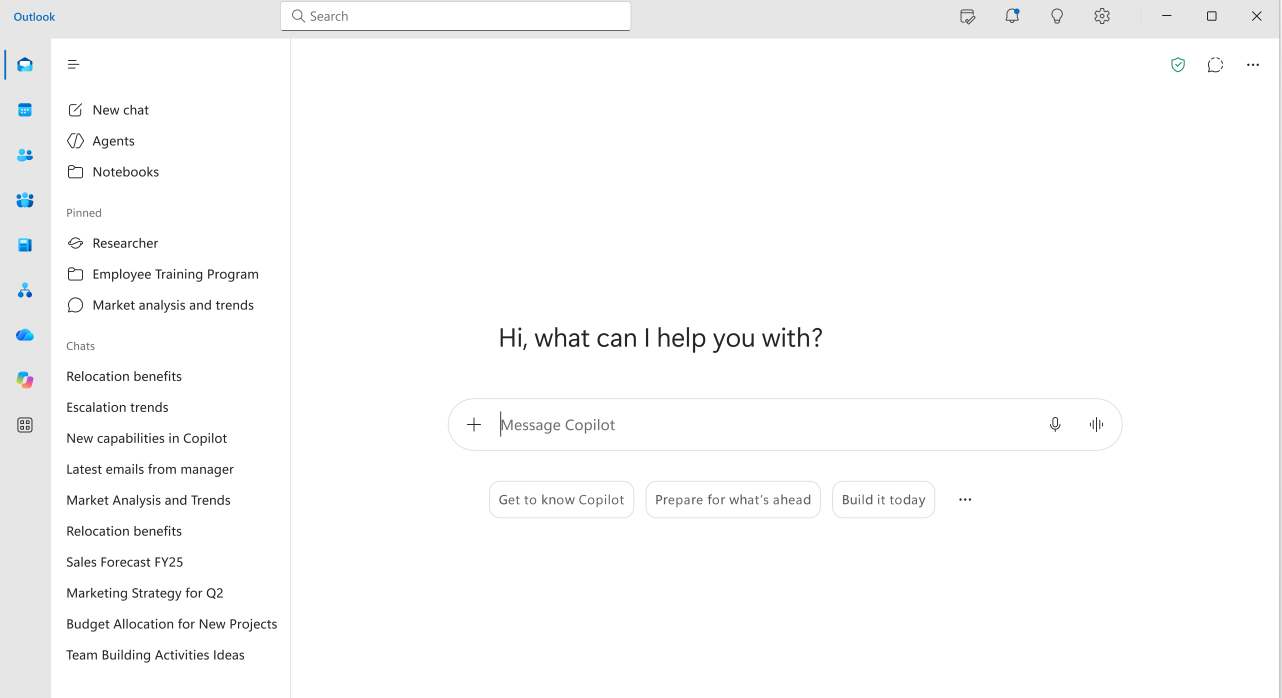
Two places in Outlook (see above) are affected.
The Copilot side pane appears throughout Outlook and gets the new design tuned for working alongside your mail.
The full page Copilot in Outlook. The Copilot web page or app but inside Outlook.
Across both, Microsoft lists simplified navigation, a reworked chat layout, easier ways to find and use agents, and the arrival of Work IQ controls.
Only the full page version gets the new Tasks view, which shows you long running Copilot activity such as agents doing work in the background and scheduled chats.
The side pane does not get Tasks. That is a real gap if you live in the side pane, because you will have no way to see what your agents are up to without switching to the full page view.
What does this mean for me?
If you use Copilot in Outlook, buttons and menus will move. It is mostly a visual and navigational refresh. That is the whole of the user impact, and it is not trivial. Anyone who has built muscle memory around the current side pane will lose a few minutes rediscovering where things went.
Nothing changes with your licensing, your permissions, or your compliance settings. Microsoft is at least explicit about that.
The practical advice is simple: sometime in September 2026 the Copilot pane in some unstated versions of Outlook will look different, so give yourself a few minutes to poke around before an important deadline.
Work IQ controls
Buried in the “refreshed design” language is the more interesting addition. Work IQ is Microsoft’s name for the layer that feeds your work context into Copilot. It connects signals across Microsoft 365 and business systems so Copilot can do personalized search and reason over your actual work rather than answering in a vacuum. The underlying data includes your SharePoint and OneDrive content, your Outlook email, and your Teams meetings and chats, along with metadata about who you work with and how often.
The new Work IQ controls in Outlook are about how that grounding is presented to you, the difference between Copilot answering from your work data and answering from the web. That distinction matters. An answer drawn from your inbox and files is a very different thing from an answer scraped off the internet, and knowing which one you are looking at is the difference between trusting a reply and checking it.
When the update arrives, find those controls and learn what they do. It is the one genuinely new capability here rather than a moved button.
Work IQ already applies your existing security, privacy, and governance rules, with every response trimmed to what your identity and your organization’s policies allow. So the controls are about visibility and choice, not a new privacy risk.
The honest assessment
This is the second Copilot interface reshuffle in Outlook. Microsoft is still figuring out what Copilot should look like and customers are absorbing the cost of that iteration in retraining and rewritten documentation.
With all that change and uncertainty, not stating which Outlooks are affected is unforgivable. The omission is unlikely to be accidental, even though it’s hard to see what advantage it gives Microsoft.
The Tasks view omission from the side pane is the detail most likely to annoy people. If agents are doing work on your behalf, you should be able to see that from wherever you are working, not only from a full screen view you have to deliberately open.
More on Copilot in Outlook
Since Microsoft won’t say which apps this redesign hits, the practical first step is knowing which Outlook is on your screen. Our guide to Too Many Microsoft Outlooks? Clear Up the Confusion in Simple Terms shows the quick visual tells for each one, and Understanding Outlook (New) for Windows: An Independent Guide covers the version most likely to get these Copilot changes first.
This redesign is part of a pattern. New Copilot Logo Is Here: Flatter, Simpler and Completely Useless to You and Microsoft is combining its two Copilot apps into one both track the same restlessness, where customers pay for the retraining every time Microsoft changes its mind.
If you would rather stay on classic Outlook
Plenty of readers tried the new Outlook and want out. Outlook New to Classic: How to Revert Back walks through the switch, and before you decide either way it is worth reading New Outlook’s 5 “Productivity” Features: What Microsoft Isn’t Telling You, which checks Microsoft’s sales pitch against what classic Outlook already does.
Understanding Work IQ before the controls arrive
The Work IQ controls are the one genuinely new thing in this update, so it helps to know what is behind them. What the !@^? Is Microsoft Copilot “Work IQ”? explains which of your emails, files and meetings feed into Copilot answers, and Copilot Can Now Actually Do the Work in Word, Excel, and PowerPoint shows what those background agents in the new Tasks view are capable of doing on your behalf.