How to Switch Back to Classic Outlook from New Outlook
Looking for a way to revert to classic Outlook after trying the new Outlook for Windows? This guide provides step-by-step instructions on how to switch back to classic Outlook, explains how both versions are probably on your PC.
If you’ve tried the new Outlook for Windows and wish to return to the classic version, follow these steps to make the change.
Microsoft suggests users must “move” from Outlook (classic) to Outlook (new), using terms like “switch” or “migrate,” with the suggestion that the change is permanent. The company does that for their own interest. It wants people to use their new Outlook asap, even if the software doesn’t have all the features a customer needs and despite the legitimate privacy concerns.
Two Outlooks live together OK
You can run both classic and new Outlooks on a Windows computer at the same time.
Ignore Microsoft’s tricks to imply anything different.
If you flip the ‘Try the new Outlook’ switch, New Outlook is installed but classic Outlook remains on your computer.
Here’s both Outlook (classic) with dark grey color scheme and Outlook (new) below, both running at the same time on one computer and even accessing the same mailboxes.
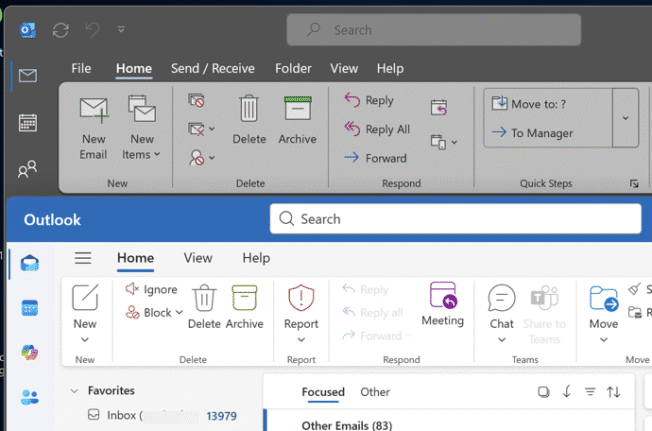
Microsoft has been pestering customers with many prompts to “switch” or “migrate” from classic Outlook. One option to abate this nuisance is to choose “Switch now” and install Outlook (new). Then just shut down new Outlook and continue using Outlook (classic).
Start Classic Outlook
Classic Outlook remains available even after switching to the new version. You can launch the old Outlook anytime, use both, or stick with just one.
The two programs are so different that they don’t conflict. I use both Outlook versions on one computer. Classic for tasks like moving emails between mailboxes and for proper, full offline access when needed.
Click on the Windows Start button and search for “outlook” (just “out” is probably enough).
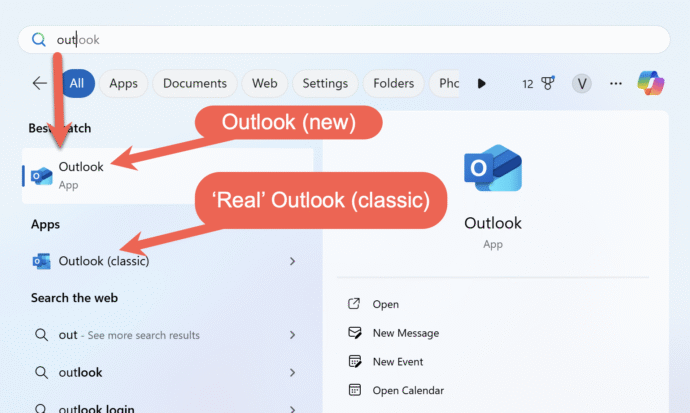
Most likely there’ll be Outlook (classic) already setup. If not, it can be installed, see How to get ‘real’ Outlook (classic) instead of new Outlook.
“Outlook (new)” might appear with that name or just as “Outlook”. Microsoft is gradually dropping the ‘new’ label.
Back to Classic Outlook on Windows
According to Microsoft this is the way to ‘switch’ from new Outlook back to Outlook (classic). We include this for the sake of completeness.
- Open the New Outlook App
- Look for a “Try the New Outlook” toggle at the top right corner of the Outlook window.
- Turn Off the Toggle: This action will close the new Outlook and automatically restart the classic Outlook.
- Confirm the Change: You may be asked to confirm that you want to switch back. Follow the prompts to complete the process.
If there’s no “Try the New Outlook” toggle then check via the Start menu to see if both Outlooks are installed.
Extra notes
We get asked so often that it’s worth repeating …
Outlook classic and new is NOT an ‘either/or’ situation. You don’t need to ‘switch’ (Microsoft’s term) permanently. You can run both Outlooks on the same computer.
- Data & Settings: Switching between versions usually does not affect your emails, contacts, or calendar if they are all stored in some online location (e.g Microsoft hosted mail, Outlook.com/Hotmail or Gmail). It’s a different story for ISP mail using POP connections.
- Some organizations or Microsoft accounts may have disabled the ability to revert to classic Outlook.
- If you don’t see the toggle or are unable to switch back, your organization or Microsoft may have made the new Outlook permanent on your account. For further assistance, contact your IT helpdesk.
- Microsoft will eventually discontinue availability of the classic version but that’s a few years away.
How to get ‘real’ Outlook (classic) instead of new Outlook.
Beware the privacy trap in the Outlook (new)