How to Turn Anyone’s Photo Into a Carved Pumpkin With Free AI Tools
Want to see what someone looks like carved into a Halloween pumpkin? Upload their photo to ChatGPT, Google Gemini, or Microsoft Copilot, paste one prompt, and you’ll have a glowing jack-o’-lantern portrait in about a minute, completely free. Below are ready-to-copy prompts for a pumpkin portrait, a spooky classic, or caricature..
Pick your AI tool
Any of these tools will work with ChatGPT (chatgpt.com), Google Gemini (gemini.google.com) or Microsoft Copilot (copilot.microsoft.com or the Copilot app in Windows).
Our pick: start with ChatGPT or Gemini. Both are very good at keeping a face recognizable while turning it into something else. If one gives you a dud, paste the same prompt into the other. It costs nothing to try both.
We’ve covered other ways to use AI for Halloween and image projects: see how to remake your own photos for Halloween with Microsoft Designer, spice up Halloween with Microsoft Designer for animated graphics, or check out how Microsoft AI images can carry your personal ID tag — worth knowing before you share AI-generated images. For broader AI tips, see 9 AI mistakes to avoid in Copilot, ChatGPT and Gemini.
Turn a photo into a carved pumpkin
- Start a new chat in your chosen tool.
- Attach the photo using the paperclip or + button, drag it into the chat box or copy/paste.
- Paste this prompt and press Enter.
Pumpkin Portrait Prompt
Using the attached photo, create a photorealistic image of a large orange Halloween pumpkin carved into a portrait of this person. Turn their most recognizable features into carved shapes: hairstyle, eyebrows, eye shape, nose, smile, and any glasses, beard or freckles. Use the expert carving style where some areas are cut all the way through and glow bright yellow, and other areas are shaved thin so they glow a softer orange, creating shading like a portrait. Light it from inside with a candle. Place the pumpkin on a wooden porch step at night with fallen autumn leaves around it. Square image, close up, with the pumpkin filling most of the frame. Show only the pumpkin, not the person or the original photo.
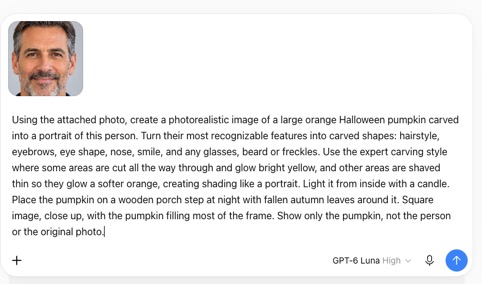
Three things make this prompt work:
- Naming the features (glasses, beard, hairstyle) tells the AI what makes this person recognizable. Without it, you often get a generic pumpkin face.
- The “cut through vs. shaved thin” line is how real portrait carvers get shading. It’s the difference between a pumpkin that looks like Uncle Bob and one that looks like a smiley face.
- “Show only the pumpkin” stops the AI from putting the actual person in the picture holding the pumpkin, which happens more often than you’d think.
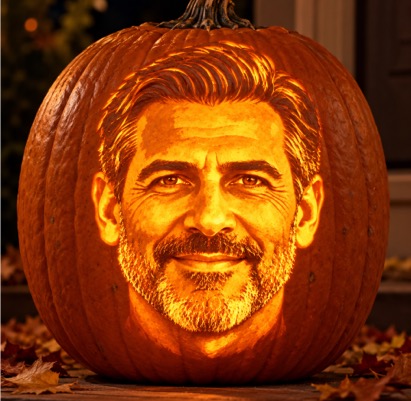
Scary face on pumpkin
Change the face carving into a scary version. From the first pass at the pumpkin carving add a prompt like this:
Make the expression menacing, with a jagged grin and sharp, angry eyebrows, lit with flickering red orange light.
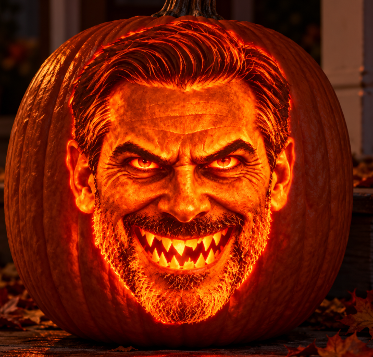
Exaggerated caricature of the face
Exaggerate what’s distinctive. Caricature artists know this trick. If someone has big round glasses or eyes, tell the AI to “emphasize” it. That’s what makes the pumpkin recognizable.
From the first pass at the pumpkin carving add a prompt like this:
Keep the image much the same but exaggerate the eyes as a caricature
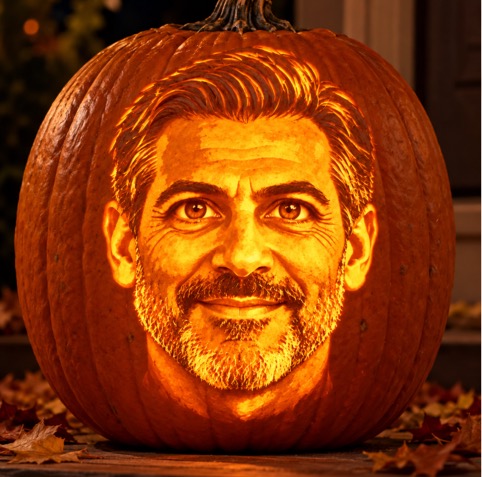
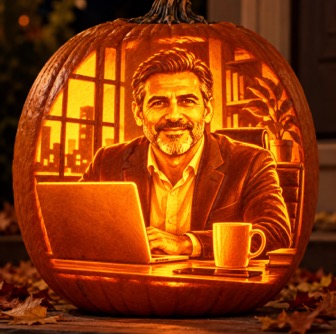
Office setting
For a Halloween office party try this.
Change the setting to:
Keep the pumpkin but change the setting to the man sitting at a desk in a modern office, next to a laptop and a coffee mug
More AI Pumpkin Carving Ideas
Add or swap a line to change the result:
Cartoon version: “Make it a fun cartoon illustration instead of a photo.”
The whole family: Attach several photos and add: “Create a row of carved pumpkins on a porch step, one for each person in the attached photos, in the same order I attached them.”
Other Halloween pumpkin tips
Start with a good photo. Face on, well lit, no sunglasses or hats, with the face taking up a good part of the frame. A normal phone photo is fine.
Fix it, don’t start over. Follow-up prompts with specific changes like “Make the eyebrows thicker,” “The hair is curlier than that,” or “Make the smile wider and show teeth.” The AI keeps the rest of the image.
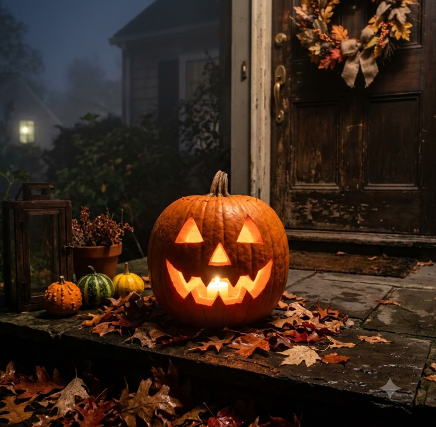
No photo? Get a classic carved pumpkin
For a classic carved pumpkin with no person involved try a prompt like this with changes to suit yourself.
A photorealistic carved Halloween pumpkin on a front doorstep at night, glowing from a candle inside. Classic spooky face with triangle eyes and a jagged toothy grin. Fallen autumn leaves, a few small gourds beside it, soft mist. Square image, close up.
Keep Going With Halloween and AI
If you want more Halloween graphics without writing prompts, Halloween Icons, Graphics and Pictures to Add to Word, PowerPoint and Outlook has the built-in icons, stock images and stickers you can drop straight into Word, PowerPoint or Outlook.
Microsoft Designer can do some of the same tricks in a different way. Remake Your Own Photos for Halloween walks through turning any photo into something spooky, and Spice Up Halloween with Microsoft Designer shows how to create animated Halloween graphics you can send or share.