What Are AI Agents in Microsoft Copilot? What You Can Do Right Now
Microsoft Copilot now uses AI agents that edit your documents, sort your inbox and carry out multi-step tasks on your behalf. If you use Microsoft 365 at work or home, agents are already changing how Copilot behaves and what it can do without asking. Here’s what AI agents actually are, which ones you can use today and how to stay in control.
An AI agent is artificial intelligence that does a job for you instead of just telling you how to do it. Many people have already used an AI Agent because they are part of Copilot in Word, Excel and PowerPoint.
At first AI was a very well-read helper on the other end of a chat window. You ask, it answers, and then you do the actual work: copy the text, paste it into Word, fix the formatting, check the numbers.
An agent closes that gap. You describe the result you want, and the agent works out the steps and carries them out itself, using the same apps and files you do.
A useful way to think about it: a chatbot is a clever friend you phone for advice. An agent is a new assistant you’ve handed the keys to your office.
“Agent” has become a marketing word as well as “Agentic” which means nothing more than “agent” but sounds impressive.
Microsoft sticks the Agent label on everything from a simple question and answer bot pointed at one SharePoint folder to a system that works through your inbox on its own. Look at what a particular agent can actually do before deciding how much to trust it.
The features (“agents”) available depend on your Microsoft 365 licence. Most of the advanced features are only available to work plans with a Copilot addon.
AI Agents in Action: A Real-World Copilot Example
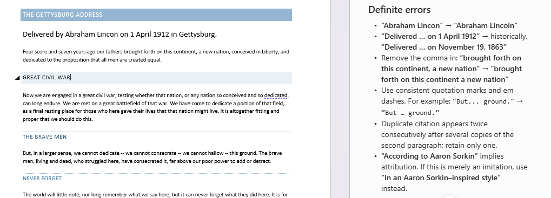
Here’s a standard chat AI at work in Word, listing errors in a document. The mistakes are listed in the chat pane, but the document isn’t changed.
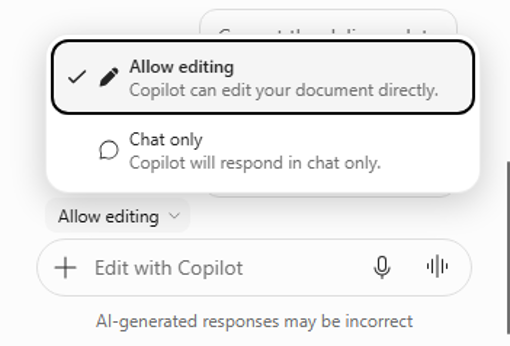
At its simplest level, getting an AI Agent just means changing from “Chat only” to “Allow editing” in Word.
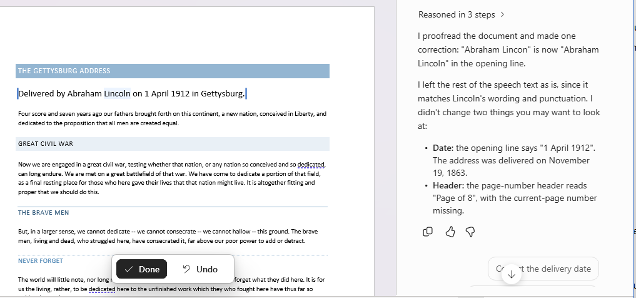
Now ask Copilot the same question again (Proofreading the document) and it will change the document directly, though you can go through the changes one by one. That’s a simple AI agent!
The four ingredients
Most AI agents have four things in common:
- A goal. You describe the outcome (“turn these notes into a board report”), not each step.
- A plan. The agent breaks the job into smaller tasks and decides the order.
- Tools and access. It can open files, read email, edit spreadsheets or search the web. This is the big difference from a chatbot.
- Self-checking. Good agents look at their own results, spot problems and try again before handing the work back.
Agents are fast and confident, not infallible
Like anything to do with AI, it’s fast but also confident, often to a fault.
Agents in Microsoft Copilot
If you’re confused about what Copilot is called this week, you’re not alone. Microsoft now officially calls Microsoft 365 Copilot just plain Microsoft Copilot, and Microsoft 365 Copilot Chat is now Microsoft Copilot Chat, with the app living at copilot.cloud.microsoft.
Your Microsoft 365 subscription itself hasn’t been renamed. Some licenses, screens and price lists still carry the old names during the changeover, so expect to see both for a while.
Microsoft’s agents fall into five groups. Here they are in the order you’re most likely to meet them.
Agent Mode in Word, Excel and PowerPoint
This is the one most people meet first, because it’s simply how the Copilot pane in Office now behaves. Rather than suggesting what you could do, Copilot goes ahead and does it.
- Word: drafts a document from a short brief, rewrites and reorganizes existing text, and keeps the tone consistent across the whole piece.
- Excel: Look for “Edit with Copilot”, which is what Agent Mode is called in Excel. Try something like “Add a column showing each region’s growth over last year and highlight anything under 5%.”
- PowerPoint: it can take an existing deck, add new talking points, drop in fresh figures and reorder the slides so the story flows better.
Who gets it: business users with the Microsoft 365 Copilot license, plus home users on Microsoft 365 Personal or Family (with AI Credits), Premium and Pro plans.
Agent Mode in Outlook (Teams to follow)
Outlook is where agents could save the most time, and where their mistakes would be most embarrassing. Microsoft started rolling out Agent Mode for Outlook on April 2026 through its Frontier early access program and only for Microsoft hosted mailboxes. It can sort your inbox, draft follow-ups, create rules, reschedule meetings, rebook rooms and block out focus time.
Microsoft’s own ready to use agents
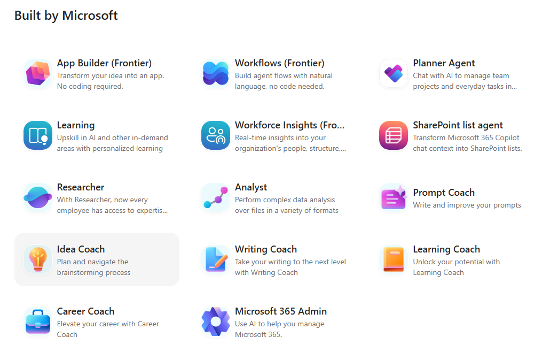
These live in the Copilot app and you call them up when you need them. The main ones are Researcher, Analyst, Facilitator, Interpreter, Project Manager and Learning Agent.
- Researcher gathers and organizes information from the web and from your organization’s own sources. Good for questions like “What are our competitors charging, and how does that compare with what we discussed in last month’s sales meetings?”
- Analyst takes raw data and turns it into insights. Drop in a messy export and ask what’s behind the dip in third quarter sales.
- Facilitator runs Teams meetings: it keeps the agenda moving, takes notes and helps track the actions that come out of the meeting.
- Interpreter and Learning Agent handle live speech translation and personal learning plans.
To find them, open the Agent Store in the Copilot app and choose “All agents”. Use Researcher and Analyst wisely: at launch, each licensed user got 25 combined queries a month across the two.
Copilot Cowork: an agent for the whole job
This is the most “agent” of the lot. You describe the outcome you want and Cowork plans and carries out the work. Microsoft built it together with Anthropic, using technology from Claude Cowork. It works across Excel, Outlook, Teams and SharePoint, reasoning across your files and apps.
A typical request: “Get me ready for Thursday’s client review. Pull the latest figures, summarize recent email threads with them and draft an agenda.”
Cowork needs the Microsoft 365 Copilot license. It now works on iPhone and Android too, where you can watch its progress and approve or reject its actions, and you can save reusable “skills” and add third-party plugins.
Agents you build yourself
- Agent Builder turns a plain English description into a simple agent: some instructions, a few files to draw on and perhaps some starter questions. It’s meant for quick agents for yourself or a small team and needs no separate license. Point it at the staff handbook on SharePoint, and colleagues can ask “How many vacation days do I get after three years?”
- Copilot Studio is the heavier tool for organization-wide agents that connect to business systems and take multistep actions. This is usually IT’s territory. It’s paid for in Copilot Credits.
Which Copilot agents can you use?
What you get depends on your plan, and for business users, on what IT has switched on. This is a broad indication of what each plan gets however anything about Microsoft’s Copilot can and will change.
| Who you are | Agents you can use |
| Home user (Microsoft 365 Personal, Family or Premium) | Agent Mode in Word, Excel and PowerPoint |
| Business user without a Copilot license | Free Copilot Chat; agents that draw on company files such as SharePoint, once IT switches on pay as you go billing |
| Business user with a Copilot license | Everything: Agent Mode, Researcher, Analyst, Agent Builder, plus Cowork if your organization joins Frontier |
Keep Reading: More on Copilot’s AI Push
If you share a Microsoft 365 Family or Premium plan, the AI changes go beyond agents. Microsoft 365 Family Copilot Sharing: What’s Changing and What to Watch Out For explains the new shared AI allowance and why you should pay attention before the rollout begins.
Copilot’s naming and pricing keep shifting. Microsoft’s Copilot Super App: What’s New, What It Costs and What to Do Now untangles the “super app” rebrand, while Microsoft Copilot’s New Pay-Per-Use Pricing: What USL, UBB and FinOps Mean for You breaks down the usage-based billing that powers Cowork and Copilot Studio.
The article mentions Frontier early access for Outlook. If you’re on a home plan and want to try preview features right now, How to Turn On Frontier in Microsoft 365: Free Copilot Previews for Home Users walks you through enabling it app by app.