How to use Excel’s Accessibility Ribbon
Excel has an Accessibility Ribbon to help you make changes to ensure that worksheets are easier for people with disabilities to read and edit.

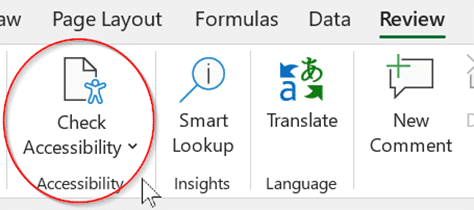
For some time, there’s been a Check Accessibility feature on the Excel Review tab. That opens a side-pane with suggestions for improving the worksheet.
Go to Review | Accessibility | Check Accessibility
The Accessibility Checker Panel is still on the right-hand side of the page plus an Accessibility ribbon.
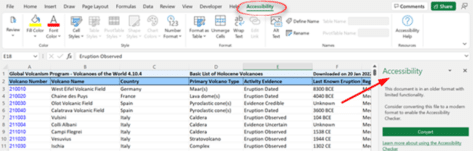
Accessibility Ribbon
The Accessibility Ribbon doesn’t have any new features, instead it’s a collection of existing Excel buttons and options which are commonly used to make suggested accessibility changes.
Review / Check accessibility
Brings up the Accessibility inspection results in the right pane.
Spelling
Spell Check for spelling and grammar mistakes, or you can press the shortcut F7 instead.
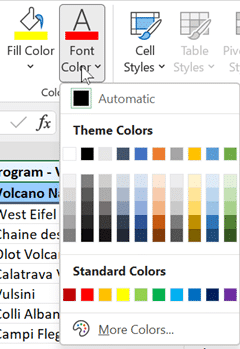
Color
Provides a shortcut to two different color tools – perfect to change up text within the Excel spreadsheet that might be hard to view.
- Font Color
- Fill Color
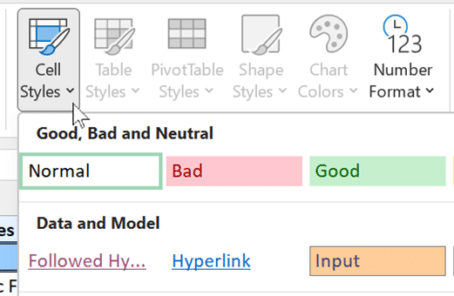
Style
Focuses on tools that assist with making a smoother and more effective screen reading process for those that can’t view the screen. Each style option has a variety of different colored themes to choose from, with certain themes based on light, medium and dark styles.
- Cell styles
- Table styles
- PivotTable styles
- Shape styles
- Chart Colors
- Number Format
Format
Quick access to a variety of format features in Excel.
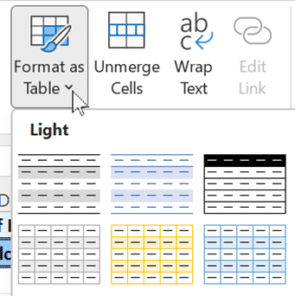
- Format as Table – ensures the work within the spreadsheet is formatted into a specific table with a chosen style.
- Unmerge cells
- Wrap Text
- Edit Link
Names
Provides quick access to name-related content in Excel.
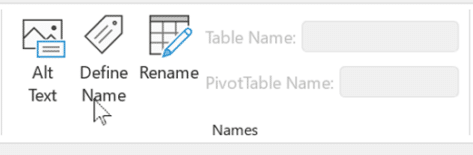
- Alt text – create text descriptions for objects for screen readers.
- Define Name – Define and apply names
- Rename – Rename the spreadsheet
- Table Name – Rename the table
- PivotTable Name – Rename the PivotTable
Resources
Provides help and assistance on the best accessibility practices for Excel spreadsheets including:
- Including alt text for visuals
- Using simple table structures
- Using sufficient color & contrast
- Adding meaningful hyperlink text and screen tips
Fixing common Office document accessibility problems
Clever solution for Singular/Plural in Excel
How does Microsoft Word handle non-binary grammar like they?
Excel’s Find All tricks for Windows and Mac