Linking text boxes in Microsoft Word allows content to flow automatically from one box to another, making it easier to design newsletters, flyers, and complex page layouts. This guide explains how Word’s text box linking works, its limitations, and practical tips to avoid common formatting problems when working with flowing text across multiple text boxes.
Linked boxes is a trick that’s common in professional publishing and layout tools like Microsoft Publisher. It was quietly added to Word 2010 and there’s some extra tricks available beyond simple linking of boxes.
Create Text Box Link
At its simplest, put two text boxes in a document. Click in the first one, then choose Format | Text | Create Link. The mouse pointer changes into a flowing cup to click into another text box.
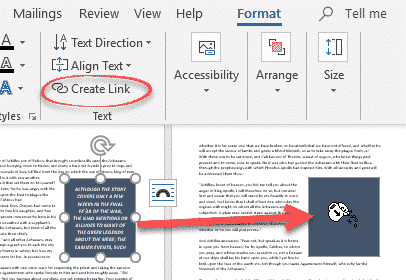
Now the unseen text from the first text box appears in the linked box.

All the text will automatically flow between the boxes as needed, for example if you change the text inside the boxes or change the size of the text boxes. No cut/paste or juggling of text required.
Empty the text box
The target or ‘linked to’ text box has to be empty and that includes the placeholder text Microsoft adds to every new text box automatically.
Delete that text before trying to link.
Copy the text box
Linked Text Boxes don’t have to look the same but usually do.
For consistency, we suggest making and formatting the first text box. Then duplicate (copy and paste) that box to other places in your document.
Text Boxes don’t have styles so changing the look of one box has to be manually copied to any others. If at all possible, format once then clone to other locations. The text inside a text box can (and usually should) have a style applied to it.
Linking more than two text boxes
Multiple text boxes can be linked to make a chain of three or more. Do that by selecting the last box in the current chain and linking it to the next empty box.
Sadly, there’s no way to link multiple boxes at once.
Text is a single linked block
The text in linked text boxes is treated as a single entity by Word. Click inside a linked text box and press Ctrl + A (Select All) will select all the text in all linked text boxes (and not select text outside the boxes).
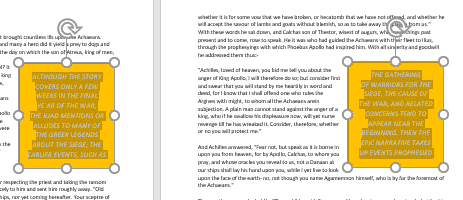
That makes it easy to reformat all the text.
But linked text boxes are not linked in other ways
Create Link only applies to text. Nothing else about the text boxes are linked.
A change in the look or size of a text box has no effect on any linked box.
Nor are text boxes grouped in the selection pane.
Break the link
To unlink text boxes, click in the first or source text box then Format | Text | Break Link.

Basic linking only
Word’s linked text boxes feature is largely unchanged from 15 years ago when it was added to Word 2010.
It’s limited compared to desktop publishing tools:
- No multi-column text chains
- Layout changes, shall we say ‘fragile’.
- Awkward for long documents
Changing Text Box backgrounds in Office
Make a Word text box with rounded corners
