Struggling with wandering headings, broken structure, and unwieldy long documents in Microsoft Word? The often-overlooked Outline View is the one tool professionals swear by to keep heading hierarchy and sections perfectly aligned. Unlike cosmetic formatting tricks, Outline View reveals your document’s true structure, makes it easy to reorganize sections without breaking formatting, and highlights hidden heading errors instantly.
Outline View doesn’t fix formatting problems by magic, it shows what Word is really doing underneath your document. For long reports, manuals, books, or anything with real hierarchy, that matters more than fonts or spacing ever will.
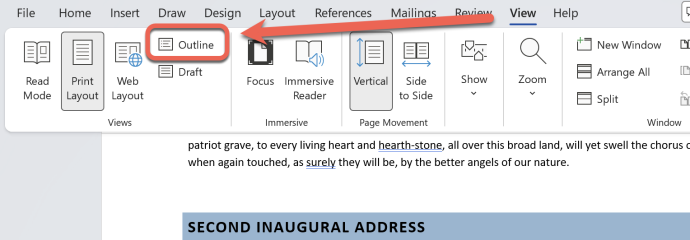
Sometimes the most important Word feature isn’t new. It’s just been waiting for you to notice it. Outline View has been in Word for decades, largely unchanged, because it already does its job. It keeps headings honest, structure visible, and documents sane.
What Outline View really shows
Outline View strips your document back to its structure. Headings appear as collapsible levels, body text hangs beneath them, and everything else that doesn’t belong becomes obvious very quickly.
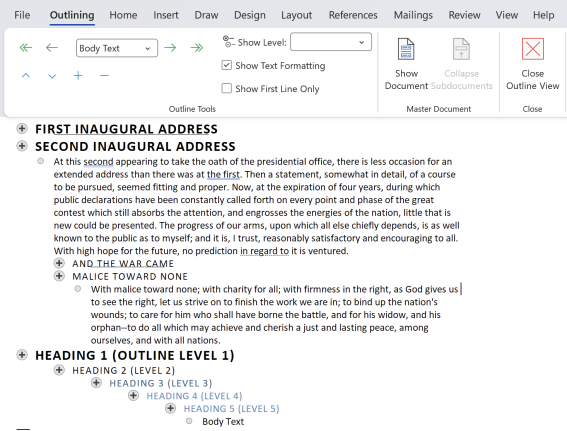
This view is entirely driven by Styles, specifically Heading 1 through Heading 9. If you’ve applied headings properly, Outline View instantly makes sense. If you haven’t, it exposes the problem.
OK, OK, that last paragraph isn’t entirely true. Outline Levels control what you see in Outline View. Heading styles (Heading 1 etc.) are usually aligned with matching Outline Levels (Level 1 etc.) but they don’t have to be. See Why Microsoft Word Headings Often Don’t Work the Way You Think (Understanding Headings vs. Outline Levels)
Master Documents via Outline View
Outline View is also the gateway to Word’s Master Documents
Why headings drift out of control
Most Word heading problems come from manual formatting—bold text, bigger fonts, extra spacing—used instead of Heading styles. On the page, that can look convincing. Internally, Word sees plain paragraphs pretending to be headings.
Outline View ignores the pretending. If text isn’t assigned a heading style, it doesn’t appear as a heading. That alone explains why tables of contents break, numbering jumps, and navigation becomes unreliable.
Outline View doesn’t cause those problems. It shows you where they already exist.
Moving sections without breaking anything
One of Outline View’s most powerful features is also one of its least known: drag-and-drop restructuring.
You can move an entire section—heading and all its content—by dragging the heading up or down. Word moves everything underneath it automatically. No cutting, pasting, or guessing where the section ends.
This works because Outline View respects structure, not page layout. It doesn’t care about where page breaks fall or how long a section is. It only cares about hierarchy.
That makes it far safer than editing in Print Layout when reorganizing large documents.
Collapsing the chaos
Outline View lets you collapse headings to show only top-level structure. This is invaluable for long documents where scrolling becomes meaningless.
You can:
- Show only Heading 1 and Heading 2 levels
- Hide body text entirely
- Expand one section while keeping others collapsed
In other words, you get a map instead of a wall of text. Word has no other view that offers this level of control.
Outlining ribbon
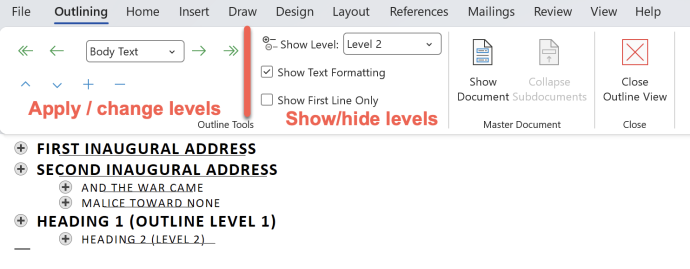
In Outline View opens a new tab “Outlining” with a large section called “Outline Tools” which isn’t very clear because it’s really in two parts. On the left there’s options to change or apply headings (outline levels) on the right changes what you see in Outline View.
Why Microsoft barely mentions it
Outline view has been somewhat superseded by two later Word features.
Navigation Pane sits beside the document showing the heading structure of the document, but lacks the control over which heading levels appear.
Expand / Collapse headings the little black wedge next to a heading will collapse or expand all the text underneath.
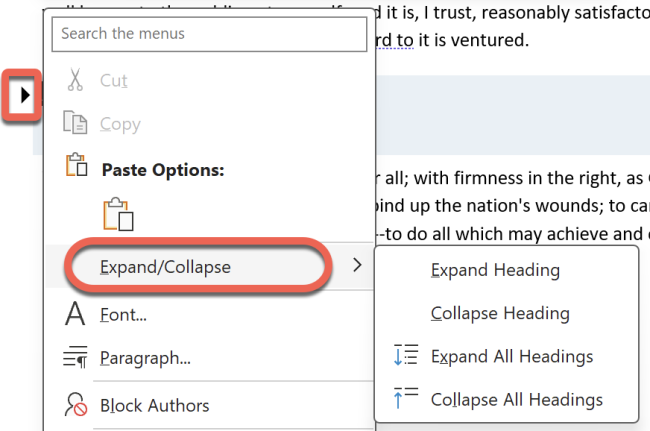
There’s also an Expand/Collapse right-click menu that lets you show/hide all headings. Like Navigation Pane, it’s an “all or none” choice.
Outline View doesn’t demo well in screenshots. It isn’t flashy. It doesn’t sell AI features. And it requires users to do something Microsoft has been quietly discouraging for years: learn how Word works.
Modern Word marketing focuses on ease, automation, and “just start typing.” Outline View assumes the opposite—that documents have structure, intent, and consequences if you get them wrong.
That makes it unfashionable. It also makes it indispensable.
When you should use Outline View
Outline View is not for letters or one-page notes. It earns its keep when:
- A document exceeds a few pages
- Headings matter to meaning
- Sections will move, grow, or be reused
- A table of contents is involved
- Multiple people are editing the same file
If headings matter, Outline View should be your first stop—not your last resort.
Speed up scrolling
If a large document is scrolling slowly then Outline or Draft view will help speed things up. Those two views don’t need to spend precious computer resources displaying pages exactly with correct fonts and positioning.
How to use Word’s Master Documents safely
