Word Compatibility Mode: what it means and how to get out of it
From early December 2026, Microsoft starts removing some old layout settings in Word, so documents created or last saved in Word 2010 or earlier may reflow, change page count or have pictures move. If you see Compatibility Mode next to a file’s name, it could be affected. Here’s how to get out of Word Compatibility Mode on Windows and Mac, and protect important documents first.
Say what you like about Microsoft (and we can say plenty) the company has always been big on backward compatibility. Microsoft Word can open almost any document made by the software going back decades.
That means you can have the latest Word 365 software and it’ll even open a .doc file made last century.
The fix is to convert the document. In Word for Windows that’s File | Info | Convert. In Word for Mac it’s File | Convert Document.
What Compatibility Mode actually is
Word has used the same compatibility level since Word 2013. If you open a Word 2013 document in Word 2016, you won’t see Compatibility Mode, because the two versions are already compatible. The same goes for Word 2019, 2021, 2024 and Microsoft 365.
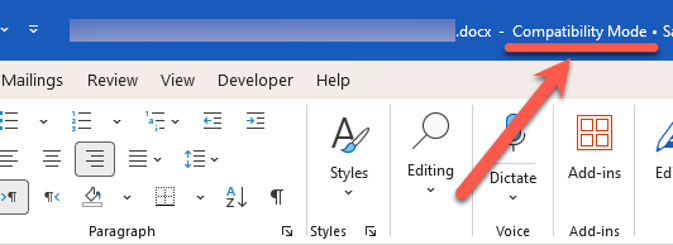
Older documents open in one of these modes:
- Word 2010 Compatibility Mode (.docx)
- Word 2007 Compatibility Mode (.docx)
- Old .doc files from Word 97 to 2003, which always open in Compatibility Mode
A .docx extension doesn’t mean the file is modern. A .docx saved by Word 2007 or 2010 still opens in Compatibility Mode.
What you’re missing depends on how old the file is:
- Word 2010 mode: in a Word 2010 mode document, you can’t use Add-ins (formerly Apps) for Office or embed online videos, because those need Word 2013 or newer.
- Word 2007 mode and older: Word 2010 features get downgraded. New numbering formats become plain 1, 2, 3 numbering, tables lose their alt text, and OpenType font features are removed.
- Comments: you can only mark comments as done (resolve them) in files using the current format, Word 2013 and later.
- Equations: Compatibility Mode also turns off newer features like inline equations.
Should you convert?
For almost everyone, yes. Support for Word 2010 ended in October 2020, Word 2013 in April 2023, and Word 2016 and 2019 in October 2025 and Word 2021 in October 2026. Anyone you share files with is almost certainly using a version that handles the current format. Even people with very old copies can usually open it: Word 2007 and Word 2010 can open .docx files created with Word 2013.
There are two good reasons to wait:
- Someone on Word 2010 or earlier needs to edit the file. After you convert, they might not be able to work with parts of the document that use features from newer versions of Word.
- The exact layout matters legally or contractually. Convert a copy, compare the two, and keep the original. Maybe add a PDF copy as well.
Warning: converting can change the layout. Converting clears the compatibility options, so the document lays out the way it would if it had been made in the current Word. Line breaks, page breaks and page counts can move, especially in long or heavily formatted documents.
Before you convert
A little insurance takes about a minute:
- Write down the page count and look over a few important pages or pages with more complex formatting.
- Export a PDF of the original so you have a record of how it looked.
- For anything important, convert a copy, not the original.
How to get out of Compatibility Mode in Word for Windows
These steps work in Word for Microsoft 365, Word 2024, 2021, 2019 and 2016.
Option 1: Save a converted copy (the safer choice)
- Go to File | Save As. In Microsoft 365, files with AutoSave turned on show Save a Copy here instead.
- Choose a folder and give the file a new name.
- Under Save as type, pick Word Document (*.docx).
- Uncheck “Maintain compatibility with previous versions of Word.” This step matters most. The box must be unchecked, or your new copy stays in Compatibility Mode.
- Click Save.
Option 2: Convert the open document
- Go to File | Info.
- Click Convert.
- Click OK at the warning.
- Save the document.
With Convert, there’s no backup unless you made one, while Save As makes a new file and leaves the original alone. There’s no backup unless you made one. For older .doc files, the Save As dialog may appear again. If it does, choose the Word Document (*.docx) format.
Find out which mode a document is in
Go to File | Info, then under Inspect Document choose Check for Issues | Check Compatibility. Click Select versions to show, and a check mark appears next to the document’s current mode.
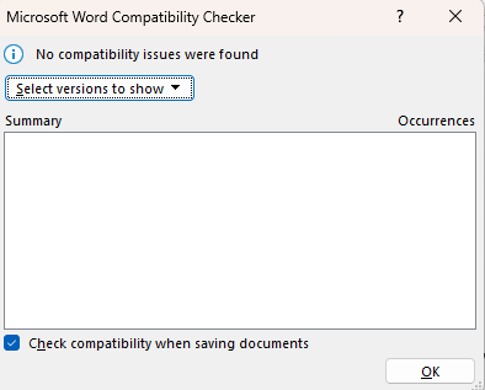
For simple documents there might be no compatibility issues, even though “Compatibility Mode” is showing on the title bar.
How to remove Compatibility Mode in Word for Mac
Word for Mac doesn’t have a File | Info screen, so the convert command is on the main menu bar at the top of the screen.
Option 1: Save As a new .docx
- Go to File | Save As.
- Give the file a new name, which keeps the original as your backup.
- In the File Format list, choose Word Document (.docx).
- Click Save.
Option 2: File | Convert Document
- Open the document.
- In the menu bar, click File | Convert Document.
- Confirm, then save.
The Convert Document command only appears on the File menu when the document uses an older version of the file format. If you don’t see it, the file is probably already current. Convert Document clears the compatibility options, and if the file is a .doc, it also upgrades it to .docx.
Word for the web
Word for the web lets you do most editing in a .docx that’s in Compatibility Mode. To insert or resize pictures, or edit alt text, you have to open the document in desktop Word, convert it and save it. Old .doc files open for viewing only, but when you choose to edit, Word for the web offers to convert them and saves a new .docx copy. For a .docx in Compatibility Mode, select Editing | Open in Desktop App, then follow the Windows or Mac steps above.
When every new document says Compatibility Mode
If even new, blank documents say Compatibility Mode, the cause is usually your Normal template or your default save format..
On Windows, check the default format first. Go to File | Options | Save | Save files in this format, and choose Word Document (.docx).
Then fix the template using one of these two methods:
- Convert the template (keeps your customizations): in Word, use File | Open to open Normal.dotm, convert it with the steps above, and save it.
- Windows: press Windows key + R, type %appdata%\Microsoft\Templates and press Enter.
- Mac: in Finder, press Shift + Command + G and enter ~/Library/Group Containers/UBF8T346G9.Office/User Content/Templates
- Start fresh: quit Word, rename Normal.dotm to something like NormalOld.dotm, then restart Word. Word then opens without Compatibility Mode because it builds a brand new template. Warning: your old customizations don’t transfer automatically. That includes custom styles, default fonts and any macros stored in the template.
Watch out for these
- Macros: a .docx file can’t hold macros. If an old file has macros you need, use Save As and choose Word Macro-Enabled Document (*.docm). Convert old .dot templates to .dotx, or .dotm if they contain macros.
- Some features are gone for good: saving in an older format permanently changes them, and converting later won’t restore them. For example, citations and bibliographies become static text that no longer updates.
- No bulk conversion: Neither Word for Windows nor Word for Mac has a button for converting many files at once. A folder full of old files means converting them one by one, or using a macro or a third party tool.
Coming soon: Microsoft’s Compatibility Mode change
Microsoft is removing some legacy layout settings for files created or last saved in Word 2010 or earlier. This happens automatically, reaching Word for Windows in early December 2026 and Word for Mac in early 2027. Old files may reflow, change page count or have images and shapes move. Compatibility Mode itself isn’t going away, and no data is lost. What this means for you: check your important old documents now, such as contracts, forms and templates, and convert them before the change arrives, keeping the original as a backup.
Office Watch has the full details: Word Compatibility Mode change could rearrange your old documents in December
Keep old Word documents looking right
If every new document opens in Compatibility Mode, the fix lives in Normal.dotm. Two ways to change document defaults in Microsoft Word explains what that template controls, and Two ways to change the default font and more in Word shows how to get your favorite settings back after starting fresh. For a full walkthrough that makes sure you open the template itself and not a new document based on it, see The ultimate way to change Microsoft Word defaults.
Converting can move line and page breaks, so it helps to know what holds a layout together: Why Word Layouts Break: Section Breaks Explained explains how section breaks control your pages. If your old files came from another country, Letter or A4 in Word: Two Ways to Switch Without Wrecking Your Layout helps you change the paper size without starting over.
Compatibility Mode is really a set of instructions stored inside the file, and What’s Really Inside a Word, Excel, or PowerPoint File (And How to See It) shows how to open one up and look around. To see just how far back Word’s backward compatibility goes, try This 1990 Version of Word Now Runs Natively on Windows 11, a fun detour.