FaceTypes: Free Font Identifier Finds Lookalikes You Can Use in Word
Spotted a font you like on a flyer, logo or client’s slide? FaceTypes is a free font identifier that suggests the closest free lookalikes, and every one of its 500+ fonts is cleared for commercial use. That means you can put the match straight into Word, PowerPoint or Excel for work, without buying a license or decoding the fine print. Your picture never leaves your computer, so it’s safe to use with confidential drafts.
FaceTypes (facetypes.xyz) currently lists 522 free and open-source typefaces, each one license checked, credited to its designer and linked to an official source. Nothing on the site costs money, and there are no paid plans.
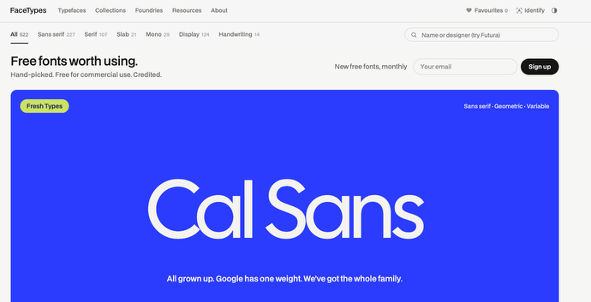
For Office users, that means a safe place to pick fonts for Word documents, PowerPoint decks and anything else headed to clients or print, without wading through the license fine print yourself.
What’s on the site
The font library
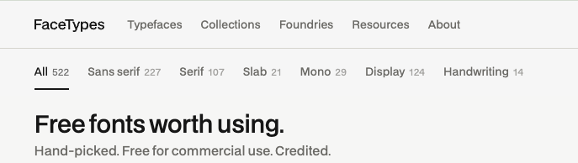
Six categories organize the collection: sans serif, serif, slab serif, monospace, display and handwriting. You can also browse by Collections and by Foundries (the studios that make the fonts).
Most of the fonts carry the SIL Open Font License or Apache 2.0, while a few rely on a foundry’s own free license. Both of the main licenses allow commercial use, embedding and sharing.
Roughly 50 sources feed the catalog, among them Google Fonts, Fontshare, Font Squirrel and GitHub.
Identify: find a free match for a font in a picture
This is the standout feature. Show it an image containing text and it suggests the closest free fonts.
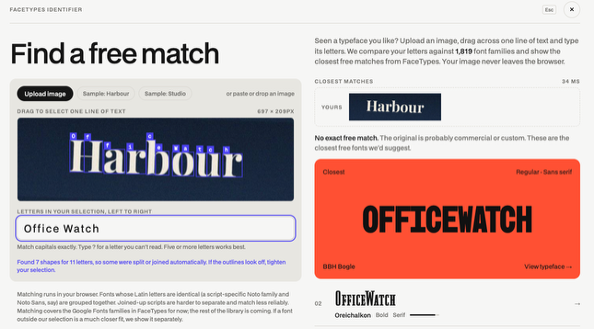
Your picture never leaves your computer, because the matching happens inside the browser. That’s good news if the image is a client’s draft or anything confidential.
Know the limits:
- Only the Google Fonts families in the library are covered for now, with comparisons drawn from about 1,800 font families. See Using Google Fonts in Microsoft Office.
- Cursive script fonts get less reliable results.
- It suggests free lookalikes. If the original is a paid commercial font, don’t expect it to be named.
Other features
- Favorites: a Favorites button with a counter sits in the header so you can shortlist fonts as you browse.
- Filters: dropdowns for source and language, plus a Filters button for OpenType features, italics, variable fonts, width and weight.
- New Arrivals: a section for recent additions called “Fresh Types”.
- Resources: extra design material split into Tools, Icons, Maps and flags, and Illustrations.
How to use FaceTypes
Find and install a font
- Go to facetypes.xyz and pick a category from the tabs under the header, or choose All.
- Use Filters to narrow things down, and Show more to load further results.
- Mark the candidates you like as favorites so you can compare them.
- Open the font you want and follow its link to the download source.
- On Windows, unzip the download, right click the font file and choose Install. On a Mac, double click the file and choose Install.
- Restart Word, Excel or PowerPoint. The font then appears in the font list.
See How to install fonts into Microsoft Office for more info.
Warning: an installed font lives only on your computer. Send the document to someone without that font and Office swaps in a substitute. See Font Embedding in Microsoft Office.
Free font identifier: find a match for a font in a picture
- Click Identify in the header.
- Upload a picture, paste or drop one in, or try one of the two samples provided.
- Drag across a single line of text, then type the letters shown, in order, with capitals matched exactly.
- Put a question mark in place of any letter you can’t read.
- Review the suggested matches.
Tip: five or more letters produce the best results. A tight crop of one clean line works better than a busy screenshot.
Make your new free font work everywhere
The identifier only matches Google Fonts families for now, so Free Google Fonts in Office: A Simple Step-by-Step Guide shows how to get any of them into Word, Excel and PowerPoint. Once you have a favorite, Google Font recommended pairing for Word and Office helps you choose a second font that sits comfortably beside it.
Before you install anything, How to install fonts into Microsoft Office explains the trap in the usual double click advice. About a third of the FaceTypes library is variable fonts, so read Beware variable fonts with Office and PDFs, and if a download only contains web font files, Using WOFF fonts in Microsoft Office shows what to do.
A new font is only safe to send if the other person sees it too. All about Font Embedding in Microsoft Word — make sure your document looks the same across devices walks through the settings, and Huge news for Office Mac users – font embedding! covers the Mac side.
Hunting for a free substitute for a famous typeface? Why Windows Replaces Helvetica with Arial — The Hidden Font Substitution Explained reveals the swap Windows makes without telling you.