Copilot Notebooks explained: what they are and who gets them now
Copilot Notebooks are quietly becoming one of the genuinely useful parts of the whole Copilot push, and Microsoft has now opened them up well beyond the expensive Copilot license. A Copilot Notebook is a workspace where you gather the files, pages and links for one project, then ask Copilot questions about only that material, which sharply cuts the risk of the AI making things up. Here is the plain English guide to what Copilot Notebooks do, the real catches Microsoft buries in the fine print, and exactly who can use them now including Copilot Chat and home subscribers.
At first look, Copilot Notebook looks like OneNote with AI grafted on. Microsoft pushes the collaboration angle and strangely underplays the big benefit of their Notebook product.
The big advantage of Copilot Notebook
Copilot Notebooks use AI but only with the files and web links provided.
That makes Notebooks a great option for all Copilot users, solo or with others. There’s almost no risk of the AI “hallucinating” (aka making stuff up) if the information sources are limited to your choices.
We have a practical example of a Copilot Notebook, see Copilot Notebooks: The Safer Way to Use Microsoft’s AI
Problems with Copilot Notebooks
Microsoft buries the bad news in fine print, when they bother at all. At Office Watch, we prefer to put the warnings up front.
We like the idea of Copilot Notebooks, especially the ‘sandbox’ feature where the AI is limited to the information provided. Mostly it works OK but there are concerns.
Notebooks suffer from rushed and incomplete implementation just like most of Microsoft’s AI products. Sharing is possible but the obvious and essential “View only” option isn’t available, presumably dropped in Redmond’s rush to release.
Copilot doesn’t always use all the sources provided, instead focusing on one or two to the exclusion of others. It seems to prefer uploaded or accessible documents over other sources. Web links are supposed to be available, but we could not get Copilot to access data on any of the linked pages.
Sometimes the Notebook stops working with an error message suggesting that the user “Refresh”, except there’s no Refresh button. Closing the web page or app and restarting might get the Notebook working again.
Hopefully it will get better over time but for the moment use Copilot Notebooks with caution and be prepared for frustrations.
What is a Copilot Notebook?
A Copilot Notebook is a workspace where you collect all the material for one project or topic, then ask Copilot questions about that material and only that material.
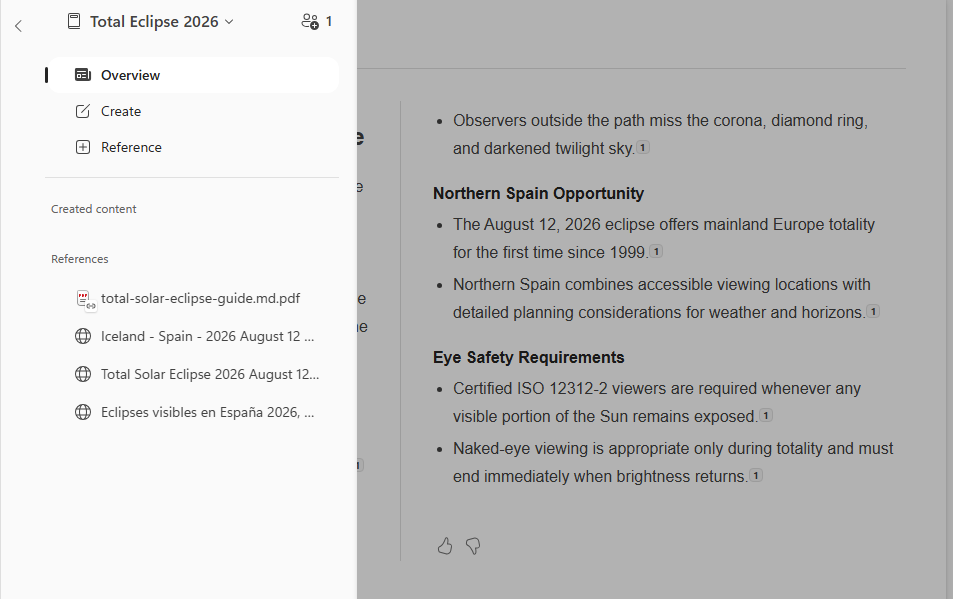
You add “references” to a notebook. These can be Word documents, PowerPoint decks, Excel workbooks, PDFs, OneNote pages, Copilot Pages, web links, emails and Teams meeting records including transcripts and shared files.
Copilot then answers questions, writes summaries and drafts new content based solely on what you have added.
That last part is the whole point. Regular Copilot Chat draws on the web or your entire work data, which can produce vague or off target answers. Even with web access turned off, Copilot can still go off on its own.
A Notebook is deliberately fenced in. Copilot will not pull in anything from the internet or the rest of your OneDrive, email or Teams chats. It works only from the references you chose. Microsoft’s pitch is that this grounding makes answers more accurate and reduces the chance of Copilot inventing things.
What can you do with a Notebook?
A Notebook suits any project with a defined pile of source material: getting up to speed on a project, digesting a set of long reports, preparing a recurring monthly update, or studying for anything. Documents, files, chats and links to web pages can all be added to a Copilot Notebook.
Once a notebook has some references in it, the options include:
- Ask questions. “What are the key risks raised across these documents?” or “Which action items came out of last week’s meetings?” Copilot answers from your references and shows its work.
- Overview page. An automatic summary of everything in the notebook, with key themes and topics. It refreshes on demand as the notebook grows.
- Draft new content. Emails, reports, plans and summaries grounded in your material. There are also Word and PowerPoint agents that build a full, editable document or slide deck from the notebook contents (currently in Microsoft’s Frontier preview program).
- Mind maps, flashcards and quizzes. Visual maps of how topics connect, plus study tools. Clearly aimed at students but also useful for getting up to speed on a new work topic.
- Custom instructions. Tell Copilot how to respond in this notebook, such as tone, format or level of detail, and it applies those rules to every answer.
- Share and collaborate. Invite colleagues into the notebook so the whole team works from the same set of sources.
Notebooks live in the Microsoft 365 Copilot app (look for Notebooks in the left panel at microsoft365.com) and inside OneNote on Windows, and they stay in sync between the two. OneNote’s iPhone app can even capture audio, whiteboard photos and typed notes in one session and turn them into a structured notebook page.
Notebook Golden Rules
Remember the golden rules for Copilot Notebooks
- Copilot only knows what you put in the notebook
- Do not delete a notebook you might want back
- Think twice before sharing one. Anyone with access can edit the Notebook, there’s no “Read Only” option.
Notebooks in OneNote
Notebooks can also appear in OneNote, look for the “Open in OneNote” menu item.
Who can use Copilot Notebooks?
As of mid-June 2026, Copilot Notebooks is available to more people.
Microsoft 365 Personal, Family and Premium subscribers. Home users get Notebooks as well, though some features such as mind maps and mobile Capture are missing from the consumer plans. This applies to Personal and Family plan owners only, and it draws on the monthly AI credits limit.
Microsoft 365 Copilot license holders. The full paid experience, including the premium features.
Copilot Chat users. This is the big change. Anyone with an eligible Microsoft 365 business or education plan gets Copilot Chat at no extra cost, and Microsoft began rolling Notebooks out to those users, including the Basic tier, in mid-June 2026. No paid Copilot license required. The difference: Chat users can only add standard sources (PDF, Word, Excel, PowerPoint files, Copilot Pages, images, audio and external web links).
Notebooks, like most Copilot stuff, is changing all the time. Our best advice is to check out Copilot Notebooks and see what’s possible.
Copilot Notebook catches
Copilot Notebooks are useful but far from perfect. Know these limits before you rely on one:
No “Read Only” sharing
This is the biggest problem. Anyone you invite gets full editing access. There is no view only option yet, and Microsoft’s FAQ confirms it: “Not currently.”
Worse, sharing a notebook automatically invites recipients to all the linked files inside it, so check what is in there before you hand out invitations.
“View only” sharing would let you compile information on a topic then invite others to ask questions.
Other Notebook limits
- 300 file ceiling. Copilot uses up to 300 files in a notebook when generating answers (50 in Copilot Chat). That sounds like a lot but point it at a big SharePoint folder and it silently picks the 300 files it thinks are most relevant. If a specific document must be considered, add it directly.
- Deletion is permanent. Delete a notebook today and it is gone, full stop. Microsoft says a recycle bin is in development, but until it arrives there is no undo. Be careful.
- No group sharing. Notebooks sit in a personal storage container tied to the creator’s account, so you cannot share with a Microsoft 365 group, and if the creator leaves the company the notebook follows their account lifecycle. Microsoft says a group managed option is in progress.
- No charts or images. Notebooks will not generate graphs or pictures. That still needs Excel or Power BI.
- Web links access. In our tests, Copilot didn’t reference the web pages linked into the Notebook. Only files and documents uploaded were used as sources. That should not happen. Check the sources used in Copilot responses.
- Are all sources used? Again, our tests showed that Copilot became fixated on some sources while ignoring other available and relevant source documents. Check the sources used in responses to make sure everything is being used.
Alternatives to Copilot Notebooks
NotebookLM aka Gemini Notebook from Google is the same product category, done first and arguably better.
Copilot Notebooks is a shameless clone of the Google service. Its real advantage is living inside Microsoft 365 with live file references and organization security.
ChatGPT Projects and Claude Projects are cousins rather than twins: workspaces that organize files, instructions and chats around a topic, but without the strict “answers come only from your sources” guarantee that defines both Notebooks products.
Copilot Notebooks: The Safer Way to Use Microsoft’s AI
Which Copilot Model Should You Use in Word? Auto, Claude or GPT
GPT 5.6 Arrives in Microsoft 365 Copilot, But Microsoft Hides What You Get
All about AI credits in Microsoft 365
Microsoft Forms: Old and New Tools to Draft and Fix Your Surveys
OneNote Open Links in Desktop App: Here Is How
Microsoft 365 Business Price Increase: Who Pays More in 2026