Just installed Microsoft 365 or Office on a new PC? Before you open a single document, do one quick thing: check for updates. We did a clean install straight from Microsoft using the standard “Click to Run” method, expecting the newest version, and within minutes an update check found fresh security and bug fixes waiting. Here’s exactly what to do right after installing Microsoft 365 or Office, plus which install option to pick.
We installed Microsoft 365 on a new computer a few days ago and found a little surprise.
The installation was done directly from Microsoft in the usual “Click to Run” method. Doing it that way isn’t just the correct and safe method; it’s supposed to provide the latest version … but the install wasn’t complete.
Install then update
Minutes after installation we did an Update check and, surprise! The software downloaded updates to supposedly current software.
This can happen with Microsoft 365 or Microsoft Office installations.
That should not happen. It seems the most recent updates (security and bug fixes) aren’t immediately integrated into the installation files. That leaves a version/build gap between the installed version and what’s completely up to date. That gap should not be a problem but it’s worth getting the installation right in the first place.
The lesson is simple. Even after a new install of Microsoft 365 or Microsoft Office, check for updates at File | Account | Update Options | Update Now. On a Mac, from any Office app go to Help | Check for Updates.
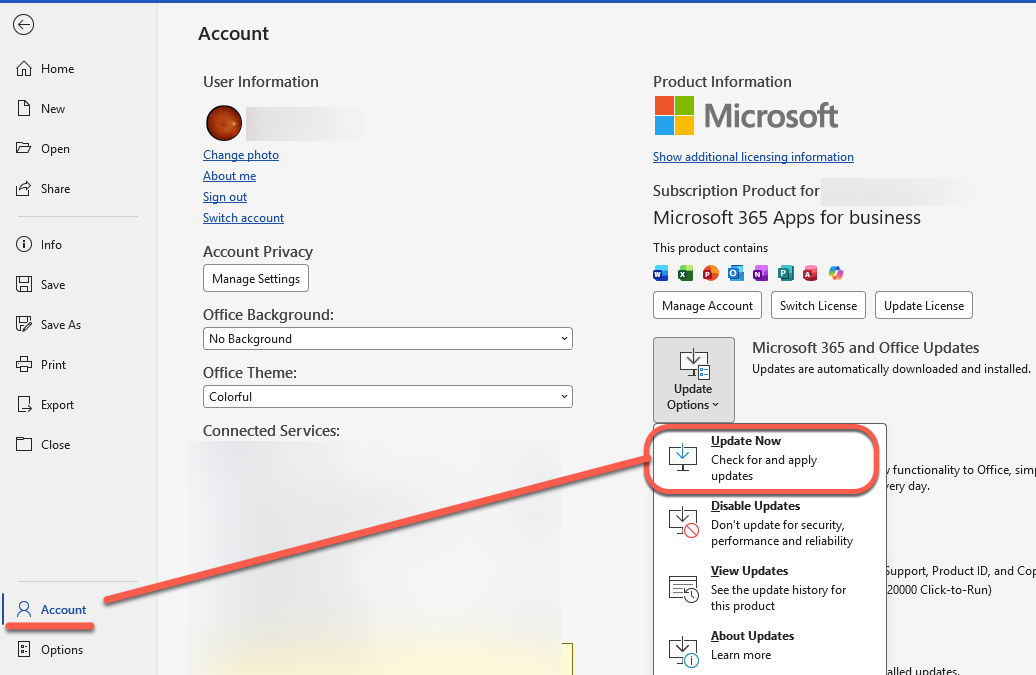
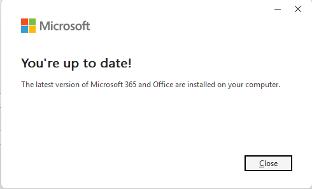
You might need to choose “Update Now” a few times before the update app appears. Hopefully it’ll say that the software is up to date, like this.
Or wait while updates are downloaded and installed. You can keep working while updates are happening but it’s likely you’ll be asked to close some Office apps to complete the update.
Which install to choose?
The Installation choices for Windows apps are still confusing.
The default choice is labeled: Microsoft 365 – Default version (default) which tells the paying customer nothing useful, with the word “default” used twice. Microsoft has used that unhelpful label for years.
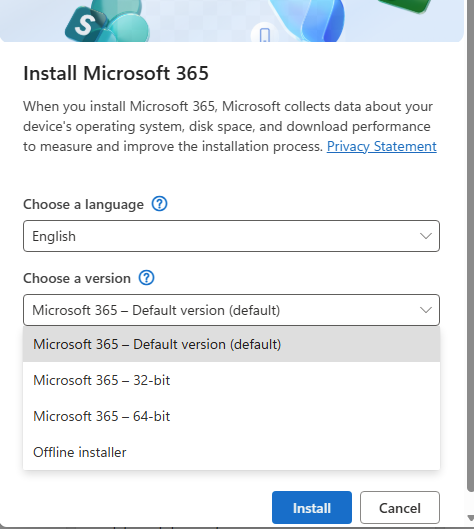
For customers, the choice is between 32-bit and 64-bit Microsoft 365. Almost everyone will want the 64-bit install except in unusual and special situations. Only older computers are 32-bit machines. Any computer with more than 4GB of RAM will be 64-bit.
Default version (default) – is probably 64-bit software but doesn’t say that.
Microsoft 365 – 32-bit – avoid unless you have a very specific reason.
Microsoft 365 – 64-bit – the choice for almost all users. Probably the same as the “default version” but choosing this means you know for sure.
64 bit software is better because it can use more memory and is faster and more secure.
Offline installer – a full download of all install files in a single download. Choose this if you’ll be installing Microsoft 365 or Office on multiple machines. The single download can be used on different computers, saving duplicated download time.
In short: choose Microsoft 365 – 64-bit unless you have some reason to choose either 32-bit or Offline options.
Microsoft quietly change the default install from 32-bit to 64-bit in about 2019.
Which Microsoft 365 / Office to choose: 64 bit or 32 bit?
Office: choosing 32 bit or 64 bit?
Office 2024: all you need to know
Microsoft Office support end dates checklist
Office 2021 Support Ends October 13: Your 5 Options Before the Deadline
Microsoft Kills Office 2019 for Mac: Apps Stop Working July 13, 2026
Microsoft 365 UK Discounts: What Students, NHS and Armed Forces Really Get
