MacOS 26 Finally Adds Clipboard History — But It’s Still No Match for Windows
After years of requests, Apple has introduced a multiple-item clipboard with macOS 26 “Tahoe.” The new Clipboard History lets users access recent copies via Spotlight, offering a long-awaited boost for productivity. But compared to Windows’ slick Win + V shortcut, Apple’s version feels clunky, limited, and far from the game-changer Mac users were hoping for.
Office Watch was interested in one particular Tahoe innovation, the new Clipboard History feature. Mac users have been frustrated by the lack of a multi-level clipboard like that built into Windows where you can press Win + V to see a list of recent items copied to the clipboard.
MacOS 26 boasts a “Clipboard History” but it’s a disappointment compared to the Windows version. The Tahoe Clipboard History is clumsy compared to the Win + V simplicity in Windows.
Multiple clipboard items lets you collect many items from a source, the paste them elsewhere without jumping “back n forth” for each item. A common use is to copy from a browser both the link/URL and the text title to paste into a document or email.
The new macOS 26 (Tahoe) was released yesterday, as was iOS 26 for iPhone and iPad. Note the new Apple numbering system by year. macOS has jumped from 15 (Sequoia) to 26 (Tahoe). Our usual operating system recommendation applies. Unless there’s something compelling you want in the new release, it’s wiser to wait a month or two so that any minor bugs can be fixed in the inevitable update. Wikipedia has a good summary of the changes in macOS 26.
Clipboard History is part of Spotlight
Clipboard History is accessed via Spotlight so first press Command + Space.

As you can see, Spotlight has more shortcuts, actions and filters than in the past.
We’re interested in Command + 4 to enter Clipboard Search.
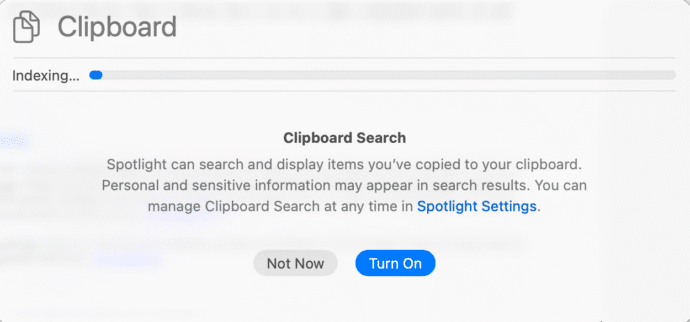
Faster Clipboard History shortcut
A faster way to access Clipboard History is Cmd + Space + 4 which bypasses Spotlight.
Paste from Clipboard History
To paste from the list of clipboard items press Cmd + Space + 4, select an item from the list.
Double-click to paste immediately.
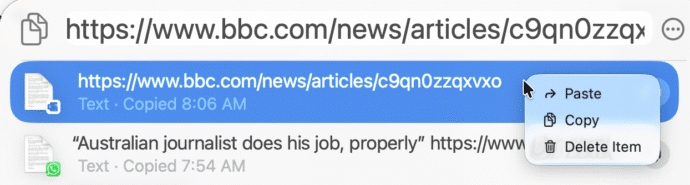
Right-click to see options to Paste, Copy (to clipboard) or Delete from the clipboard history.
Clipboard History handles text, web links, images and likely other content.
Search the clipboard
Clipboard History is searchable, just type into the top “Clipboard” box to narrow down the list.

File names aren’t searchable, we tried finding the two images (PNG) and they could not appear when looking for “png”, “2025” or other parts of the file name.
Clipboard History settings
Clipboard Search is OFF by default. Turn on from the main menu or from System Settings | Spotlight then scroll waaaay down to the bottom.

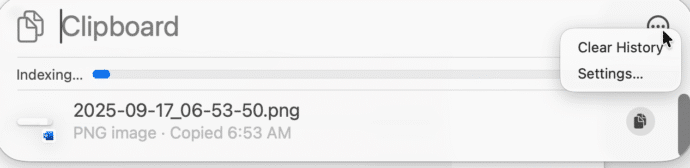
Or from the menu at top-right of the Clipboard History dialog, along with a ‘Clear History’ option.
Limits on Clipboard History
Clipboard History is limited to ten or more items (Apple is vague)
It will automatically delete clipboard items more than eight hours old. If there’s anything you want to keep, paste it to Notes, OneNote etc.
No pin or favorite option to keep commonly used clipboard items.
Universal Clipboard (sync with iPhone/iPad) is not supported for multiple clipboard items.
Alternatives
We’re disappointed with Apple’s attempt at Clipboard History. It’s not as elegant or powerful as the Windows version.
But it’s better than what we’ve had before, i.e. nothing.
If you have Parallels for virtual machines on a Mac, that includes a Toolbox of useful utilities including a Clip Manager with a pull-down list from the top bar. That utility has some other tricks like pasting date, time or saved items.
There are other macOS utilities that have better clipboard features too.
How to check what the clipboard is saving