Windows 11 Finally Cuts Off Legacy Printer Drivers, What It Means for you
Microsoft is officially pulling the plug on legacy printer drivers in Windows 11, and this time it’s not just another warning. Starting in 2026, older printer drivers will be blocked from updates as Microsoft continues its push toward modern, secure printing standards. The move will improve system security and reliability, but it could also leave some users and organizations scrambling to replace unsupported hardware.
After years of warnings, footnotes, and “not yet, honest” deprecations, Microsoft has finally started pulling the plug on legacy printer drivers in Windows 11. From January 2026, Windows Update stops delivering new V3 and V4 printer drivers. Existing drivers don’t vanish overnight, but the era of Windows quietly fetching old printer software for you is over.
This change lands with the January 2026 non-security update, and it’s exactly what Microsoft said it would do back in 2023, just now with fewer caveats and more consequences. Printer drivers built on the older V3 and V4 models are no longer published through Windows Update, and over the next 18 months even security-only updates will be wound down.
Microsoft insists this isn’t about breaking printers, and technically that’s true. If a legacy driver is already installed, Windows 11 will continue to use it. Vendors can still distribute drivers themselves.
But the convenience layer, automatic discovery, deployment and updating via Windows Update is being removed. For IT departments, that’s the part that hurts.
Why stop older print drivers?
The motivation isn’t hard to guess. Printer drivers have been a long-running security liability, most infamously exposed by the PrintNightmare vulnerabilities. The older driver models were designed for a very different Windows, one without today’s isolation, sandboxing and security expectations. From Microsoft’s perspective, keeping them in the update pipeline is an ongoing risk with diminishing returns.
This change also fits neatly with Microsoft’s broader push toward standardized printing. Windows 11 increasingly favours its own IPP class driver and “Protected Print” approach, where third-party drivers are sidelined in favor of a simpler, Microsoft-controlled stack. Fewer drivers means fewer attack surfaces and fewer support headaches for everyone, including Microsoft.
For users, the impact depends on how old their printers really are. Many modern devices already work fine with generic or IPP drivers and won’t notice much difference. Older hardware, especially in offices that rely on vendor-specific features, is where trouble may surface. A clean Windows install that once picked up a printer automatically may now come up empty-handed, requiring manual driver installs or vendor tools.
For admins, the message is clear even if Microsoft doesn’t say it loudly: audit your printer fleet, check which devices still rely on legacy drivers, and stop assuming Windows Update will take care of things. If a manufacturer hasn’t updated its driver strategy by now, it probably won’t.
This isn’t a sudden catastrophe. Printing will limp along for a while yet, but Windows 11 is steadily closing the door on the old driver model. Ignore it, and one day a printer replacement decision will be made for you, by Windows Update, through silence.
Is an ‘old’ printer driver installed?
Microsoft says customers should replace v3 or v4 printer drivers but doesn’t directly explain how to tell if they are installed.
There are two ways to find out what printer drivers are installed.
The quick, built-in way
- Open Settings
- Go to Bluetooth & devices | Printers & scanners
- Select the printer
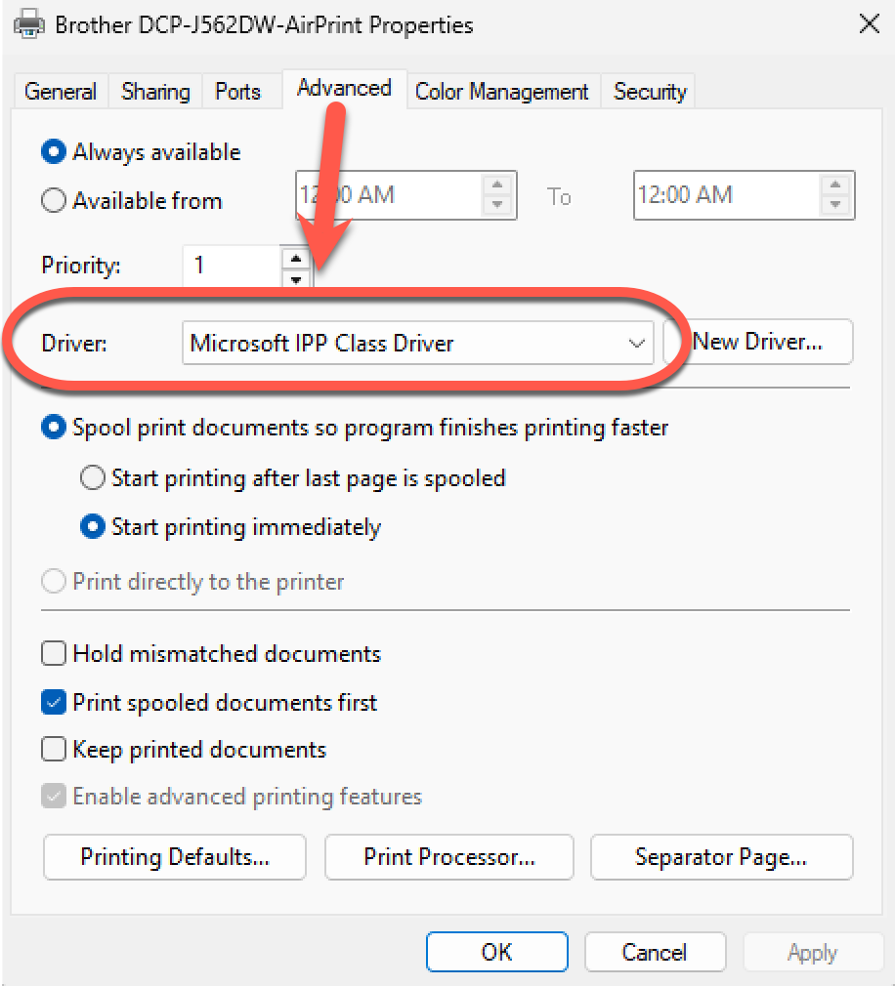
- Choose Printer properties (not “Preferences”)
- Go to the Advanced tab
Look at the Driver field:
- If it shows a traditional vendor driver name (HP, Canon, Epson, etc.), it’s almost certainly a V3 driver
- Something like: Vendor Model v4, that’s a V4 driver
- “Microsoft IPP Class Driver” – you’re good to go.
The clearer, more reliable way: Print Management
This method will explicitly say “Type 3” or “Type 4”.
- Press Win + R
- Type
printmanagement.msc - Press Enter
- In the left pane, expand Print Servers | [Your computer name]
- Click Printers
Scroll across to the Driver Type column:
- Type 3 = V3 driver
- Type 4 = V4 driver
This is the authoritative answer Windows uses internally. If you only check one place, make it this one.
If Print Management isn’t installed (common on Home editions), install it via
Optional Features | Add a feature | Print Management Console
Printing and PDF: Straight Talk is all about ‘publishing’ or ‘printing’ from your computer, either hard copy, paper printing or making and viewing PDF files. It’s a collection of printing and PDF tips and money saving advice gathered over twenty years of Office Watch.