Microsoft Forms New Sender Address: Fix Your Email Rules Before September 2026
Microsoft is changing the email address that Microsoft Forms uses for automated messages, and if you filter those emails you need to act. From mid August 2026, Forms notifications will arrive from no-reply@forms.mail.microsoft instead of maccount@microsoft.com. Any Outlook rule, admin mail flow rule, or spam filter tied to the old address will silently stop working, so Forms alerts could vanish into Junk with no warning. Here is exactly what to check and fix before the rollout finishes in early September 2026.
That assumes your organization isn’t already using a custom sending address with a custom or bring your own domain setup, which many organizations do. More on that below.
The change covers all the automated emails Forms sends: response receipts, notifications when someone submits a new response, and response monitoring updates. Microsoft expects the Worldwide rollout from August, to finish by early September 2026, with US government clouds (GCC, GCC High, DoD) following between early and mid-September 2026.
What does this mean for me?
For most people who just fill in or create Forms, nothing changes. The emails will look the same. They will simply arrive from a different address.
The people who need to pay attention are anyone who has set up rules based on the old sender address. That includes:
- Outlook mailbox rules that file or flag Forms notifications (for example, a rule that moves emails from maccount@microsoft.com into a “Survey Responses” folder). These rules will silently stop working once the new address takes over.
- Exchange Online mail flow rules (transport rules) set up by admins that reference the old address.
- Spam filters and allow lists, whether Microsoft’s own or third party tools, that trust the old address.
The word silently is the problem here. Nothing will break with an error message. Your rule will just stop matching, and Forms emails will start landing in your inbox, or worse, in Junk, without any warning.
What to do before September 2026
- Check your own Outlook rules for anything mentioning maccount@microsoft.com and add or swap in no-reply@forms.mail.microsoft. Keep both addresses in the rule during the transition, since the rollout takes several weeks and you cannot control exactly when your tenant switches over.
- Admins should search mail flow rules and filtering policies for the old address and update them the same way.
- Add the new address to your safe senders or allowed senders list now. There is no harm in doing it early, and it prevents legitimate Forms notifications from being flagged as spam after the switch.
- Tell your help desk. “I stopped getting Forms notifications” tickets in late August will almost certainly trace back to this change.
One thing worth watching
The new domain, forms.mail.microsoft, is one of Microsoft’s newer service domains that ends in .microsoft rather than .com. Some older or strictly configured email filters treat unfamiliar top level domains with suspicion, so if your organization runs a third party email security product, it is worth confirming it will not quarantine mail from this domain. Testing with a simple Form response receipt after the rollout reaches your tenant takes two minutes and saves guesswork later.
A small bonus for government clouds
GCC, GCC High, and DoD tenants get something extra out of this: admins in those environments will now be able to configure notification emails, an option that brings them in line with Worldwide tenants. Those notifications will also use the new sender address.
Setting a custom From address for notifications
The change to no-reply@forms.mail.microsoft doesn’t apply if the organization has set up their own notification address. This option defaults OFF and is separate from the setup for a custom or Bring Your Own domain.
In Microsoft 365 Admin go to Settings, Org, Organization profile, Send email notifications from your domain.
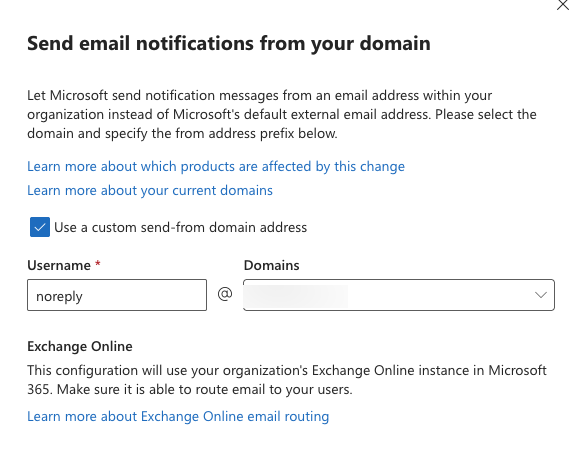
Any username can be used. The most common is “noreply”. Avoid using the name of a real mailbox unless you want to monitor replies.
This is a blanket setting. It covers Teams, SharePoint, OneDrive, Power BI, Viva, Copilot, Defender, and anything else Microsoft can think of.
The exception is one time passcodes from OneDrive and SharePoint sharing, which will still come from no-reply@notify.microsoft.com.
The setting can take up to 24 hours to take effect.
These emails now flow through your Exchange Online tenant and count toward sending limits and volume. That should not be a problem unless there’s a very popular Form or other service.
Make sure the domain has the proper DNS records for email validation: SPF, DKIM, DMARC, and MX records. If those records are missing or wrong, your custom sender notifications risk landing in Junk folders.
Microsoft Forms: Old and New Tools to Draft and Fix Your Surveys
The best ways to get Microsoft Forms results into Excel
Essential Microsoft 365 DKIM Setting: What You Need to Know
How to check if your emails are sent with DKIM
Unverified Outlook Emails: Why They Matter
Important changes for your Microsoft and Outlook.com email
Microsoft Mass Mailing New Rule Changes