A vital setting that Microsoft 365 admins should check now
All Microsoft 365 administrators should make sure this setting is completely ON to ensure emails are delivered and not marked as spam. It’s a setting many administrators might assume is already on but it’s not.
Some email hosts have started stronger enforcement of two email verification systems called SPF and DKIM. While the changed rules apply to bulk email senders (5,000+ messages per day), it’s a good idea for all Microaoft 365 users to have email verification properly setup.
In other words, DKIM has gone from being recommended to essential.
Both SPF and DKIM should be setup when a domain is linked to Microsoft 365 hosting but DKIM might not be fully enabled so we’ll explain how to check.
Microsoft has published a somewhat vague advisory about this saying “If action isn’t taken, email messages may not send to third-party email providers and return a NDR.” We’ve copied the advisory later in this post plus a quick ‘411’ on SPF and DKIM.
Check your DKIM settings at Microsoft 365
With a Microsoft 365 Admin account go to https://aka.ms/diagdkim That takes you, eventually, to a DKIM check like this.
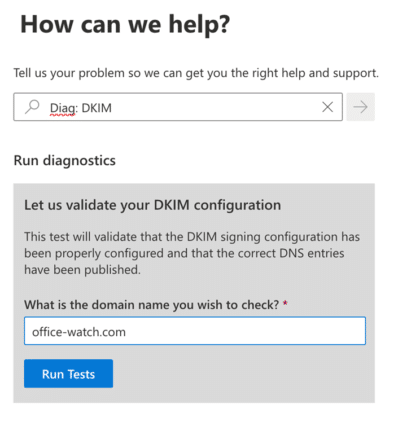
Type in the name of the hosted domain then ‘Run Tests’ and wait a little while.
It’s possible that you’ll get this confusing message.

That ‘key finding’ is trying to say that DKIM is setup for the domain but not enabled for outgoing messages. This might be a surprise to many who (understandably) thought that DKIM was being used all along.
Most likely DKIM is set in the DNS for the domain because it’s part of the Microsoft 365 setup routine. But nothing in the process tells you the vital extra step. Grrrr.
Sign messages for this domain with DKIM signatures
Go to https://security.microsoft.com/dkimv2 select the domain then click on it to make this pane appear.
If DKIM is setup in the DNS for that domain but not enabled you’ll see this:

Turn on ‘Sign messages for this domain with DKIM signatures’. After a short pause you should see ‘Enabled’ and ‘Signing DKIM signatures for this domain’.

Turning on DKIM signing will force a check that the two DKIM lines in your DNS record are correct.
If there are no DKIM lines in the DNS for the domain, you’ll see a notice “No DKIM keys saved for this domain” and either a button to ‘Create DKIM keys’ or a poorly written error message that includes the necessary DKIM settings.

Copy the two CNAME entries into your DNS record. It might take a little while for the domain changes to reach Microsoft’s systems. Once that’s done you can enable DKIM.
What are SPF and DKIM?
SPF and DKIM are two ways that have been added to the global email system to verify the sender of an email is really a user of that domain. Neither are perfect but combined they do make it harder for spammers. But it also means legitimate senders might not get their emails delivered if the settings aren’t right.
Most people don’t have to worry about these settings. If you’re using a decent mail host like Gmail or Outlook.com they control the domain name and manage these settings. In organizations the IT admins should ensure the two DNS settings are correct.
Anyone with a custom domain name for personal or small business is responsible for their own DNS settings including SPF and DKIM.
SPF
SPF = Sender Policy Framework publishes on the Internet (via DNS record) a list of the servers that are allowed or preferred for sending emails. Spam filters use the SPF info as one measure of whether an incoming email is legitimate or not.
DKIM
DKIM = DomainKeys Identified Email goes a step beyond SPF. It adds a digital signature to the email which verifies that the message came from the domain owner. The DKIM also confirms that some parts of the email have not been changed since it was sent. All these checks happen in the background so that both sender and receiver usually don’t know it’s happening.
You can test DKIM settings for a domain from web sites like: MXToolbox or Mimecast.
Microsoft advisory
(A NDR is a Non-Delivery Report or what us humans call a ‘bounce message’ that you should get when an email isn’t deliverable. Also sometimes called a DSN or Delivery Status Notification.)
https://admin.microsoft.com/Adminportal/Home#/homepage/:/alerts/EX711592

If action isn’t taken, email messages may not send to third-party email providers and return a NDR.
Action needed
If your admins have already confirmed that your organization’s DKIM, SPF, and DMARC records have been established already, and your users haven’t received the error code mentioned below in NDRs, then you can safely ignore this message.
We’ve received various reports from users that email sent to specific third-party email providers aren’t sending and return a “550 5.4.300 Message expired -> 421 4.4.2 Connection dropped due to SocketError'” error code within the NDR. This is stemming from a result from recent security related changes from said third parties to improve their resiliency against potential spam and other malicious email attempts. Part of these efforts now requires users to authenticate to DomainKeys Identified Mail (DKIM) and/or Sender Policy Framework (SPF), depending on your organization’s setup. For those who are bulk sending email, both DKIM and SPF are required.
Make sense of an Outlook email header
What does ‘Unverified’ mean in Outlook?