Microsoft Forms: Old and New Tools to Draft and Fix Your Surveys
Microsoft Forms Copilot has quietly turned one of the humblest corners of Microsoft 365 into a better survey and quiz builder. Copilot can now draft a whole form from a plain English prompt, suggest fixes to questions you already have, and even add basic branching, all inside one pane next to your form. Some of this is live today for anyone with a paid Copilot plan, and more is rolling out to commercial users right now. Here is what works, what is coming, and who actually gets it.
Firstly, a recap of the current Copilot features in Forms. Some form of paid Copilot plan is required but these features are available to both commercial and consumer Microsoft 365 customers.
Draft a Form with Copilot
Start a new Microsoft Form and there’s a Draft with Copilot box, similar to the one in Word.
Explain what you’d like to make, at least to start with.

Link to documents that have relevant information, for example a brochure about a new product or service.
In our tests, we discovered it was best to be specific about the number and type of questions.
Copilot will make a first draft set of questions. If you’re happy with those starter questions choose “Keep and continue with Copilot”. Remember this is a draft and everything is changeable.
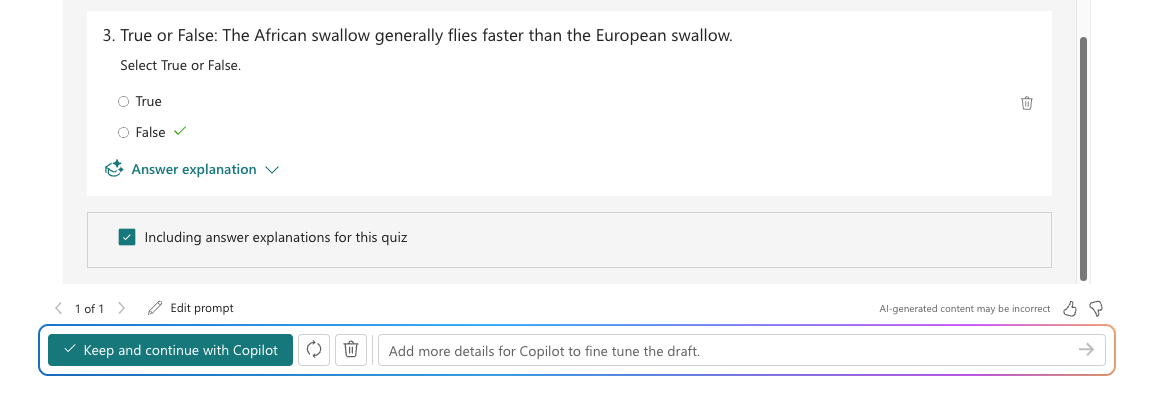
There are example questions, answers plus an answer explanation.
Now you have a “work in progress” quiz or form that you can edit in the usual way or ask Copilot to make more changes from the side-pane.
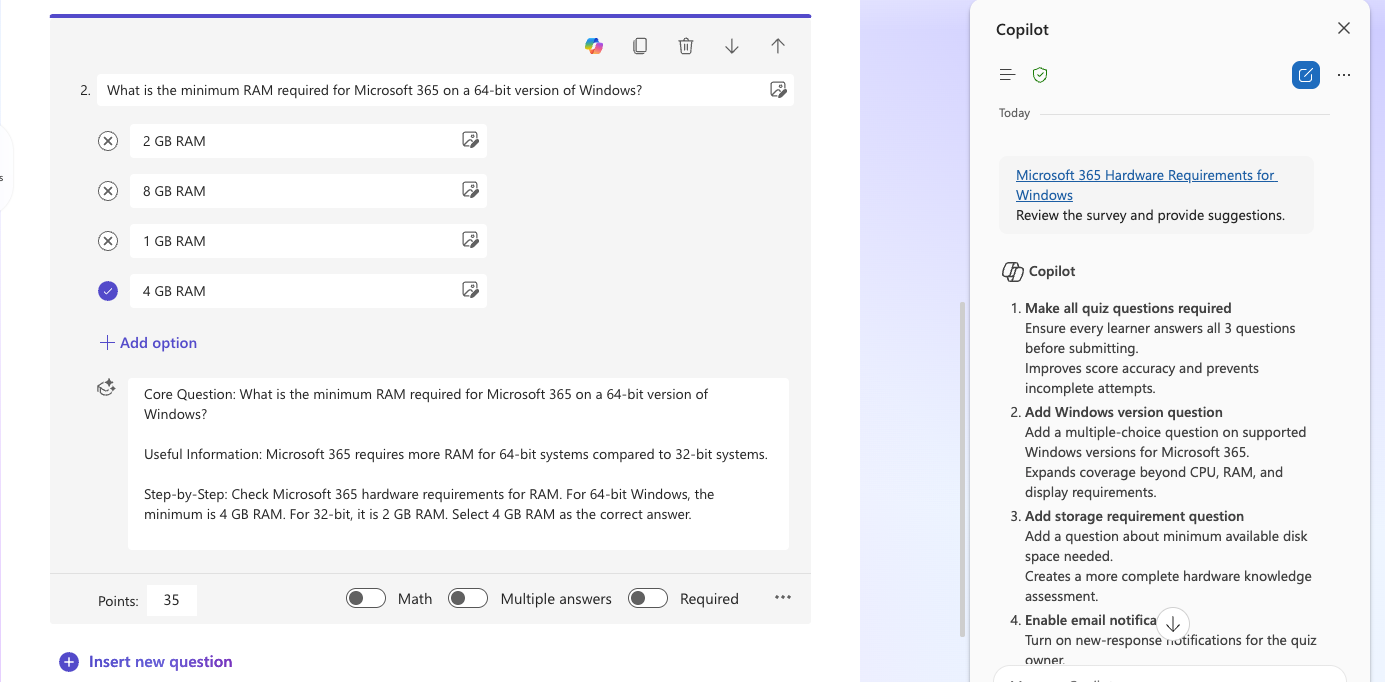
Just like AI in other situations, Copilot in Forms is a good starter for a quiz or questionnaire. It’ll get you past the blank form with some questions and options to edit and build from.
Form suggestions from Copilot
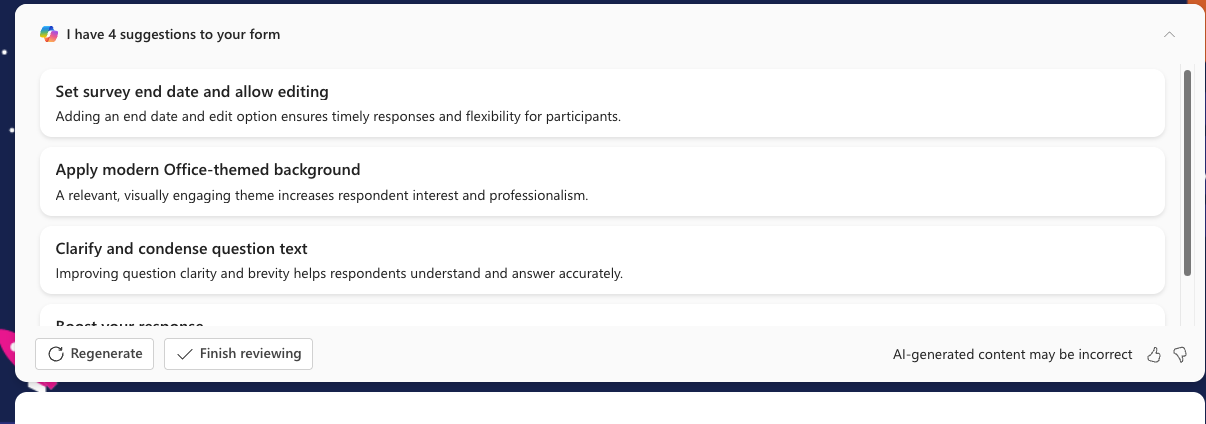
Opening a Form might trigger some suggestions from Copilot.
New URL for Microsoft Forms
There’s also a change in the main web link for Microsoft Forms.
Current Form links (e.g https://forms.office.com/) will continue to work and are redirected to the new domain.
That’s consistent with the other Microsoft 365/Office app links using the .cloud.microsoft domain. For example http://word.cloud.microsoft/ opens Word in a browser.
New for Forms with Copilot
There are more Copilot changes coming to Forms. It’s rolling out worldwide only for commercial users with a Copilot add-on. Microsoft is unreasonably vague about availability for Microsoft 365 consumers.
The changes make Copilot a lot more interactive with the current Form. Copilot can work with a Form in much the same way as it can with a document, sheet or slide deck. Nothing is revolutionary on its own. The value is that it’s all in one pane, with the form as context, so you’re not copying questions into a separate Copilot window and pasting the answers back.
Open or create a form or quiz at forms.cloud.microsoft (the new domain name) and you’ll see a Copilot icon in the lower right corner. That’s the same Dynamic Access Button that’s plagued other Microsoft 365 apps. Click it and a chat pane opens beside your form.
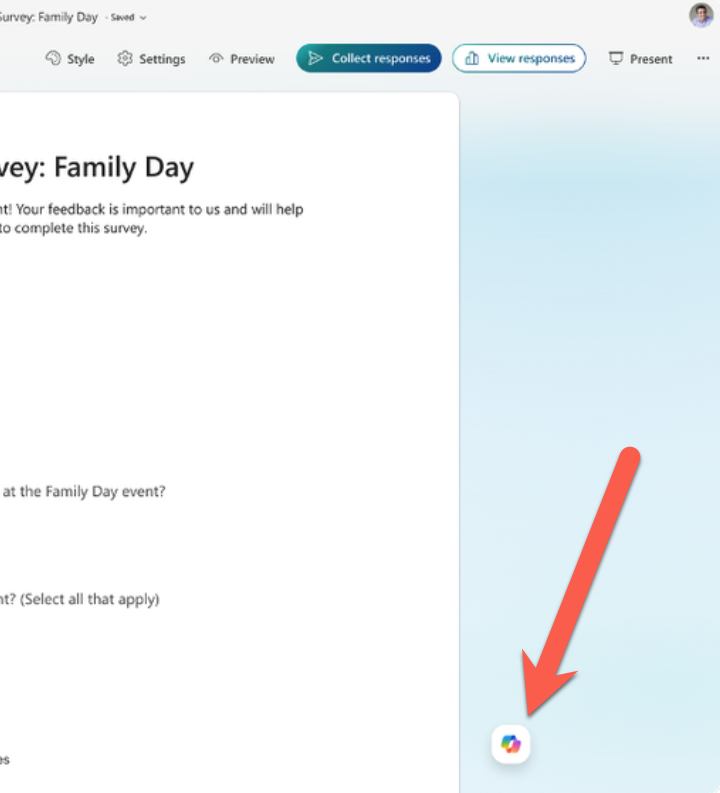
Copilot chat is linked to the form you have open. You don’t have to describe your survey to Copilot. It can already see the questions, the settings and, once responses arrive, the data.
Review and suggest improvements. Copilot looks at your layout, sectioning, missing questions and settings that fight with your form’s purpose.
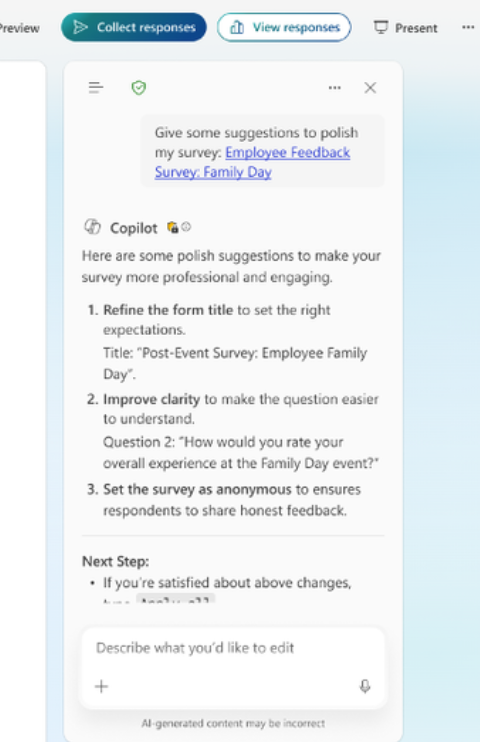
Basic branching. Copilot can apply simple branching logic. Microsoft openly says complex branching isn’t supported yet and tells you to check the logic yourself before sending.
Microsoft Fixes the Annoying Copilot Button with ‘Move to Ribbon’ Option
Microsoft cloud services move to a new domain for a good reason
Which Copilot Model Should You Use in Word? Auto, Claude or GPT
GPT 5.6 Arrives in Microsoft 365 Copilot, But Microsoft Hides What You Get
Build a Better Excel Workbook with Copilot: Smarter Prompts, Stronger Results
Why AI Is Almost Intelligent: The Honest Truth About ChatGPT and Copilot
Microsoft quietly swaps the AI inside Excel and Outlook
Microsoft 365 Copilot App vs Copilot App: What’s the Difference?