Checking in and out of documents for Teams isn’t well understood. Using it can end in tears with lost changes or a seemingly stranded document that’s not available to others. What is Check in / Out? In a multi-user environment where lots of people might want to edit a file
Track Changes in Word on the web has changed so that accept or reject an edit appears right next to the text. The Track Changes feature allows users to gain feedback from others working on the same document. Microsoft has recently introduced a new feature, cards that pop-up to allow
OneNote lets you change the size of the paper page, including adjusting the margin size of your notes from the default ‘Auto’ to a fixed size like ‘Letter’ or ‘A4’ among many. Although OneNote has a ‘default setting’ when it comes to paper size, you can adjust this using this feature, plus, it’s easy to do and won’t take you
Word has many options to make simple checklists that you can print out and tick with a pen (ink or digital). Plenty of formatting choices for the shape of the tick ‘box’, it’s color and size. There’s a simple shortcut to re-order the list. Previously we’ve discussed how to make
Redo is the often-forgotten partner to Undo. It’s mostly used to ‘undo an undo’ or reverse the last ‘Undo’ action but ‘Redo’ has other uses in Word, Excel, PowerPoint and Outlook. In most cases, you use the redo button to revert to a previous state. For example, if you used
Android users with the Office mobile app also has a voice recording and transcription option. It’s a step up from a simple voice memo, offering live speech to text transcriptions, as well as synced text highlighting during audio file playbacks. Recordings can be exported to other Office 365 apps.
Excel and Wolfram have teamed up to produce a handy interactive Periodic Table Template, useful for those searching for an introduction to chemistry, or a handy guide for study. The table lets you easily access information on elemental properties, chemical compounds, diagrams and more. You can download or open the
Sometimes text formatting can get confusing in Word, PowerPoint, Outlook, Publisher and OneNote. There are several ways to clear the additional formatting and return to original settings. The formatting styles in your text can be easily restored to their default settings by clearing all formatting. Users can waste a lot
There are many online tools that will summarize or paraphrase a long Word document into something shorter and more readable. These five tools also have other uses. Originally, Word 2007 had an Auto Summarize feature, but it was dropped in Word 2010, so Word users will need to rely on
Good news iOS users, if you’re a Microsoft 365 subscriber, you now have access the premium content library. Take your Word, Excel, and PowerPoint creations to the next level with thousands of royalty-free images, icons, stickers, and illustrations. Here’s how it works Tap Insert | Pictures | Stock Images on your iOS device,
Numbered or bullet lists don’t have to look the way Microsoft sets automatically here’s how to change them to suit your needs and style. In Microsoft Word, it is simple to create a numbered or bullet list. Simply select your text | Home Tab | Paragraph Group| Select the Numbering
There are two exponential function options in Excel. Like many things in Excel, what looks simple has some traps for the unwary. We’ll explain why the Power() and ^ don’t always give the same or even correct result. Exponentiation is an operation in mathematics, written as an, involving the base
Let’s imagine you’re in Word’s Print Preview and you’ve suddenly noticed an error in your document. You close print preview to make the change, then you go back to print preview again or you can discover Print Preview Edit Mode. Print Preview in Word has all sorts of goodies for
XMatch() function in Excel locates an item in an array or range of cells, then returns its position relative to the item. It’s similar to XLookup() which returns the cell value while XMatch returns a relative position in the array. Syntax =XMATCH(lookup_value, lookup_array, [match_mode], [search_mode]) Arguments Lookup_value – the value to find. Lookup_array
Excel can use past data to project possible future results with the Forecast feature. It’s a very simple version of statistical ‘modelling’. The Forecast function will let you predict future values and data trends, such as consumer trends, future sales and or inventory needs, based on seasonality. Here’s a simple guide on how to use the Forecast feature. Although
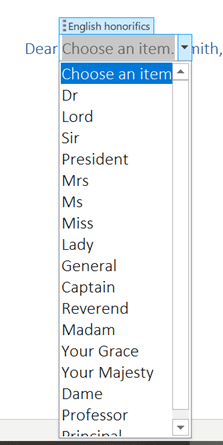
Previously we talked about How to add a Drop-down List in Word, but you can also work more efficiently in Excel worksheets by making use of drop-down or pull-down lists. We will show you how to use Microsoft Excel’s data validation function to create useful lists within your spreadsheets. How to avoid the trap that lies waiting for the unwary
Excel 365’s nifty LAMBDA feature is getting an interesting, literally optional, improvement plus ‘Helper’ functions to extend its usefulness. LAMBDA, a powerful tool that allows users to create their own Excel 365 custom functions without VBA. The feature allows longer formulas to be written once then referenced in a worksheet to a shorter name of the user’s choosing. LAMBDA isn’t just another Excel function, it’s an important change in how
There’s another way you can force a page break before a paragraph in Microsoft Word. By setting this up, the page breaks can automatically appear without you having to worry. This is particularly useful if you have long documents with several different headings. Just simply modify the style to include
Interactive checkboxes can easily be added to your Word document for a variety of uses. Perhaps you need to create a to-do checklist to help monitor the completion of tasks on top of a collaboration document, or make it simpler for users to read and complete surveys or forms. Either way, we will provide
Outlook’s Folder Pane displays all folders which lets you quickly move between folders and views. Minimise the Folder pane, you will no longer be able to see your folders. As a result, some users get puzzled as to how they can bring back the expanded Folder Pane view. There are a few ways that
Not only can Teams share Word, Excel or PowerPoint files, but you can also make new documents right in Teams or upload existing documents. Create a New File You can easily create a new file within Teams for Word, Excel, PowerPoint or OneNote from the New pull-down list at left.
Excel’s PivotTable allows you to evaluate trends, comparisons, and patterns within datasets. Once a PivotTable is setup, you can filter “Drill down” into it to focus on key information. These days there are several ways to filter a PivotTable, Slicers (which Microsoft loves to boast about), AutoFilter and by Field
Teams makes it simple to share files and collaborate. If you are working with Word, Excel, PowerPoint, or Visio files, your coworkers may read, edit, and collaborate on them directly from Teams. The different ways to open a document in Teams. Files Access Within Microsoft Teams, each Channel has a
While OneNote is very flexible, especially with pages, there’s an overall structure from Notebooks to Sections, Pages, sub-pages and containers. NOTEBOOKS OneNote is based on a series of notebooks. You can make notebooks for any topic you like. One for personal or diverse notes. Others for work, a hobby, subjects