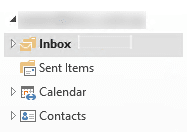
Outlook – see more with the Folder List
The default Outlook Navigation pane isn’t meant for you, it’s intended for absolute beginners to the program and to reduce the number of support calls. Once you’ve started to use Outlook, it’s time to change the way it looks to suit you, not some corporate agenda from Microsoft. Take off the training wheels.
Favorites
The Outlook Favorites is a nice idea and may work for some people. Others prefer to have a single list of folders rather than switch between the full folder list and a partial favorites list, it depends on how you use Outlook and how many folders you access.
Favorites does give you a place for popular folders from different mailboxes. Here’s Outlook favorites with three Inboxes quickly accessible.
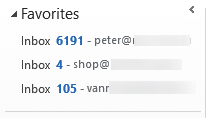
If you have limited Outlook use then making your Outlook folders ‘Favorites’ makes sense, but most people need more than that.
Folder List
To see the full folder list, choose ‘Folder List’ from the navigation buttons at the bottom. Most likely it’ll be in the extension menu of the buttons; click on the ‘three dots’ at right to see the rest of the options.
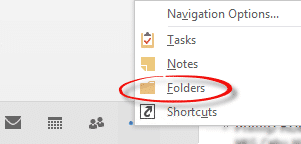
You can change the order of the icons from the Navigation Options menu item on the same right-click menu. We move the Folders icon to the left position.
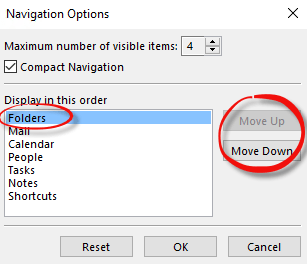
Now you have a single list of Outlook folders. For Outlook 2007 and earlier the folders were in alphabetical order.
Outlook 2010 and later have a different order for folders with them grouped together in a somewhat logical fashion. Even better, you can ‘drag n drop’ the folders into an order that suits you (only within a mailbox). You can put your most popular folders at the top of the folder slot and leave the others nearer the bottom.