Outlook checks for incoming attachments like .doc .xls .ppt
We’ve warned against incoming ‘old’ Office documents (.doc .xls etc) because of the virus risk, so how can you setup Outlook to warn you about emails with those attachments?
Sadly, it’s not easy. Outlook has automatic Rules to check incoming messages, but none of those rules can test for the file extensions on email attachments.
You can test if a message has an attachment but there are no rules specifically to test file names in attachments. There’s a similar limitation in Outlook search, Microsoft has ignored requests for better file name testing/searches despite their talk about the importance of security.
We’ve found a tolerable workaround. It’s not perfect but will serve for most people. For an accurate test you resort to VBA, we’ll explain both options.
The ‘almost’ Outlook Rule for attachments
Outlook won’t let you specifically test for a file attachment name, but you can check the message header. The message header should have the names of file attachments.
Unfortunately, the message header has other information like the Subject line so any test on the header may pickup unwanted ‘false positives’. For example, testing for ‘.doc’ in the message header will detect a message with the subject “Beware messages with .doc files”.
Since the rule may find extra, non-applicable, messages, whatever rule action you choose should be either a warning or reversible.
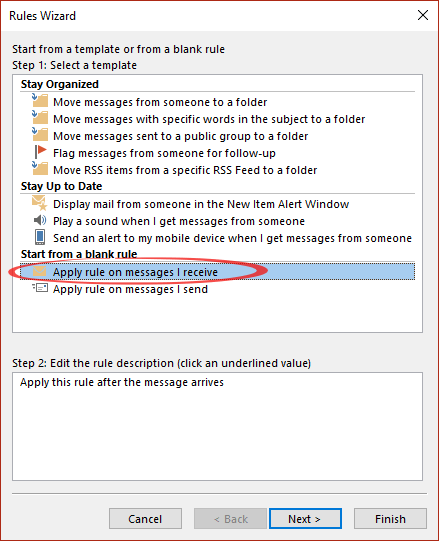
To make the rule, go to Home | Rules | Create Rule | Advanced Options or Rules | Manage Rules and Alerts | New Rule. If you see the Rules Wizard, choose ‘Apply rule on messages I receive’.
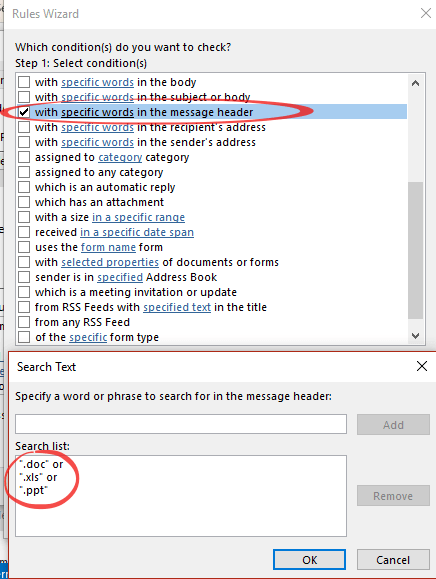
On the next wizard pane, choose ‘Specific words in message header’. For the specific words, add the file extensions you want to check for, including the dot/period.
In this example we’re just showing the three main ‘old’ format extensions. There are others that a comprehensive test should include.
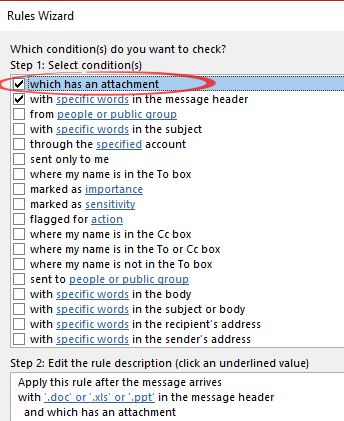
After entering the file extensions, you’ll see something like this in the wizard pane:

Then add the condition ‘which has an attachment’ to ensure that only messages with attachments are detected.
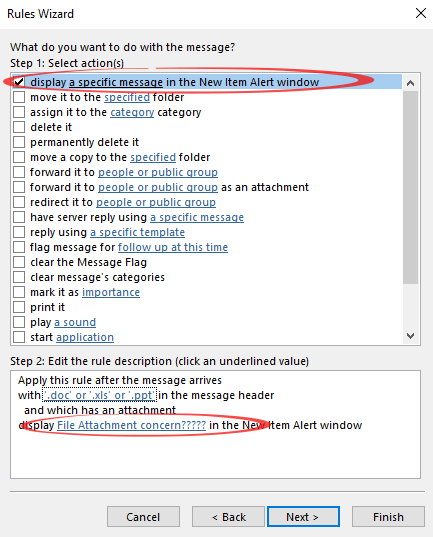
The next part of the wizard selects the action to take. As we mentioned before, the rule isn’t 100% perfect so it’s better to display a warning rather than something that’s easy to overlook or hard to reverse like deleting the message.
Here we display a message to warn you about the newly arrived message.
Other options might be to move the suspect message to a special folder like ‘Possible bad attachments’ or assign it to a special category of the same name.
The Next pane of the Rules Wizard covers exceptions to the rule. In this case, you might want to allow certain, trusted, people to send ‘old’ documents.
At the end of the rule creation, you can test the rule against existing messages in the Inbox or other folder.
Conditional Formatting?
You might think another way to highlight messages with suspect attachments would be the ‘Conditional Formatting’ option in Outlook Views. Alas, the conditions don’t have a ‘Message Header’ option similar to Outlook Rules (at least, we can’t find it).
The VBA solution
To get a more precise text of attachment file names, you need VBA.
David Lee has written some code that will test file attachment extensions and perform actions on those messages. If you look through the comments, you’ll see that David has gone to some trouble to answer questions and provide variations of the code for certain situations.
Line 6 of his first example is the key to testing attachments. He’s checking the last 4 characters of the attachment name. In his example it’s .zip files:
If Right(LCase(olkAtt.Filename), 4) = ".zip" Then
For our purposes change ‘.zip‘ to ‘.doc‘.
To test for multiple file attachments add conditions to the line:
If Right(LCase(olkAtt.Filename), 4) = ".doc" OR Right(LCase(olkAtt.Filename), 4) = ".xls" OR Right(LCase(olkAtt.Filename), 4) = ".ppt" Then
Line 8 is the action taken, in this case, moving the message to the Junk Email folder.
Item.Move Session.GetDefaultFolder(olFolderJunk)
If you prefer moving to the Deleted Items folder change olFolderJunk to olFolderDeletedItems
David’s page has instructions on how to add the code and run it. The code is run within an Outlook Rule. There’s a rule action to run a script, which in this case is the VBA code.
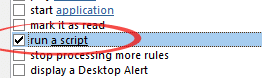
Macros have to be enabled in Outlook for this to work.
Frankly, this option is probably more trouble than it’s worth but you’re welcome to try.
Why Old Office documents should be banned
Beware .doc files in emails