How to Install Outlook Classic on Windows Instead of New Outlook
Microsoft now installs new Outlook by default with every fresh Microsoft 365 setup on Windows, but you do not have to settle for it. Outlook Classic is still available as a free download from Microsoft, and you can install it easily. If you rely on offline mail, established add ins, or just want a finished product instead of a work in progress, here is exactly how to get the real Outlook back on your PC in a few minutes.
These days new installs of Microsoft 365 for Windows deliver Outlook (new) by default. Outlook (classic) is only available ‘on request’ if you know how to get it.
This change does NOT affect existing installations. If Outlook (classic) is on a computer, it’ll stay there and be updated.
Confused? Too many Microsoft Outlook’s – we explain them all
Office Watch continues to recommend Outlook (classic) for Windows especially for any laptop that’s offline with no Internet access. Anyone using a non-Microsoft mailbox (like Gmail, Yahoo etc) should stick with classic Outlook for better privacy.
There’s no good reason for paying customers to be free software testers of new Outlook. Ignore Microsoft self-centered enthusiasm for new Outlook, it’s still a work in progress. In particular it’s supposed ‘offline support’ is weak – and that’s being polite.
Microsoft continues to push the new Outlook directly using various ‘passive aggressive’ tactics, such as dropping it from default Microsoft 365 installs. They hope people won’t notice and will use Outlook (new) not realizing there’s been a switch.
How to get Outlook (classic)
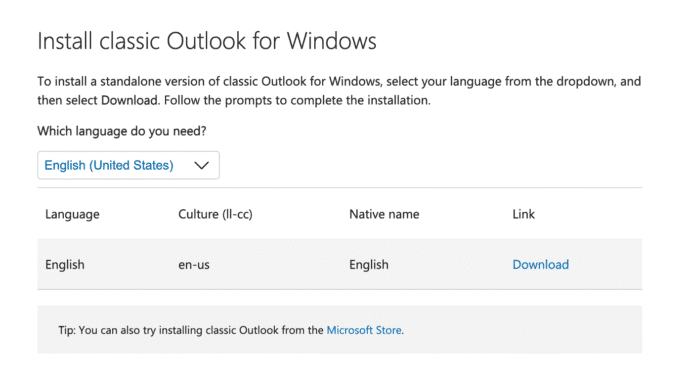
Outlook (classic) is available for download from here or from the Microsoft Store.
Choose your language then download the small OfficeSetup.exe
Run OfficeSetup.exe.That starts a specially configured version of the usual ‘Click to Run’ installation system that downloads and loads all the necessary files.
If OfficeSetup.exe might disappear from the screen and appear to have closed. Wait a little while (maybe a minute or more) and eventually a download screen should appear like this.

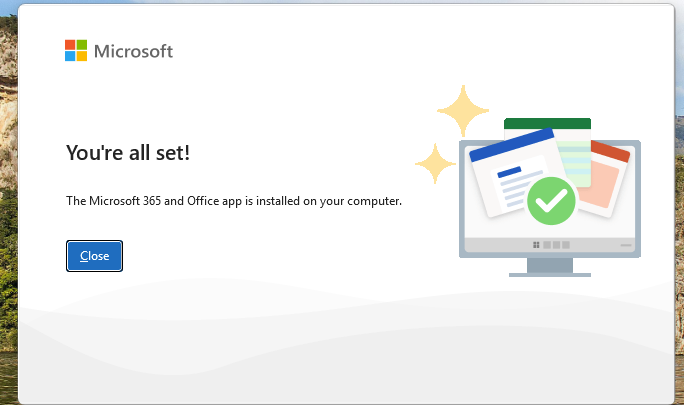
Eventually you’ll see this – “The Microsoft 365 and Office app is installed on your computer”.
Now open classic Outlook just like any other app.
- Click the Windows button to open the Start Menu
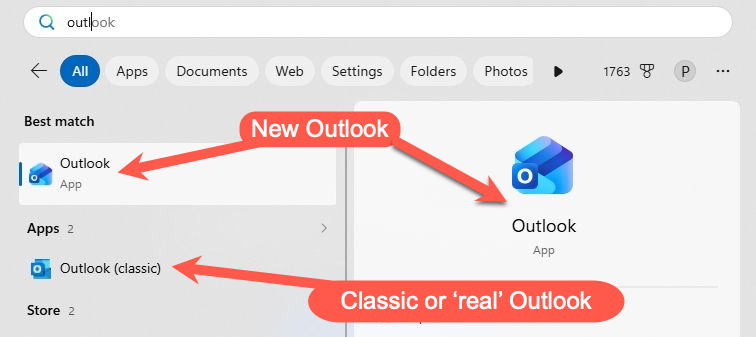
- Search for “Outlook” – just typing “Outl” should be enough.
- Look for “Outlook (classic)”
- Anything labelled just “Outlook” is the new Outlook.
- Start Outlook (classic)
- Optional – add Outlook classic to the taskbar and Start menu for faster access.
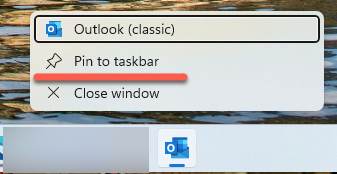
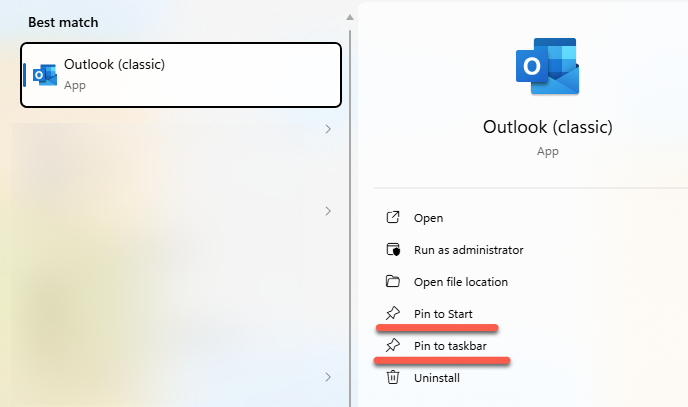
Two Outlooks on one Windows computer
Classic Outlook can be installed on a computer alongside new Outlook. The two apps are so different that they can both run on a computer at the same time without any conflict.
There’s no need to uninstall the Outlook you don’t want, except perhaps if the computer is running short of disk space.
Too many Microsoft Outlooks, we explain them all
Outlook classic dropped from Microsoft 365
All about Outlook new for Windows
Exchange Online Is Dropping Old Encryption for POP and IMAP: Check before July 2026
Outlook Lite for Android ends on May 25: What to Do Before It Stops Working
Office 2024, all you need to know
Microsoft Office support end date checklist
Office 2021 Support Ends in October: All Five Options Before the Deadline