Left or Right Click? The Simple Rule That Explains Every Mouse Button
The difference between the left and right mouse buttons is simple once you know the rule: the left button selects, and the right button reveals extra options. Left click to choose a cell, word, file or link. Right click to open a menu of actions that apply to whatever you just selected. That one rule works almost everywhere, in Windows, on a Mac, across Word, Excel, PowerPoint and Outlook, and even on phones and tablets that have no mouse at all. Here’s how it works on every device, plus a quick history of why the mouse ended up this way.
We love ‘stupid’ questions because they’re rarely stupid at all. Yesterday Peter was asked a wonderfully simple question that would not occur to computer nerds.
“What’s the difference between the Left and Right mouse buttons? How do I know which one to click?”
It sounds obvious once you know it, but it trips up plenty of people. There is no visible logic to it, so if nobody ever told you the rule, you end up guessing. The rule is simply:
Left click – the normal or standard action. Left Click to select.
Right click – additional or special options that apply to the selection. Right-click often makes a menu appear with choices that apply to the current selection or program.
Right-click applies to most Windows and Mac programs including Windows and Mac OS themselves plus Word, Excel, PowerPoint, Outlook and any web browser.
Discover for yourself
Right click is the fastest shortcut you are probably not using enough. Instead of hunting through ribbons and menus for a command, point at the thing you want to change and right click. The menu that pops up only shows options that apply to that exact spot, so it is often the quickest way to reach a feature.
Make a habit of it. Right click on a word, a cell, a chart, a file, a slide, a highlighted paragraph. You will regularly find a shortcut to something you thought was buried three menus deep.
A quick Excel example
In Excel, left click a cell to select it and start typing.
Right click the same cell and you get a menu with the most useful things you can do to it:
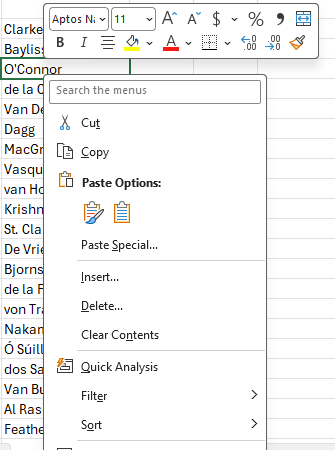
Cut, Copy, Paste options, Insert, Delete, Format Cells, and more. Same cell, two very different results depending on which button you press.
No mouse in Windows? Here is how to right click
Plenty of Windows laptops have no separate mouse, just a touchpad or a touchscreen. Right click still works, you just do it differently.
- Touchpad: tap the pad with two fingers at once. On most modern laptops this is on by default. This also works on Mac trackpads.
- Touchscreen: tap and hold on the screen for about a second, then let go. The menu appears where your finger was.
- Keyboard: press Shift + F10, or the dedicated menu key some keyboards have to the right of the spacebar.
Windows and Microsoft Office both obey tap and hold. A few older programs do not, so keep the keyboard shortcut in your back pocket.
The Windows 11 change you need to know about
Here is the update that catches people out, and the old advice does not warn you about it.
Windows 11 redesigned the right click menu. When you right click a file or folder in File Explorer or on the desktop, you now get a shorter, cleaner menu. The most common commands (Cut, Copy, Rename, Share, Delete) sit as small icons across the top, and the rest of the list is trimmed down.
The catch: Microsoft moved a lot of the old options out of sight. Many familiar commands, plus anything added by other apps you have installed, are now hidden behind an extra step.
To get the full old menu:
- Click Show more options at the bottom of the short menu, or
- Press Shift + F10, or
- Hold Shift while you right click.
Right click on a Mac
Apple has always been reluctant about a second mouse button. The standard Apple trackpad and the Magic Mouse have no separate right button at all. Right click still exists, it is just switched on in settings and done with a gesture.
- Control + click works anywhere, on any Mac, with any mouse or trackpad. This is the reliable fallback.
- Two finger tap or click on the trackpad is the usual gesture.
- Turn it on or check it under System Settings > Trackpad > Secondary click (or System Settings > Mouse for a Magic Mouse).
iPhone, iPad and Android
The same idea carried across to touchscreens that never had a mouse in the first place. The right click equivalent everywhere is tap and hold: press your finger on the screen and keep it there for a second until the menu appears.
- iPhone and iPad: tap and hold.
- Android phones and tablets: tap and hold.

It works on app icons, text, links and inside Word, Excel and PowerPoint mobile too.
Why is left the normal button?
A little history explains the whole setup. The mouse was invented by Douglas Engelbart at the Stanford Research Institute in the 1960s. It needed a button so you could point at something and act on it without reaching back to the keyboard. That first mouse had a single button, and its job was to select. Left, in other words, was the original and only action.
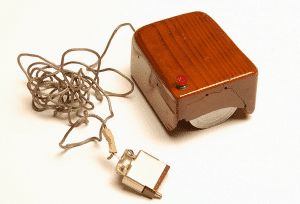
The mouse was combined with a ‘point and click’ window interface at Bell Labs, part of AT&T. Their work inspired both Microsoft and Apple to make the, now familiar, window interface. Steve Jobs was inspired/borrowed/stole the mouse from Xerox and used it in the first Mac. Malcolm Gladwell tells the Apple Creation Myth.
Apple started with one button and mostly stuck with it.
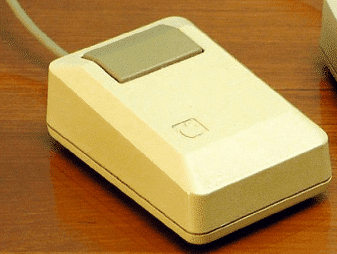
Microsoft went with two buttons: the left kept its original selecting job, and the right gained the pop up menu of extra options. That split is exactly what you use today.

Beyond two buttons
There were attempts to go further. Three button mice never caught on with ordinary users. You can still buy mice with extra side buttons, but those are mostly aimed at gamers.

Scroll Wheel
The one genuinely useful addition was the scroll wheel, which nearly everyone now uses to move up/down a document or web page.
The scroll wheel usually doubles as another mouse button. Depending on the setup, the extra button can be configured to act as a left or right mouse button or an extra ‘third’ button.
The other big change happened underneath: the old rubber ball that had to be cleaned is long gone, replaced by the optical mouse that works on almost any surface.
So the short version stands. Left click to do the normal thing. Right click to see what else you can do. Once that clicks, no pun intended, you will reach for the right button far more often.
Right-click menus now in Office for iPad
New Keyboard shortcuts for Office menus
Discover Office Keyboard Shortcuts in Windows 11 and 10
PowerToys Shortcut Guide Now Works With Word, Excel and Outlook
Ctrl+Shift+V Microsoft Office Paste Shortcut Explained
Outlook Function Keys, complete list
Add a fast keyboard shortcut for any Word style