Word: get a better list of styles in a document
Word makes it surprisingly hard to see a full list of styles in a document. There’s no tidy panel that lays out every style and shows how they connect to each other. The only option built into Word is a hidden Print setting that produces a long, flat report that’s a chore to read. The good news: you can hand that report to an AI like Copilot, Claude or ChatGPT and get back a clear style guide, a hierarchy diagram and a grouped list in seconds. Here’s how to pull the list of Word styles and turn it into something you can actually use.
The only way to see a detailed list of styles is to Print them! In the print pane, choose the drop-down list under Print All Pages and scroll down until you see the little-known ‘Styles’ option.

Tip: Use Print to PDF to avoid wasting paper
The report looks like this. Word’s style report is presented as a long, flat list of technical properties, making it difficult to understand the document hierarchy and design system.

It can be hard to understand the relations between styles in a document made by someone else or even one you made yourself!
There’s no ‘Comments’ box in a style to let users explain or narrate the reasons for a particular style.
A style doesn’t have a ‘used as base for …’ display so you can see which styles rely on the current style. In other words, there’s no simple way to tell that changing a particular style will have ‘flow on’ effects to others.
Get a better Word styles report
Microsoft shows no interest in improving the Word styles report, so it’s up to modern AI to fix this.
Copilot or any AI (Claude, ChatGPT etc.) can read a Word styles document and reorganize the contents into something more useful, such as:
- Hierarchy table
- Grouped Styles
- Style Guide
- Design System Diagram
- Visual Table
- Style Compliance Table
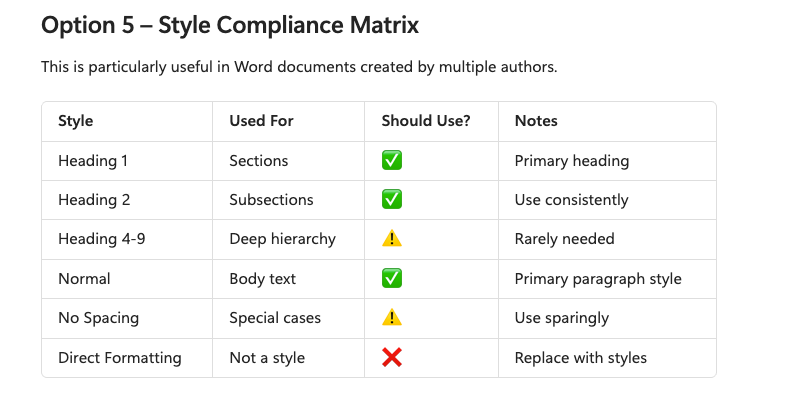
Or a complete diagram like this:
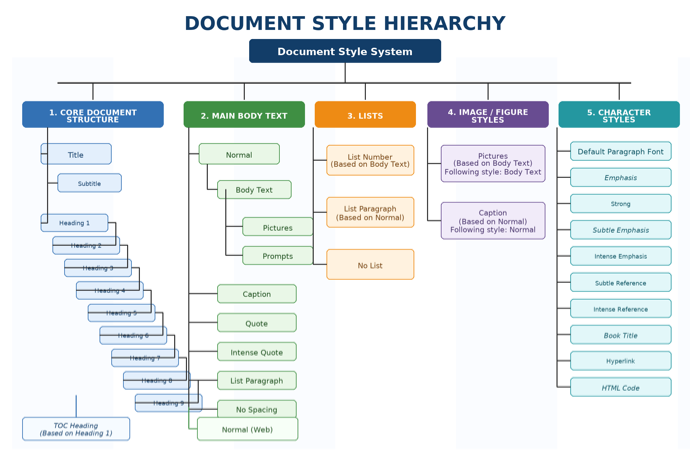
Make a Word styles report and choose “Print to PDF” to make a PDF version. Upload the PDF to your preferred AI and use a prompt like this.
Analyze this Microsoft Word style report and reorganize it into:
– A hierarchy diagram showing heading relationships.
– A grouped style catalogue by purpose (Headings, Body Text, Lists, Images, Quotes, Tables, Character Styles).
– A visual style guide table showing font, size, color, spacing, and intended use.
– A document style hierarchy diagram based on the styles. The diagram should be an image
If you wish, ask for suggestions “Recommendations for simplifying redundant styles and improving consistency.“
All about the basics of Styles in Word
What is a Style in Word, Excel or Outlook?
Word Style inheritance made clear and simple
Word style renaming and alias tricks