Microsoft has quietly removed the Copilot button from the Home tab in Word, Excel and PowerPoint and replaced it with a permanent floating icon at the bottom right of every document, sheet and slide. You cannot turn it off. You can only shrink it. We explain how this annoyance works, why Microsoft is doing this and the few choices customers have to get rid of it.
If you haven’t already, you’ll soon see this bug (Copilot icon) appears at bottom right of your documents, sheets and slides. In Microsoft 365 for Windows and Mac.
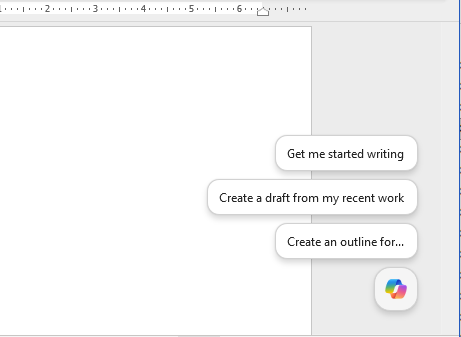
The icon doesn’t go away when you’re working. It sits there like a baleful and persistent nuisance with no way to get rid of it. It’s a remarkably “tone-deaf” design decision that puts corporate needs before their customers.
Microsoft hasn’t learned any lessons from the push-back against Copilot interfering in Word, Excel and PowerPoint. There was a short-lived reversal of some Copilot but now the company is back with more ways to annoy their paying customers.
Microsoft’s logic seems to be that if they push Copilot in the faces (screens) of customers they’ll use it. However a more common response is “get this ^%$! thing off my work” and Microsoft should know that from their experience with selling Copilot so far.
Hide the Copilot bug – a bit
Here is the only thing you can do about the Copilot bug, right click on the bug to show a Dock option.

That reduces the bug to a slither on the side of the workspace.
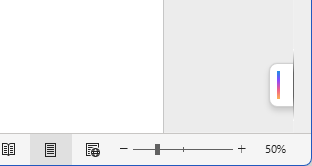
The Dock option only hides it for the current session. Open a new file and the bug is back.
But there’s no way to remove the bug entirely except disabling Copilot completely. That’s not what Microsoft wants but it’s the understandable reaction of the very people that the company wants to use their AI and pay for it.
There’s other way to remove the Copilot bug and that’s double-click on it to open the full Copilot side-pane instead.
What can you do about the Copilot bug?
How can you get rid of the Copilot bug?
- Right click the bug and choose Dock to shrink it.
- Do that every time you open a doc, sheet or slide.
- Switch to Microsoft 365 Classic if you want a Copilot free subscription
- Disable Copilot in File, Options, Copilot
- The bug will go but so will all other Copilot access.
- Not all Microsoft 365 license get the Disable Copilot option.
- Use Claude, ChatGPT or Gemini for AI work alongside Office apps.
No Copilot button on the ribbon
Microsoft has removed the Copilot button from the Home tab. After two decades training customers to find features on the ribbon, Microsoft has decided the ribbon is no longer good enough for its flagship AI product. Instead, Copilot now lives in a floating icon that hovers over your work like a fly you can’t swat.
Some Office Watch readers have asked us about Copilot ‘disappearing’ from their Microsoft 365 apps. An understandable mistake based on the Copilot button absence from the Home tab. Customers have become used to checking for Copilot availability (not always reliable) by glancing at the Home tab.
If Microsoft must insist on having this Copilot bug they should:
- Make the Copilot bug an option to be totally hidden. Not just for the current document, but always.
- Restore the Copilot button to the Home tab where customers expect to see it.
Microsoft is boasting about this annoyance
In a classic example of Microsoft’s Reality Bubble™ not only has the company added this bug to Microsoft 365, they are boasting about it.
We call the Copilot icon a ‘bug’ because it’s annoying and persistent. The bug’s real name is the Dynamic Action Button, or DAB. Yes, DAB. Someone in Redmond named their flagship UI element after a dance move that peaked in 2016, and nobody stopped them.
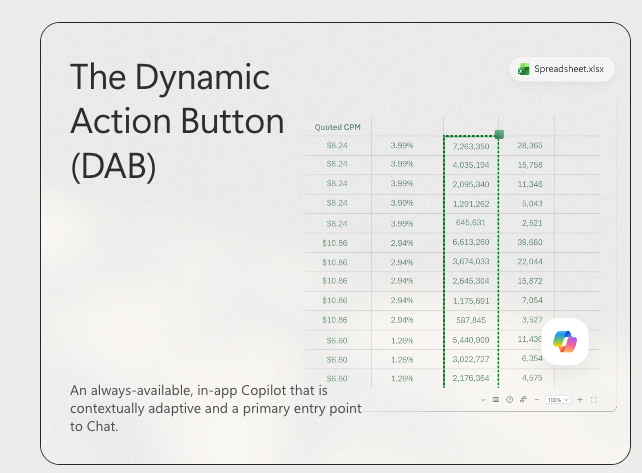
They describe the bug as
“An always-available, in-app Copilot that is contextually adaptive and a primary entry point for Chat”
That quote shows the core problem with the Copilot bug … “always-available” as if that’s a good thing that customers want.
You can read an entire word-salad about the latest Copilot interface changes in an article misleadingly titled “A simplified system” (hint: it’s not).
Microsoft’s demands are more important
Customers don’t want interference in their workspace but these days customer needs are secondary to Microsoft’s corporate demands.
As we’ve pointed out before, Microsoft is desperate to get a return on their massive investment in AI technology and hardware. That leads management to constantly put Copilot “in the face” of customers, like it or not.
That approach risks being counter-productive, turning potential customers off Copilot generally and especially in Microsoft 365 apps.
Or do what many Microsoft Office customers have done (365, 2024, 2021 etc). They turn off Copilot and use the often-superior AI services from Claude, ChatGPT or Gemini.
AI can be good but not like this
Microsoft spent years convincing customers the ribbon was the future. Now it is undermining its own interface to shove a product most users did not ask for into the corner of every document. If Copilot is so good, why does it need to hover over our work to be noticed?
We think AI has a place, so much that Peter has written a new book about using AI sensibly Write better & faster with any AI. It’s a pity that Microsoft’s pushy sales tactics are putting people off AI and Copilot.
Writing Better and Faster With Any AI
Microsoft 365 Classic Explained: A Lower Cost, No AI Subscription Option
Copilot Can Now Actually Do the Work in Word, Excel, and PowerPoint
Build a Better Excel Workbook with Copilot: Smarter Prompts, Stronger Results
What the !@^? Is Microsoft Copilot “Work IQ”?
Smart Measurement Conversion: Clever Copilot in Excel
