Build a Better Excel Workbook with Copilot: Smarter Prompts, Stronger Results
Microsoft Copilot in Excel can build a worksheet in minutes, but a little human planning turns a good demo into a workbook you can actually trust and reuse. We show how smarter prompts, better planning and more examples produce a future-proof Excel workbook that handles more situations, expands as new rows are added and includes a built-in test suite to verify Copilot’s calculations. Treat Copilot as a fast junior assistant: useful, but always trust and verify.
The original example of measurement conversion is a good demo of Copilot in action, making a useful sheet in a few minutes instead of an hour or more. It quickly does the job and with the Lambda() code it can be extended to other sheets or rows in the current workbook.
But it’s very much a ‘one-off’ fix and the Copilot solution could do more with a little human intervention and planning.
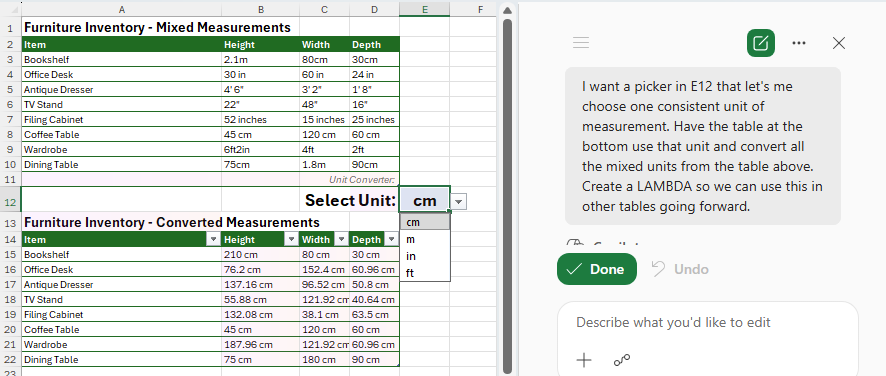
See Smart measurement conversion – clever Copilot in Excel
Future Proofing a workbook
We’re going to adapt Brian Jones’s example to make it more “future proof” and show how to ask Copilot the right questions to get better answers.
Also how to use Copilot repeatedly to make changes and improvements to an existing sheet.
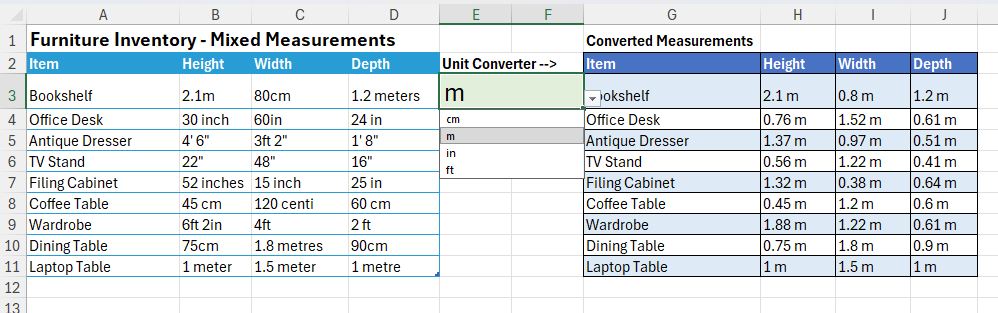
The final result will be this sheet that can accept more rows, cope with more measurements and a nicer looking pull-down menu.
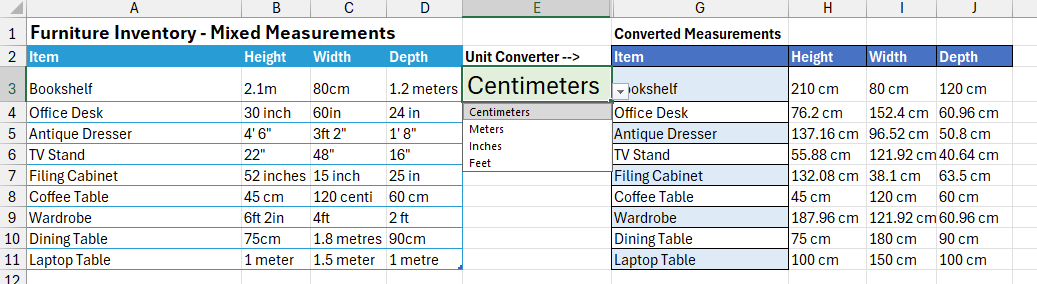
Some of things we’ll change from the original sheet.
- Naming tables is a better choice
- Position tables so they can expand, if necessary.
- Let Copilot clone the source table, rather than make a ‘blank’ target.
- Watch out for Copilot ‘extras’ that might not be wanted or in the wrong place.
- Make the ConvertUnit() function more reliable by giving it more examples of measurements.
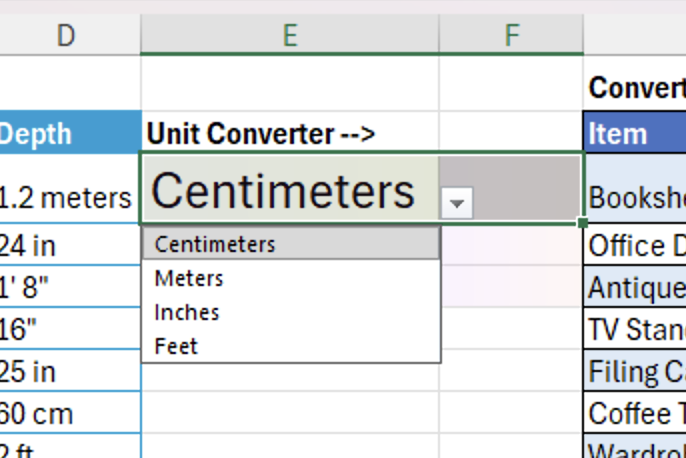
- Change the pull-down menu to show clearer labels. Instead of “cm, m, in and ft.” show “centimetres, metres, inches and feet”.
None of this is a criticism of Brian Jones or his original Copilot example.
More variations to work from
Start with a Table which makes the result more readable and allows for dynamic ‘spill’ formulas.
Here’s our revised test table called “MixedMeasures”.
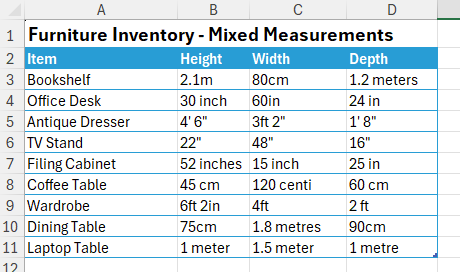
If you’re asking Copilot to make something robust, give it wide-ranging samples to work from to cover more, even unlikely, inputs.
We’ve added a greater variety of measurement labels so that Copilot’s code will check for a wider range measurements such as “inch”, “centi”, a mix measure (3ft 2”) and both spelling of meter/metre with plurals meters/metres.
(it was tempting to add more and obscure measurements like furlong, ligne, Paris inch, mickey, barleycorn, nail, rack unit or light-nanosecond 😎)
All the rows below the table are empty to let more items to be added.
More detailed prompt
Here’s the new starter prompt.
Now Copilot is told to make a new table itself, instead of filling in a partially made table. Also we’ve asked for a dynamic table (which Copilot partially does).
The top table is a mix of measurements.
I want a picker in E12 that lets me choose one consistent unit of measurement.
Make a new table at right use that unit and convert all the mixed units from the source table.
Make the new table dynamic so changes in the original table are reflected in the other table.
Create a LAMBDA so we can use this in other tables going forward.
This prompt and source table is better because it gives the AI more information to work with.
Don’t worry if your sheet shows errors like #VALUE while Copilot is working. That’s normal. Wait until the AI has finished.
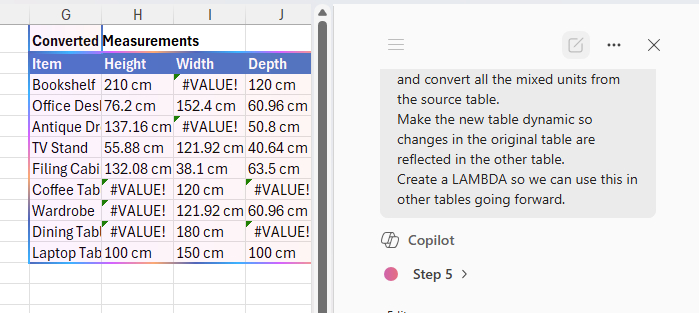
A better worksheet
Here’s what Copilot made for us. It’s pretty good but has some problems that are easily fixed. Two additions, the Unit Converter and Lambda usage block expansion of the tables.
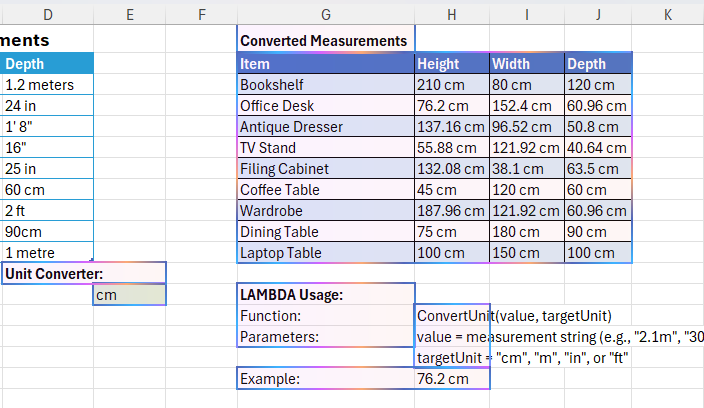
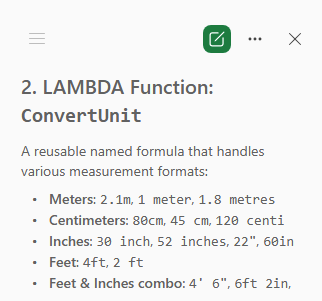
Look in the Copilot pane for an explanation of what it’s done.
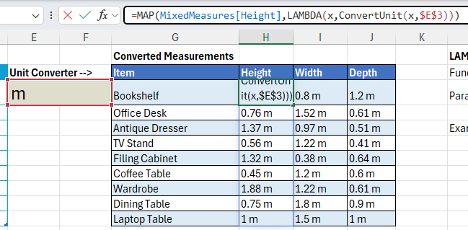
Looking at the new table, Copilot has used the MAP() function to clone across whole columns and apply the conversion in one formula. An advantage of giving Copilot a Table to work from, not just a grid of cells.
The “Trust but verify” worksheet
The smart part of Brian’s original demo was not necessarily trusting Copilot. The conversion calculations and understanding of abbreviations looks OK but better to double-check. That could be done manually with a calculator or ask Copilot to add a test suite.
Add another sheet that serves as a test suite for the ConvertUnit() LAMBDA?
I want to make sure I can trust the calculations
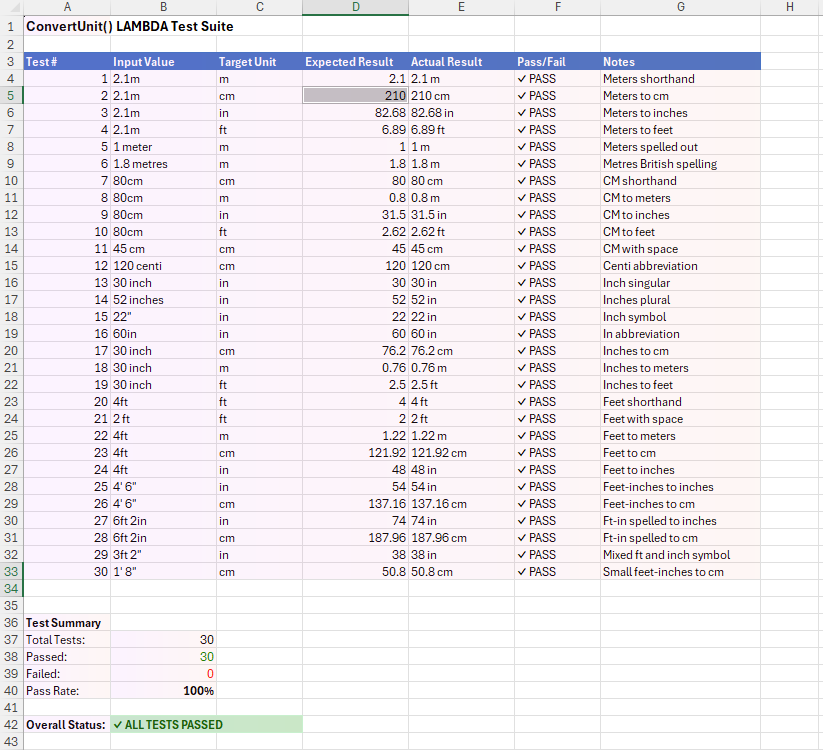
Now let’s fix some problems and add improvements.
Fix the problems
Despite Microsoft’s hype, Copilot isn’t perfect and will make mistakes. Also Copilot isn’t psychic, it can’t do things if you don’t ask.
Any of these things can be fixed manually or, for more complex jobs, ask Copilot to do it.
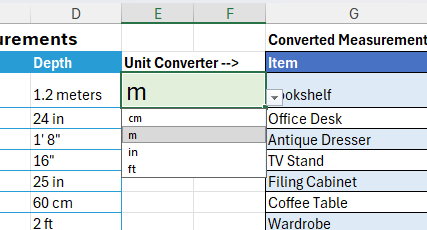
- Unit selector is in the cell we asked for E13 but the “Unit Converter” label is under the source table which blocks more rows being added. That’s a simple fix, just move the label one cell to the right. We moved both cells up to a more prominent position. The menu isn’t great, we’ll come back to that.
- The custom function explainer is a bigger problem because it’s right under the converted measurements table, blocking expansion.
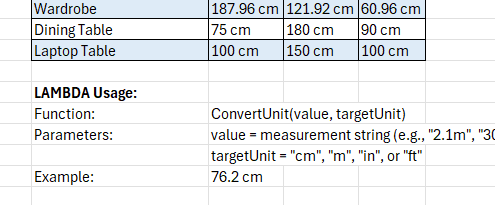
That text is a good idea but not in that place. It needs to be moved to the right or a separate “Notes” sheet. Do that manually or ask Copilot to do it.
With those changes, we now have a sheet that will expand as needed and we know will cope with many different measurements.
A better menu
The original measurement selector is OK but not elegant with abbreviations cm/m/in/ft. This isn’t a simple job because changing the labels means also adapting the custom function ConvertFromStandard()to cope.
Change the menu in E3 to show clearer labels “Centimeter”, “Meter”, “Inches” and “Feet”
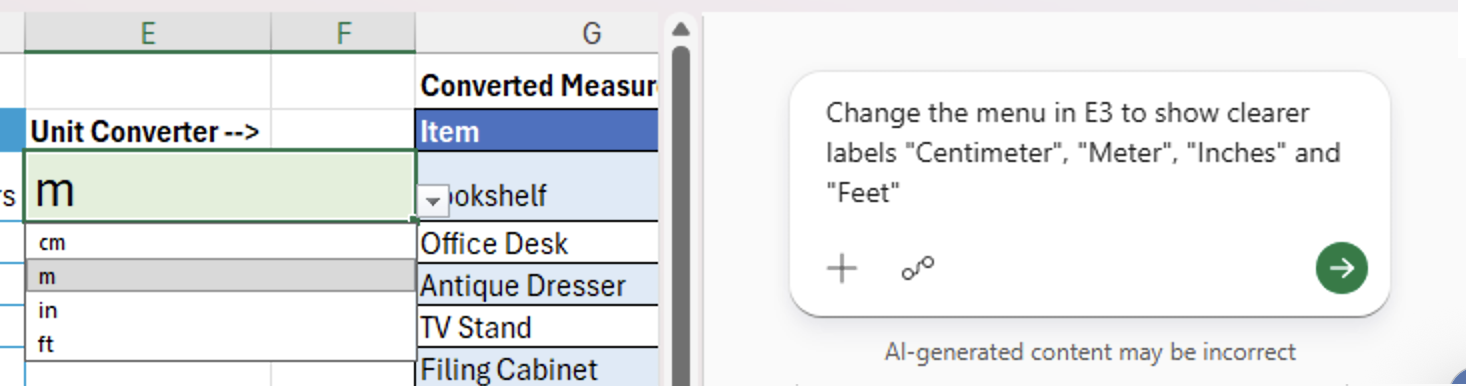
This took Copilot some time to do but eventually it got there.
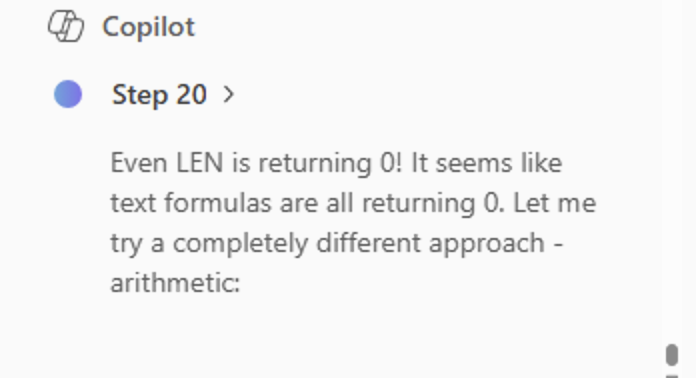
Sometimes Copilot doesn’t get it right, especially if the results are wrong (maybe zero or blank) instead of an #ERROR code. If that happens, tell Copilot where the problem is and ask for a fix. That can take some time and many AI steps.
Better custom functions
Copilot made a single custom LAMBDA function to understand the different measurements and then convert. Two separate functions are easier to adapt in future or debug.
Change the ConvertUnit() Lambda into two separate functions:
– one function to parse measurements and convert to a standard name.
– another function to convert from a standard name and value into the converted measurement.
Copilot did what was asked and some more. Two functions where made, plus a combined function that calls both. It also revamped the test suite sheet.
ParseMeasurement(value)
Parses any measurement string and extracts the numeric value converted to meters, plus the detected unit type
Formatted string (e.g., “137.16 cm”)
ConvertFromStandard(meters, unit)
Converts a value in meters to any target unit
2-column array: {value_in_meters, unit_name}
ConvertUnit(value, unit)
All-in-one function that uses both above functions.
Again, the Copilot side-pane details what the AI has done.
More improvements
Even this result could be improved, if you like either ask Copilot or do it yourself.
- Sync the table rows so the labels in the Converted Measurements table always match e.g if “Item” is changed to “Product” or “SKU”.
- Remove the measurement labels from the converted table e.g. “76.2” not “76.2cm”. That will make any additional calculations easier to do from number values only.
- Add a prominent mention of the scale used in the converted table.
- Better error trapping in ConvertUnit() to return an error message like “Unknown”.
Smart measurement conversion – clever Copilot in Excel
Copilot Can Now Actually Do the Work in Word, Excel, and PowerPoint
What the !@^? Is Microsoft Copilot “Work IQ”?
Microsoft 365 Classic Explained: A Lower-Cost, No-AI Subscription Option
ChatGPT Images 2.0: New AI Image Generator in Copilot
How to Compare Two Columns in Excel: Find Matches and Missing Values Fast