ChatGPT Images 2.0: New AI Image Generator in Copilot
The new ChatGPT Images 2.0 is worth a look for Copilot users. Instead of jumping straight to pixels, it reasons through your prompt first and can even search the web before generating a single image. If you have ever given up on AI images because the text was garbled, the results were inconsistent, or the output just looked fake, Images 2.0 is much better for ChatGPT and Copilot customers.
For us users that means ChatGPT and parts of Copilot have made a significant leap forward for anything visual, such as images, social media posts, presentation graphics, infographics, or marketing materials, as you’ll see in our examples below.
The text rendering improvement alone is worth paying attention to. If you have given up on AI-generated images for anything that requires readable text, it is worth trying again. The combination of reasoning, web search, and consistent multi-image output closes several gaps that made AI image tools feel unreliable for real work
Who gets Images 2.0?
Copilot
Microsoft is gradually rolling out Images 2.0 to Copilot users:
- PowerPoint 365 with Copilot – available now.
- Copilot Chat – “coming soon”
- Azure/Foundry – the OpenAI GPT-image-2 model is available.
ChatGPT
For OpenAI customers, the best features sit behind a paid ChatGPT plan.
- Free users: Better image quality than before, but no reasoning mode and no multi-image batches
- Plus, Pro, Business users: Full access including thinking mode, web search during generation, and up to eight images per prompt.
A better koala
Back in 2024 we asked ChatGPT to make an image “koala sleeping in a eucalyptus tree, 22mm lens”, the result is on the left. The same prompt now (right) creates a very realistic image of both the marsupial and background.

The new image is also a higher resolution; 1448×1086 and 2.8MB when saved as a PNG (the default).
Graphics
Images 2.0 makes more detailed graphics or infographics, perhaps too detailed for some purposes.
Asked to just “make an image to explain layers in Microsoft Word” gives this very detailed graphic.
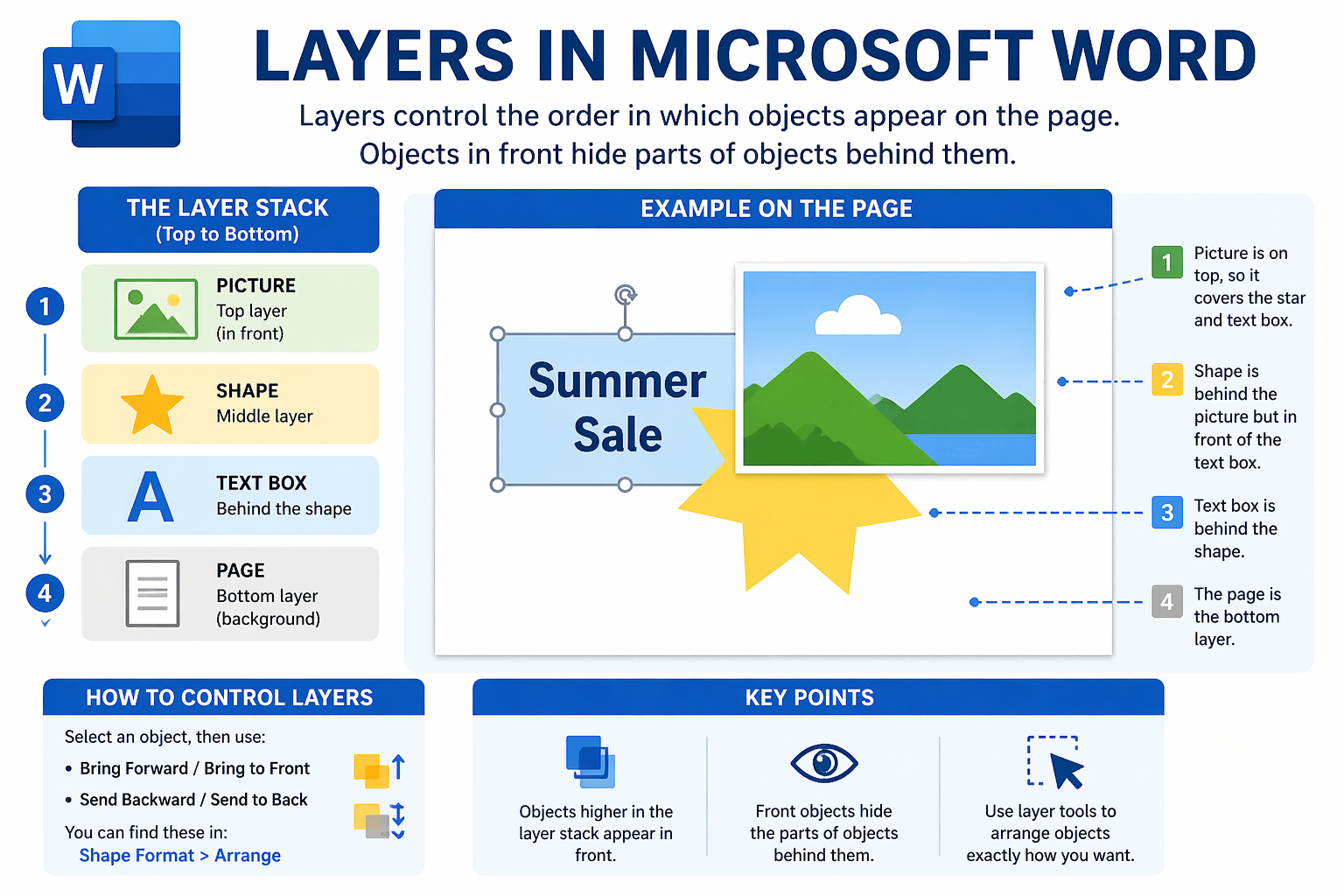
The above image is mostly correct but there are some inaccuracies. Objects can have a level of transparency which doesn’t always hide objects behind it. The vague reference to ‘layer tools’ (bottom-right) isn’t correct.
As always with AI, the facts need checking. OpenAI itself says “Labels and diagrams may still need review for accuracy” (see below).
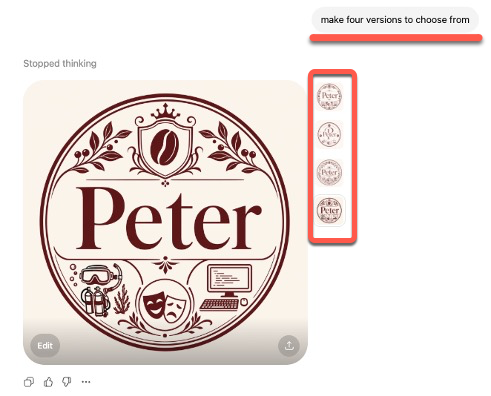
Choose from many versions
In some cases, like making a logo or monogram, ask AI to make multiple versions to choose from.
Change aspect ratio
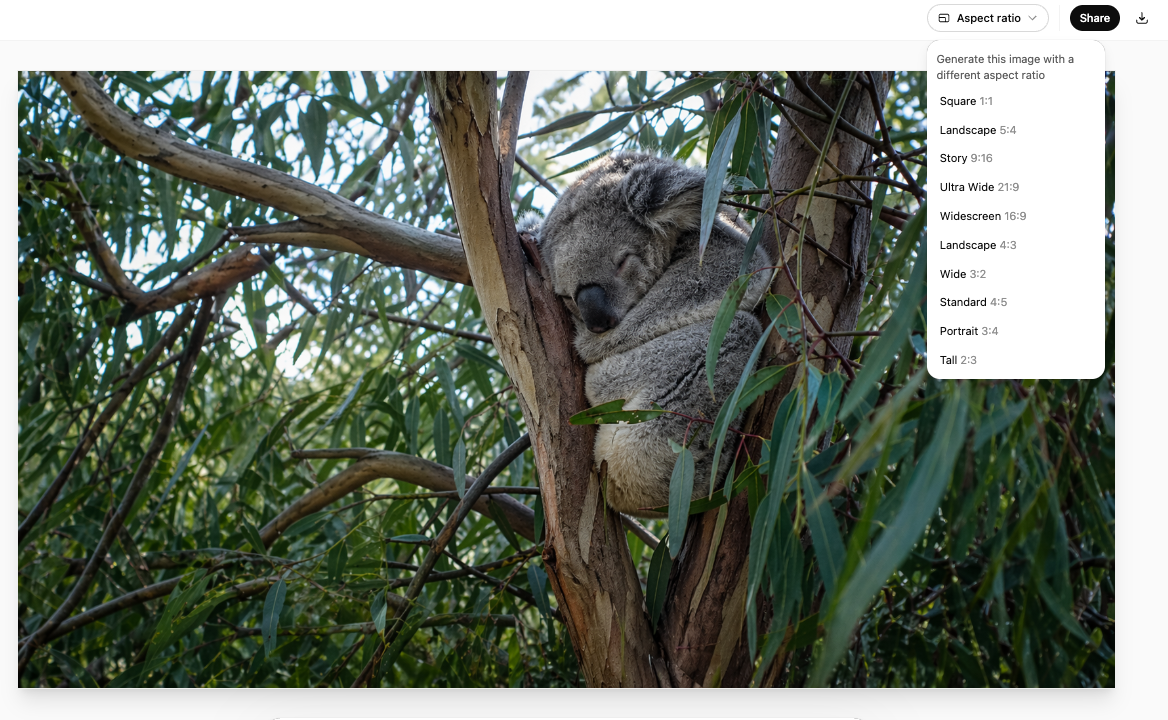
Click on an image for a full windows view. At top-right is a choice of ten aspect ratios from 1:1 (square) to 2:3 (tall) and standard 3:4 (Portrait) and 5:4 (Landscape) choice covering formats from banners and presentation slides to mobile screens. Through the API resolutions go up to 2K
We took the koala image above and asked for a Widescreen 16:9 version.
Better Text Rendering, Including Non-Latin Scripts
The new model is also designed to handle fine-grained elements that previous image models consistently struggled with; small text, iconography, UI elements, dense compositions, and subtle stylistic instructions. For anyone who has tried to get an AI image generator to put readable text on a banner or infographic, this is significant. The model handles text in general, and especially in non-Latin scripts, significantly better.
Specific fonts can’t be chosen but you can ask for text in styles such as “bold sans-serif,” “Art Deco poster lettering,” “clean corporate typography,” “serif newspaper headline,” or “handwritten marker text,”.
More realistic
Photos generated by GPT Image 2 are reportedly much harder to distinguish from real photographs. The model is also said to fix the telltale “AI look”: the overly smooth skin and perfect lighting that still showed up in GPT Image 1.5, where Google’s Nano Banana Pro held a clear edge for a little while.
Thinks then draws
The model “thinks” before it makes an image, spending more or less time reasoning depending on the selected mode, and can even search the web during that process. In practice, this means if you ask for a social media banner referencing a current event or a real brand’s color scheme, the model can look that up before drawing rather than guessing.
With thinking mode enabled, ChatGPT Images 2.0 can generate up to eight images at once from a single prompt. Characters, objects, and styles are supposed to stay consistent across all scenes. OpenAI points to multi-page manga, series of social media graphics, and room design plans as real-world examples of where this matters. Getting eight images that actually look like they belong together has been a persistent frustration with AI image tools until now.
Limitations
OpenAI has admitted some of the limitations or a “To Do” list for their developers.
“ChatGPT Images 2.0 is a major step forward, but it is not perfect.
It can still struggle with tasks that require a complete and coherent physical world model, origami guides, puzzles like Rubik’s Cubes, and details that need to appear correctly on hidden, angled, or reversed surfaces, very dense or repetitive visual details, like fine grains of sand, may also test the limits of the model.
Labels and diagrams may still need review for accuracy, especially when they rely on precise arrows or part labels.
We see these limitations as important frontiers for future work.”
Copilot Image Style: Transforming AI Generated Images with Ease
Transform Image Backgrounds with Copilot: A Step-by-Step Guide
AI Images Coming to PowerPoint Plus More Copilot News
Add Images to Copilot Prompts: Enhance Your Word and PowerPoint Experience
PowerPoint Designer Is Now Copilot Design Suggestions
Microsoft 365 Copilot Explained: Features, Limitations and Your Choices
Unlock AI Technology with Microsoft Copilot Pro
5 Easy Ways to Insert Images in PowerPoint: Quick Tips for Better Slides