Sending files via Outlook
Sending files via email is simple but is changing as new technologies become commonly available. Here’s what’s possible in Outlook and new in Outlook 2016.
Simple Attachments
Outlook Attachments 101. In any email you can attach files in two ways:
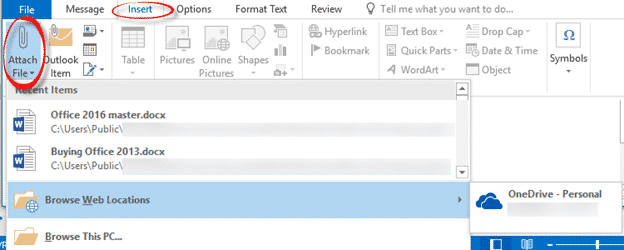
- Use Insert | Attach File from the ribbon
Or
- Drag a file/s from Windows Explorer to the email message body
Keep in mind the size limit on emails. Actually two size limits imposed by the sending email host and the receiving email system. These days’ emails under 20MB should be acceptable to all mail systems. Office 365 and Google’s Gmail has a 25MB size limit. Outlook.com has a 20MB limit.
Outlook 2016 changes the Attach File button a bit. There’s now a recently used file list then a ‘Browse this PC …’ option which opens the familiar file selection box that’s been in Outlook since the last millennium.
Linked attachments
To send files beyond those size limits you can put a link to the file instead. Cloud storage like OneDrive, Google Drive, Dropbox etc. gives you a place to store a file and make it available to anyone with an internet connection.
Here’s how to do that with a link to any publically available file. The principle is the same, whichever cloud service you use:
- Save the file to a cloud service.
- Make the file available to the people you want to get it. Or save it to a Public access folder.
- Get a link to the file
- Paste that link into an email
- Possibly include some help or instructions in the email
Once everyone has the file, you can delete it from the online storage.
Each cloud service has a different way to give you a link. For example, here’s the Google Drive option. Select the file then click the link icon. Copy the link shown into your emails.
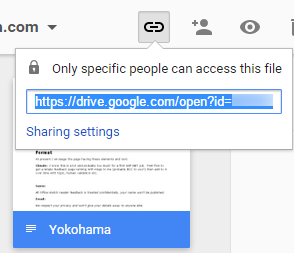
Note the warning that only some people can access the file. Click on Sharing settings to change that.
Outlook 2016 has a direct link to OneDrive and Sharepoint via the ‘Browse Web Location’ option mentioned above. For Outlook 2013 and before, go to OneDrive in your browser, select the file then choose the Share button, Get a link. If it’s an Office document you choose Edit or View.
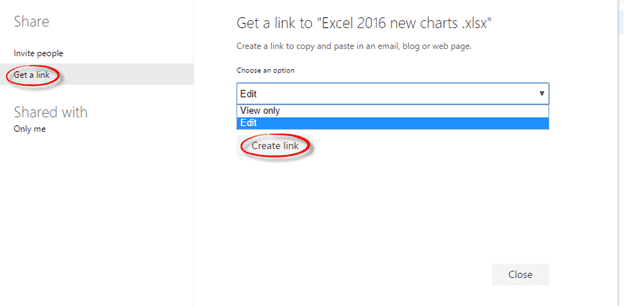
Create link will show you a link. By default the file is available to anyone who has the link.
There are also third-party tools ‘sending’ large files via email. Some are alternative online storage services while others split the large file into smaller chunks that can be emailed within limits.