How to Get Office VBA Code from any AI (4 Smart Prompt Tips)
Asking ChatGPT, Copilot or any AI to write Office VBA code can save hours, but only if you prompt it the right way. These four practical prompting tips help you get cleaner, working VBA for Word, Excel, PowerPoint and Outlook on Windows or Mac, with fewer rewrites and far less debugging. Use them whether you write a quick one off macro or build something serious for daily work.
Avoid vague prompts for better code
Follow these tips to get better and workable Office VBA code.
Vague requests produce messy, mismatched macros that target the wrong app or skip basic error checks.
Always Name the App, Version and Platform
Always tell the AI which exact app, platform and version you’re working on
In these examples we’ll just say “Word” but in real life it’s much safer to be specific. Instead of
Write Word VBA macro to open a document
use
Write VBA macro to open a document with Word 365 for Windows
Write VBA macro to open a document with Word 2021 for Mac
The app (Word, Excel, PowerPoint) is important because even basic tasks like opening a file have different methods for each. When we first tested AI with VBA in 2023, the AI got horribly confused and offered code compatible for Word instead of Excel and other horrors. Those days are now past but still it pays to be specific.
Tell the AI to Handle the Unexpected
All programmers know you have to code not just for the expected but also the unexpected like a missing file, incorrect input etc.
Modern AI might include some error checking without being asked, but it’s safer to include in the prompt.
Write VBA macro to open a document with Word 365 for Windows
Check if the file exists before opening and, if not present, show a File Open dialog for the user to select a file.
Iterate, Fix and Refine the Code
The old saying about “Try, try again” works with AI systems under the name “Vibe Coding” among others. That means you can ask AI to change or fix existing code, sometimes through many versions before it’s exactly right.
Change this code to include a warning if the folder does not exist.
The above code is giving a “Unknown variable” error on line 123. Explain why and fix it.
Look for the Code Copy Button
All AIs that write code put it in a separate box with a Copy button, usually at the top right.
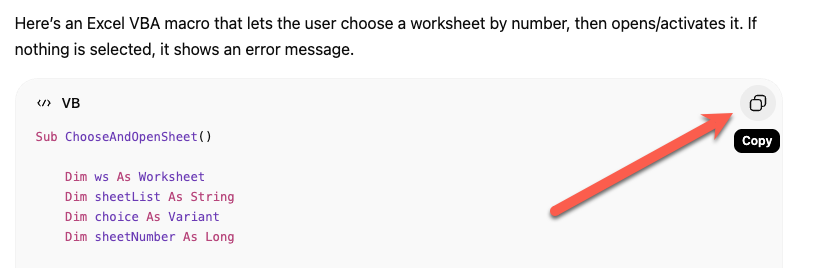
That lets you copy only the code and not the rest of the response.
How to Write Office VBA Code with ChatGPT or any AI
Writing better and faster with any AI
Why AI Is Almost Intelligent: The Honest Truth About ChatGPT and Copilot
Build a Better Excel Workbook with Copilot: Smarter Prompts, Stronger Results
Smart measurement conversion, clever Copilot in Excel
Microsoft 365 Classic Explained: A Lower Cost, No AI Subscription Option
What the !@^? Is Microsoft Copilot Work IQ?