Changes to Sharing options in Microsoft Office
The Sharing options in Office are changing, yet again with a new ‘sharing experience’ in all Microsoft Office 365 apps for desktop, web and mobile. We’ll explain the changes, including a few options that Microsoft hasn’t mentioned.
All the usual Microsoft buzzwords have been recycled to describe these changes; “streamlined”, “simplified”, “free of distraction”, “experience” yada yada …
There are no new features in these changes, it’s a redesign of how the sharing options are presented. Choose a ‘Share’ option in Word, Excel or PowerPoint to see something like this …

Copy Link
Here’s the new Sharing dialog box and there’s one thing we like right away: Copy Link in a prominent position.
There’s an option to send an email to people with a link to the document plus a short message. That’s not enough in many situations.
Copy Link puts a link to the document into the clipboard. From there you can paste it into whatever type of message you like; a longer email or reply, Teams or other online chat, a more secure method via Signal or WhatsApp, another document, sky-writing, carrier pigeon, whatever.
It’s a small wonder that Microsoft has recognized that Copy Link is the preferred option over fancier choices. Well done!
Sharing Options
Documents can be shared to View only, Review (suggest changes or comment) or fully edit. Those options are under the little pencil icon at right.

Sharing Settings
For more sharing options, click the gear/cog icon at top-right near the file name.

External sharing warning
In organizations there’s always the risk of a private document being accidentally shared with outsiders. IT admins can control external sharing but now there’s an easier warning.
“Share outside of your organization?”
xxx@yyy is not part of your organization

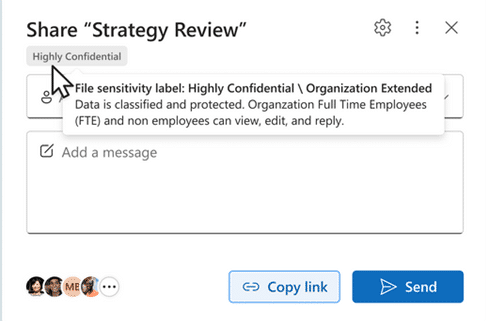
Sensitivity Warnings
In house ‘Sensitivity Labels’ regarding the privacy or confidentiality of content appear in the new look Sharing dialog.
Manage Access
It’s all well and good to share a file. More important to know who has access or what links have been given out. To know that, look for the Manage Access option which, annoyingly, is NOT part of the revamped Sharing dialog (WTF?).
In the web apps, go back to the Share menu (top-right) to choose ‘Manage Access’.

Manage Access also has a Share button plus a ‘Stop sharing’ option that will cut off all access to the document except for the owner.

Advanced Settings opens a Sharepoint permissions page for that document.
Links tab
The Links tab in Manage Access shows the special links that have been made to that document or folder (as opposed to selecting people or groups).
Those links can be removed, if necessary.
Sharing Outlook appointments – the right way
Simple sharing your Outlook invitations
Sharing changes coming to OneDrive and Office 365