New Outlook Is Slow and a Memory Hog: More Reasons to Avoid It
New Outlook is slower and far hungrier for memory than classic Outlook, and new testing shows just how bad the gap is. Click a new email notification in Windows 11 and new Outlook can take around 10 seconds to show that message, while classic Outlook opens it almost instantly. New Outlook can also chew through a gigabyte or more of RAM while sitting idle, compared to under 200MB for classic. Here is why it happens, what the numbers really show, and why we still recommend avoiding new Outlook.
An interesting comparison of Outlook new vs classic for Windows from Abhijith M B in Windows Latest.
He starts by pointing out a curious bug in Outlook new. When a new email arrives in Windows 11, you get a notification banner. Clicking it is supposed to take you straight to that message. With Outlook Classic, it does, almost instantly but the new Outlook opens the app, loads the full inbox, and then takes around 10 seconds before the specific email from the notification shows up on screen.
The absurd part: if you ignore the notification banner and instead open new Outlook directly from the Start menu, you can find and click the new email from within the app and be done with it, all before the notification banner even disappears. The author clocked it at roughly five seconds to open and click manually, versus ten seconds to wait for the notification route.
Why it happens
The new Outlook is essentially a browser window loading Outlook.com. Every time you interact with the app, including clicking a notification, a browser-like process chain has to initialize or resume its web layer, authenticate, load the relevant mail thread, and render it, all through that web engine.
In tech terms new Outlook is built on WebView2, Microsoft Edge’s Chromium engine, unlike classic Outlook and other Office apps, which are native WinUI apps built with fast C# components.
The resource cost is stark.
- Processes: New Outlook runs many separate processes in Task Manager, compared to Outlook Classic, which runs as a single compact process. Each WebView2 component has to resume from suspension when you click, which is where the delay comes from.
- RAM: The new Outlook can use a gigabyte or more of RAM even while idle, while Outlook Classic uses less than 200MB at idle.
- CPU: New Outlook uses around 4% at idle while Outlook Classic uses less than 1%.
The article gives credit where due: new Outlook now opens almost as fast as Outlook Classic from a cold start, with the two roughly neck and neck on opening speed. However, that only applies if new Outlook doesn’t pause to update before starting.
Classic and New Outlook – side-by-side
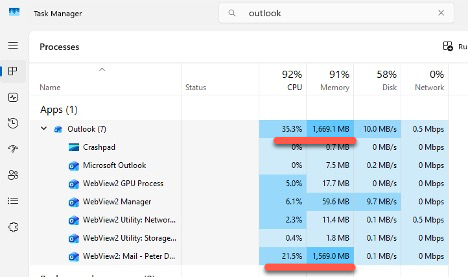
Opening up Windows Task Manager shows the stark differences between new and classic Outlook.
This is new Outlook, using seven separate processes including the mail WebView2 element gobbling up over 1.5GB of RAM. Overall, new Outlook is using 35% of available CPU but it’s not clear why because the app should be idle.
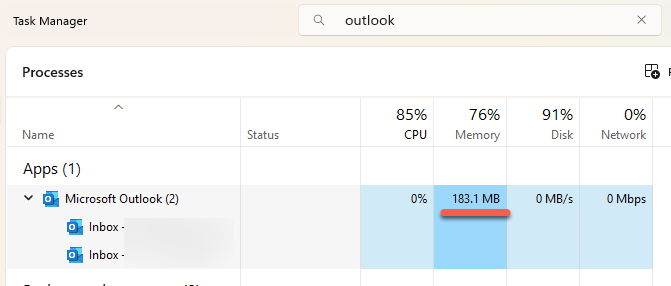
Compare that to Outlook classic on the same machine. When idle, the app is truly idle using very little CPU (0% when we took this screenshot). A tiny 184MB of RAM used when there’s nothing to do.
Not an easy fix
This is a problem with the core of new Outlook, not a stray bug.
Microsoft chose to make a totally new Outlook based on web technologies not because it was better for customers. Ever since development started as “Project Monarch”, the idea was to make an Outlook that was cheaper for Microsoft and gave them more control over customer data.
Excess memory and CPU is a problem for all web based apps. WhatsApp switched to a web app for its Windows app, customers found the new app using at least 300MB of memory up to a whopping 3GB for heavy use. Compare that to the old WinUI/UWP native app which worked in the range of about 15MB to 300MB.
Microsoft’s change of mind?
The recent Build 2026 conference revealed that Microsoft is backpedaling on the move away from native Windows apps.
The Windows 11 team is now back to pushing native WinUI app development, which is faster, using C# first patterns and AI assisted workflows.
The company didn’t say that “web apps are dead” but that’s the clear sub-text.
Will the Outlook team at Microsoft make the same decision? Customers can hope but it’s unlikely because the company has invested too much (money and credibility) in new Outlook.
Avoid new Outlook
We continue to recommend against using new Outlook. If you have classic Outlook, ignore Microsoft’s hype about its replacement. Some quick reasons for sticking with classic Outlook.
- Faster, especially on machines with less RAM or CPU.
- More private, non-Microsoft mailboxes (like Gmail, Yahoo, etc.) have direct connections to each mailbox. New Outlook passes all that information, including login, through Microsoft’s servers.
- Offline support, classic Outlook works well when there’s no or slow Internet. New Outlook claims to have “offline support” but it’s partial and not good in the real world.
New Outlook boasts some truly new features but many only work with Microsoft hosted mailboxes (Microsoft 365 or Outlook.com).
How to Install Outlook Classic on Windows Instead of New Outlook
Too Many Microsoft Outlooks? Clear Up the Confusion in Simple Terms
Understanding Outlook (New) for Windows: An Independent Guide
New Outlook Windows Privacy: What You Need to Know
Outlook New to Classic: How to Revert Back
How to Install Outlook Classic on Windows Instead of New Outlook
Outlook Classic Dropped: How to Access it Again
New Outlook Email Rules Limitations You Should Know