Microsoft Cancels Copilot Search in Outlook, But the Copilot Button Gets Bigger
Microsoft has cancelled the Copilot suggestions it started pushing into the Outlook search box in June 2026, after three months of complaints that AI answers were burying the emails people were actually looking for. If you saw Copilot results appear above your own messages, they will vanish again as the rollback reaches your account, and you do not have to do anything. But this is not a retreat from AI in Outlook. From late August 2026 the Copilot button in classic Outlook gets noticeably bigger, Copilot is still arriving in the classic compose window, and there is still no way to move or shrink that button. Here is what changes, when, and what you can actually control.
Outlook Copilot search suggestions canceled
In April 2026, Microsoft announced it would inject Copilot suggestions directly into Outlook’s search box, placing results generated by AI above your actual emails and calendar entries. The feature started rolling out in June 2026 to Outlook (new) for Windows, Android, iOS, and the web (Outlook classic was never touched).
It did not go over well. Many users found that Copilot’s suggestions buried the emails they were actually looking for, and there was no easy way to turn the Copilot feature off.
Microsoft has now posted a note on the Microsoft 365 Roadmap confirming a reversal:
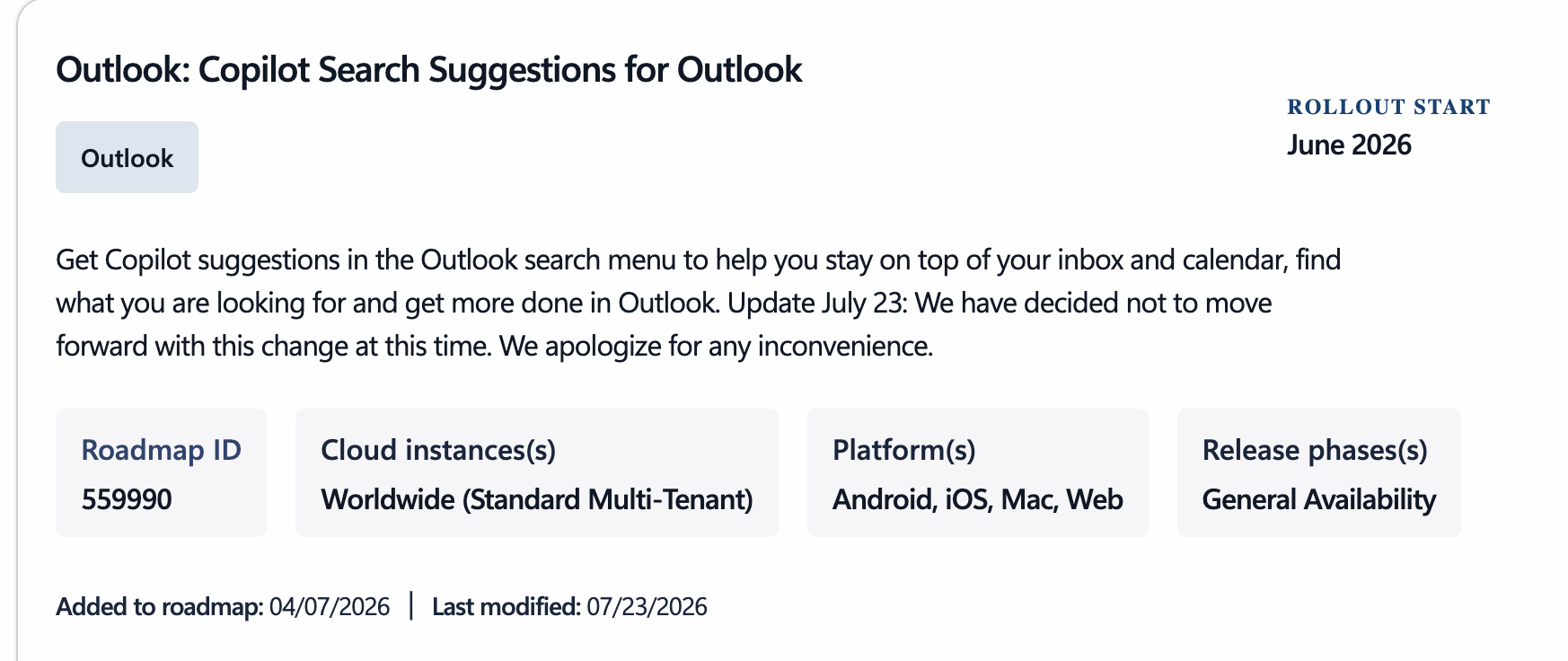
“We have decided not to move forward with this change at this time. We apologize for any inconvenience.”
This is a rare move for Microsoft. The company has pushed Copilot into nearly every corner of Office over the past two years and has almost never backed off once a feature shipped. Even in this case, it took the company over three months to “sound the retreat”.
If Copilot Search already showed up in your Outlook search results, it should disappear again once this rollback reaches your account. That’s a win if you found it distracting. But don’t expect a broader pullback: Microsoft is still pushing Copilot into every Office app it can reach, including the classic desktop version of Outlook, and it still isn’t giving users a real off switch for it. If AI in your inbox bothers you, the license you’re on will matter more than any single feature toggle.
Copilot search still available in Outlook
With a Copilot license and a compatible mailbox, searching with Copilot is an option in both Outlook new, classic and Outlook for Mac.
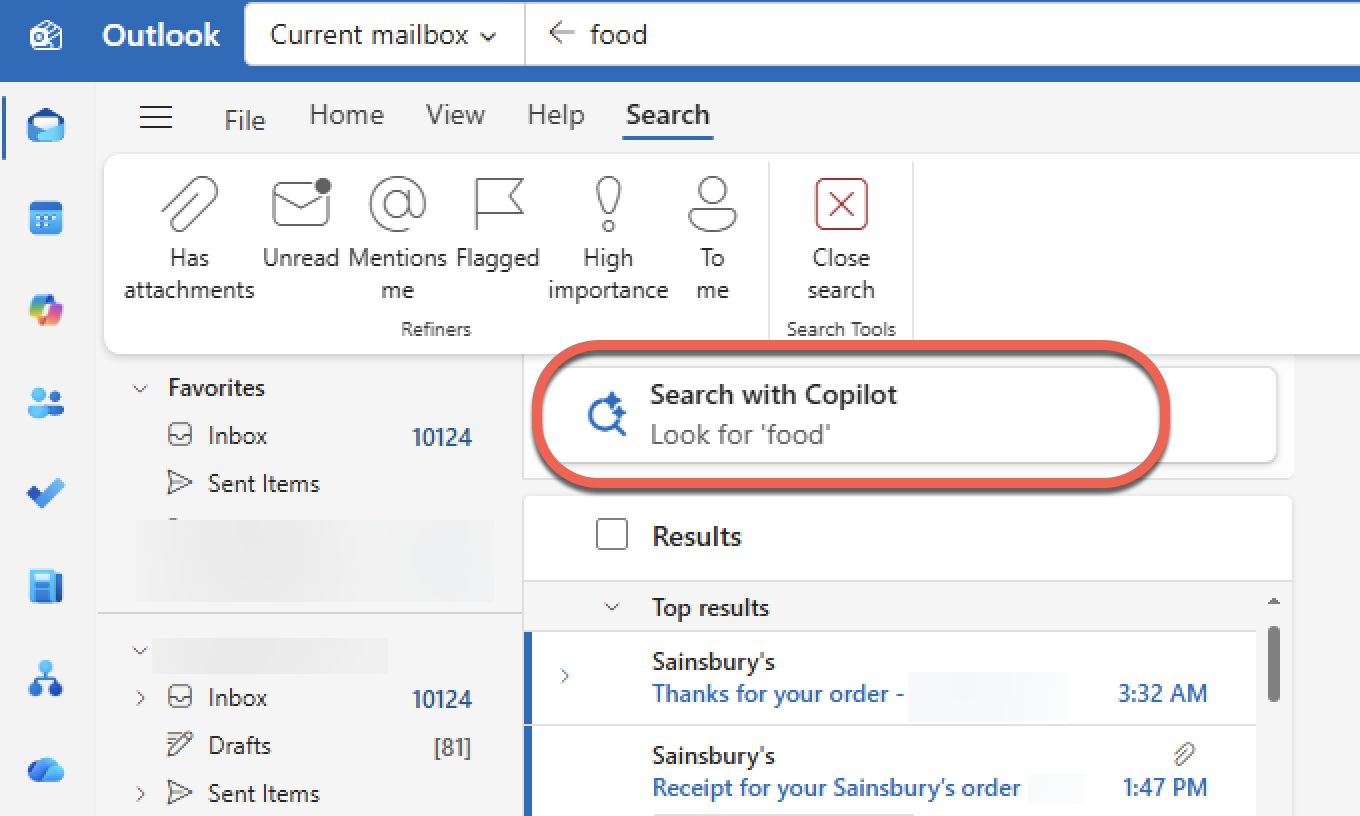
Copilot searches can be very handy and a considerable improvement over regular keyword searches. Ask ‘natural’ questions like “Find the most recent messages from Jill about the Q4 audit” or “List all the replies to my message about penguins”.
In our book Emails better and faster with any AI there’s a whole chapter about Copilot features in Outlook. That includes a section on Copilot’s Immersive Search, with sample prompts and queries as hints at what’s possible.
Copilot is still coming to Outlook Classic
Microsoft isn’t cooling on AI in Outlook generally. The company has confirmed that Outlook Classic, previously considered to be in maintenance mode, is getting full Copilot integration in the compose window.
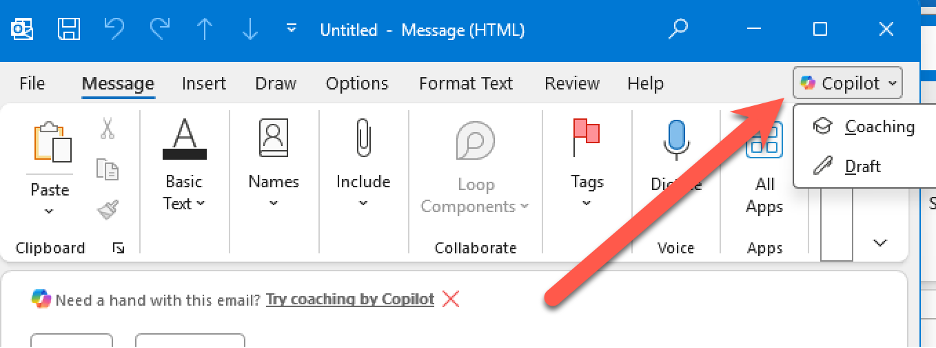
Copilot button is getting larger from late August 2026
Starting in late August 2026, the current discreet Copilot button is becoming bigger and more obvious. Sorry, that should read “more visually appealing ” according to Microsoft.
Currently in classic Outlook, Copilot sits at far right, above the ribbon, see above image.
To be replaced with a larger but separate Copilot button on far right of the Home ribbon.

That’s consistent with the “Dynamic Action Button” in Word, Excel and PowerPoint, except that it’s not floating around the bottom right of Outlook, but placed directly next to the ribbon.
As in other Microsoft 365 apps, the Copilot button can’t be moved. That’s because Microsoft has decided to bypass its own tab/ribbon interface and dump Copilot into the apps in a special way that customers can’t change.
Outlook Immersive Search: Ask and Find Answers Easily
Mastering Search in Outlook for Windows
Turn Copilot Off in Microsoft 365: How to Guide for Word, Excel, PowerPoint & Outlook
Microsoft buries the Copilot button and floats a nag in its place
Copilot on the Quick Access Toolbar: The Hidden Trick That Works (Sort Of)
Understanding Outlook (New) for Windows: An Independent Guide
How to Install Outlook Classic on Windows Instead of New Outlook
Microsoft Kills Free Meeting Insights: What Outlook Users Lose in September 2026
Microsoft 365 Copilot Explained: Features, Limitations and your choices