Which Copilot Model Should You Use in PowerPoint? Auto, GPT, or Claude Opus
PowerPoint 365 now lets some Microsoft 365 Copilot subscribers choose between Auto, GPT, and Claude Opus for text and design tasks, and picking the wrong one wastes time or gives you a weaker draft. Here is what each model is actually good at, which one to leave selected for everyday slide work, and when it is worth switching for a full deck or a high stakes, client facing presentation.
Copilot model choices in PowerPoint 365
Copilot in PowerPoint 365 is a little more complicated than in Word, Excel or Outlook.
- Model switching with Copilot in PowerPoint requires a commercial Microsoft 365 Copilot subscription.
- Admins might have to enable Anthropic as a sub-processor in the Microsoft 365 admin center before Claude shows up as an option.
- Microsoft 365 Personal, Family or Premium plans do not get a model choice.
General AI or Image AI in PowerPoint
When there is a model choice, that breaks down into two areas.
General use – meaning anything text or design based. That’s what this article is about.
Image generation – making or editing images within slide. We’ve explained the selection of PowerPoint image related models in a separate article.
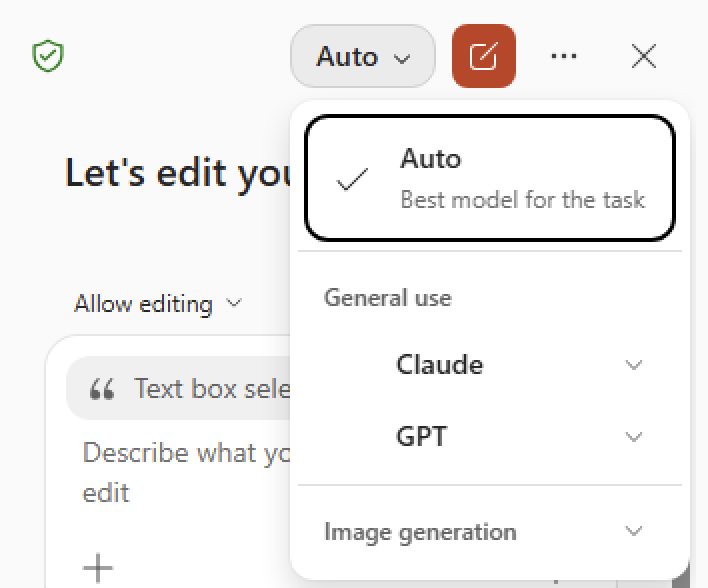
Which AI Model to choose for PowerPoint tasks
For very simple tasks, Auto is fine. Reach past the default only when the task is genuinely harder.
For most everyday work, the most recent GPT is the right call. Fast jobs like rewriting a slide, tightening bullet points, summarizing a deck someone sent you, or generating a first pass of content are exactly what it is built for.
For the heavy lifting, switch to the latest Claude Opus model. Building a full deck from a rough outline, holding structure and argument together across many slides, or leaning on the stronger visual layout and slide space handling that Opus is specifically tuned for in PowerPoint are all cases where the extra depth pays off.
Generate a whole presentation from scratch or from a template: use GPT 5.6 for speed and template matching.
Speaker notes and structured content across many slides: GPT 5.6.
Follow my exact instructions, do not embellish, stay true to my source text: Claude Opus 4.8
A careful, high stakes deck (client facing, numbers that must be right): try Claude Opus 4.8 for the draft, then check it yourself. A stronger model gives you a better starting point, not a finished product you can trust blindly.
GPT 5.5: if you want compatibility with the older GPT.
General use AI models in PowerPoint
Here’s a rundown of the current general AI models available in PowerPoint.
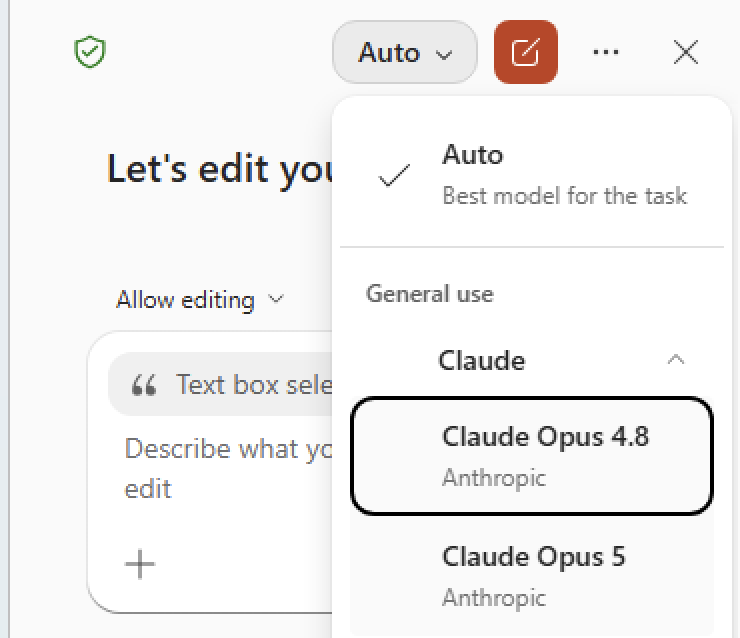
Auto
Auto – let Microsoft decide which model to use. Good for simple tasks like rewriting or simple design changes but not necessarily for more complex tasks. Microsoft has its own quite new MAI models which are cheaper for the company to use. There’s a risk that the “Auto” is skewed towards using an MAI model when it’s not the best for the job.
Claude Opus model
Claude Opus 5 – the newest model from Anthropic. Build and refine presentation drafts from first outline to polished deck, with more visual polish, creative layouts, and better use of slide space. It improves on Opus 4.8 across professional knowledge work and long horizon reasoning, and on published benchmarks it ranks higher than GPT 5.6 Sol in most areas.
Claude Opus 4.8 – the previous flagship model, kept around for compatibility.
GPT models
GPT 5.6 – the fast, general purpose workhorse: good for drafting slide content, quick rewrites, summarizing an existing deck, and the routine tasks most people do most of the time.
GPT 5.5 – kept for compatibility.
Why keep the old Copilot model versions at all?
Mostly continuity. New model versions occasionally behave differently on the same prompt.
If a workflow was built and tested on an earlier version of GPT or Opus and behaves predictably, some people prefer not to change mid-project.
What to know more?
If you’re weighing up the model picker elsewhere in Microsoft 365, the same decision plays out a little differently in Word and Excel. See how it works in Copilot Model Word: Understanding Your Options and Copilot Model in Excel: When to Switch Models, or get the full picture across every app in Copilot Model Choices Explained: Which One to Pick and Why.
Working mostly in spreadsheets rather than slides? Best Copilot AI Model for Excel: A Plain English Guide walks through the same tradeoffs with Excel specific examples.
This article covers text and design tasks, but PowerPoint has a separate picker for generated images. PowerPoint AI Images Tested: Which Copilot Model Actually Works tests each option so you’re not guessing which one produces usable graphics.