Which Copilot Model Should You Use in Excel? Auto, GPT or Claude
Excel now lets you choose which AI model powers Copilot, but Microsoft does a poor job of explaining what each one does. The Copilot model picker in Excel offers Auto, two OpenAI GPT models and two Anthropic Claude models. Here is which Copilot model to leave selected for everyday work, and when it pays to switch to a stronger model for VBA, deep analysis or a financial model that has to be right.
The choice of AI models in Copilot changes regularly, in fact it changed while researching this article. Any specific advice will be quickly out of date. In organizations, admins might limit the AI model selection.
Auto is enough for most Excel needs
For simple tasks like writing a formula or summarizing a column, the Auto option is enough. It’s the default and any general AI model will give much the same answers.
Copilot in Excel currently offers five choices:
- Auto – fully automatic. The AI decides how much time/effort to put into the task.
- GPT-5.5
- GPT-5.6
- Claude Opus 4.7
- Claude Opus 4.8
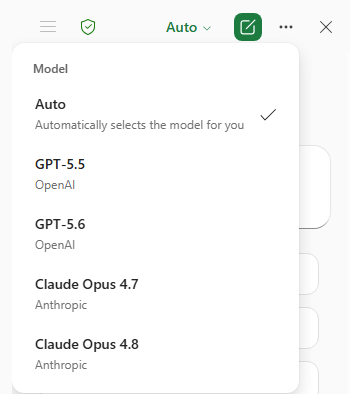
Quick model selection guide
The practical picker is really three choices: Auto, GPT 5.6, and Claude Opus 4.8.
Leave the picker on Auto for routine work, then deliberately switch to the most recent model when it matters:
- GPT 5.6 for scripts, VBA, and formula engineering/
- Claude Opus 4.8 for analysis, financial models, error hunting, and text heavy data.
What about Microsoft Word? Check out which Copilot Model Should You Use in Word? Auto, Claude or GPT
Discover a lot more about Excel
Spreadsheets better & faster with any AI
The plain-English guide to build, fix, analyze, and tidy spreadsheets fast.
Use ChatGPT, Copilot, Claude or Gemini — while keeping in control.
Auto
Copilot picks the model for you based on your request. Convenient, but there is a catch: the Auto algorithm appears to lean toward faster, cheaper (for Microsoft) models rather than the most capable ones. That is fine for simple jobs. For anything complex, Auto may quietly hand your prompt to a lighter model than you would have chosen yourself.
GPT
OpenAI’s GPT models have two choices, the latest model or its predecessor. There is little reason to pick 5.5 deliberately unless 5.6 is misbehaving on a particular task.
GPT 5.5
OpenAI’s previous mainstream model. A solid all-rounder for everyday Excel work: writing formulas, explaining what a formula does, quick summaries, simple charts. It is now superseded by GPT 5.6.
GPT 5.6
The newer OpenAI model, rolling out to Copilot users from around July 9, 2026. Same character as 5.5 but generally sharper. GPT models are particularly good at code style work, which in Excel means VBA, Office Scripts, and gnarly formula construction. If you need to turn a vague request into a working script or a nested formula, this is a strong pick.
However, as we’ve mentioned elsewhere, GPT 5.6 comes in three different versions and Microsoft doesn’t say which one they are using.
Claude
Anthropic’s Claude is available, also with the newest version and the one before.
Opus 4.7
Anthropic’s previous flagship reasoning model. Strong at deep analysis and multi-step work, and it made a real name for itself with finance teams building forecasting models. Like GPT 5.5, it is the older sibling now. Nothing wrong with it, but 4.8 does the same job better.
Opus 4.8
Anthropic’s latest, rolled out to Excel and other Microsoft 365 Copilot surfaces in late May 2026. It is designed for complex, multi-step work, with better instruction following and follow-through across multi-turn tasks, and Microsoft says it is stronger at data analysis. This is the heavyweight in the current picker: the one to choose when the thinking is hard and the answer has to be right.
Why keep the old versions at all?
Mostly continuity. If a workflow was built and tested on GPT 5.5 or Opus 4.7 and behaves predictably, some people prefer not to change mid-project. New model versions occasionally behave differently on the same prompt.
Which model for what task?
Match the model to how hard the thinking is, not how big the spreadsheet is. A 50,000 row table can need only a quick pivot; a 20 row assumptions sheet can need serious reasoning.
- Quick formula help, “what does this formula do?”, simple sums and lookups: Auto. Any model handles these fine, so let Copilot get on with it.
- Writing VBA or Office Scripts, building complicated nested formulas: GPT 5.6. The GPT family is reliably good at code, and this is code by another name. See Build a Better Excel Workbook with Copilot: Smarter Prompts, Stronger Results
- Cleaning up messy data, splitting columns, standardizing formats: GPT 5.6 or Auto. Mechanical work, not deep thinking. See Better Than Flash Fill: 4 Smarter Ways to Split Text in Excel.
- Analyzing mostly text data (survey responses, customer comments, support tickets, notes columns): Claude Opus 4.8. Claude models are generally the better choice when your spreadsheet is full of words rather than numbers.
- Building or reviewing a financial model, multi-driver forecasts, formulas tied to assumption cells: Claude Opus 4.8. This is exactly where the extra reasoning depth pays off, and where the default model produces noticeably weaker results.
- Tracing a long formula chain, finding inconsistencies or errors across a workbook: Claude Opus 4.8. Careful, multi-step checking is its specialty.
- Anything client facing or where a wrong number has real consequences: Claude Opus 4.8, and then check it yourself. A stronger model gives you a better draft, not a guarantee.
Which Copilot Model Should You Use in Word? Auto, Claude or GPT
GPT 5.6 Arrives in Microsoft 365 Copilot, But Microsoft Hides What You Get
Microsoft quietly swaps the AI inside Excel and Outlook
Build a Better Excel Workbook with Copilot: Smarter Prompts, Stronger Results
Copilot Can Now Actually Do the Work in Word, Excel, and PowerPoint
Better Than Flash Fill: 4 Smarter Ways to Split Text in Excel
Why AI Is Almost Intelligent: The Honest Truth About ChatGPT and Copilot