How to get more than 1TB of OneDrive space – Free
Officially, Office 365 ‘subscribers’ get 1TB of OneDrive storage but it’s possible to get more, without paying and only a little trickery.
For a time, Office 365 customers could use unlimited OneDrive storage but Microsoft changed their mind and they reduced that to 1TB.
1 Terabyte is enough for most people (Microsoft says the average OneDrive account uses just 5.4GB or less than 1%). But if you need more, there’s some options available.
10TB until March 2017
If you’ve were an Office 365 subscriber when Microsoft reduced your storage limit, you still have 10 Terabytes until 1 March 2017.
Strictly speaking there’s ‘unlimited’ storage available but Microsoft shows a limit of 10TB, for example on the bottom left column of the OneDrive web page.
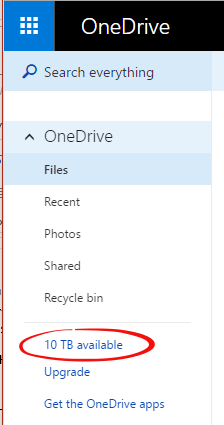
After 1 March 2017 you’ll be back to the 1TB limit and anything over that limit will be ‘read only.
Getting more than 1TB free.
Office 365 subscriptions includes 1 Terabyte per user – not per subscription.
An Office 365 Home package is for up to five users – that means 1TB for each user linked to that subscription.
Quite often a Home subscription doesn’t need all five users. The Home subscription is better value even for two people compared to buying individual Office 365 Personal packages.
Chances are your Office 365 Home account has ‘spare’ or unused users. Use the OneDrive allowance of those spare ‘people’. Admittedly, it’s a stretch of the Office 365 terms of use that limits Home accounts to five members of the same household.
All you need is another email address than the one you regularly use. That’s easy to arrange (if you haven’t already) via Gmail, Outlook.com, Yahoo Mail or others. Or an email alias/redirection that directs mail to an existing mailbox.
- Use or create a different email address.
- The name isn’t important but it might be confusing if you have multiple Office 365 users with the same name. Maybe use a little variation – e.g. instead of Fred Dagg use Mr F. Dagg, Frederick Dagg etc.
- Make sure you can receive messages to the new address because you’ll need to read an email from Microsoft at the next step.
- Create a Microsoft account using the new email address. Do that from Office.com or OneDrive.com. Try to login then look for a ‘Sign up for a new account’ link.
- To prevent confusion with your regular Microsoft account, use a ‘Private’, ‘InPrivate’ or ‘Incognito’ browser window which doesn’t use your regular cookies.
- You’ll have to verify the new account by acknowledging an email in the usual way.
- Each Microsoft account comes with 5GB of free storage.
- Login to Office 365 using your regular Microsoft account which ‘owns’ the Office 365 Home subscription.
- Link the new email address as a user to the Home subscription. Click on ‘Add User’ and enter the newly created email address.
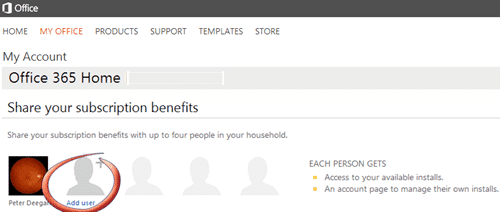
Now login with the ‘new’ address at onedrive.com and you should be able to see an increase to 1TB of available storage.
Unfortunately, you can’t merge the OneDrive storage allowances. You’ll have to split your use between the accounts.
Use 1TB for ‘normal’ use – sharing documents, storing photos etc. The other 1TB account can be for backups and other longer term storage.