You do not need Adobe Acrobat, a subscription, or any paid software to merge, split, or combine PDF files. There are free Windows tools available and Mac includes built-in tools that handle the job in minutes. Whether you want to strip out the fine print from a travel itinerary, combine several documents into one, or extract just a few key pages from a longer file, this guide shows you exactly how to do it at no cost.
Let’s start with the really easy trick to ‘split’ a PDF or just make a smaller PDF with only some pages from the larger original file.
We often do this with airplane and car rental paperwork. The main info is on the first or second page followed by pages of ‘fine print’ and ads. Here’s how to make a smaller PDF with just the key info pages.
Using ‘Print to PDF’ to save some PDF pages
The simple way split up a PDF is to open the file in any PDF viewing program then ‘Print’ to another PDF file.
Both Windows and Mac have in-built PDF viewers and also ‘Print to PDF’ options that take the print commands from any program and save them to a PDF file (not a printer).
All you do is open the PDF in any viewer then ‘print’ the pages you want to another PDF file.
For example, a 10 page PDF can be compressed to just 3 pages by printing pages 2-4 only. There are options to print non-continuous pages like 1, 3-5 to print page 1, 3,4 and 5.
The result is another PDF file with just the pages you’ve chosen. You’ll be prompted for a new PDF file name and folder to save it.
Merging PDFs into a single file
We often combine PDF’s. Separate PDF’s saved from Word, Excel or Powerpoint can be mushed into one file. Some printing services charge per document as well as per page so combining PDF’s can save a little money.
Ever since Word got PDF import features, it’s been possible to use Word to split or combine PDFs. Just open the PDF in Word and tinker with the pages. But Word doesn’t really let you edit a PDF, instead it’s converted into a Word document. That conversion doesn’t 100% retain the formatting of the original PDF. It’s also a time-consuming process.
The faster and more reliable option is to work with the PDF files and pages directly. You could buy Adobe’s PDF editing software or service but that not only costs money, but has a lot more features that probably aren’t needed.
Free PDF Merger for Windows
There are various ‘free’ tools out there but we settled on PDFMate Free PDF Merger available for Windows.
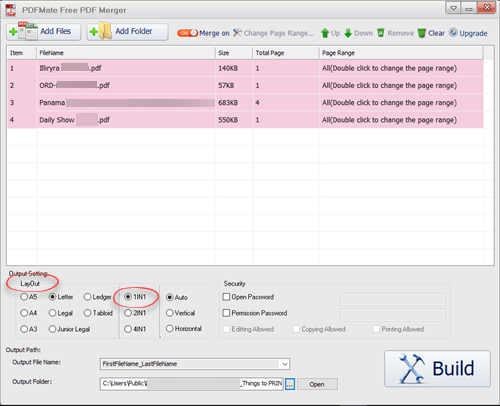
It has various useful options beyond just merging several PDF’s into a single file.
You can select pages from a larger PDF. Use that to split a PDF into smaller ones, see below for other ways to do that without a special tool.
The output PDF can be set to a single page format, US or Metric.
Pages can be merged normally or combined into ‘2 pages per sheet’ or ‘4 pages per sheet’ to save paper.
There’s also security / password options.
Alternative PDF merge tools didn’t appeal for various reasons. Some require the Java runtime that we prefer to avoid or aren’t really free. For privacy reasons, we don’t use online services either.
Mac tools for combining PDF
Mac customers don’t need extra tools to combine PDF files because the macOS has two built-in tools.
Using Preview App (Recommended)
This method gives you control over the page order.
- Open your first PDF in Preview.
- Select View | Thumbnails to display the sidebar.
- Drag the other PDF files from the Finder directly into the thumbnail sidebar of the open document.
- The added PDF will be included between the pages in the thumbnail view.

- Rearrange pages by dragging them.
- Go to File | Export as PDF to save the new merged document.
Bonus – rearrange or duplicate PDF pages
Mac Preview app can do other useful things to a PDF.
Reorder Pages
Drag and drop page thumbnails to reorder the pages.
Duplicate Pages
When dragging a page thumbnail, hold down the Option key (a green + icon will appear at the mouse pointer). The selected page/s will be copied (not moved).
Using Mac Finder to combine PDF
The macOS Finder can combine PDFs quickly from the Quick Actions menu.
- Open Finder and locate your files.
- Select the PDF files you want to combine (hold
Commandto select multiple files). - Right-click (or Control-click) on the selected files.Select Quick Actions | Create PDF.

- A new merged PDF will be created immediately in the same folder. It appears in Finder, ready to be renamed.
This choice is quick but doesn’t give any control over the order of the PDFs or the pages. The Preview app features might be more useful.
Making a PDF from Office: Save or Print?
Make a Better PDF from Microsoft Word Using the Hidden Options
Three Ways to Add a PDF into a Word Document
Delete or Reorder PDF Pages for Free
Show Markup and Comments in a PDF Made from Word
