Outlook Email Rules Explained: How to Automatically Sort, Flag and Manage Your Inbox
Outlook email rules let you take control of a chaotic inbox by telling Outlook exactly what to do with messages the moment they arrive. Instead of manually sorting newsletters, flagging messages from your boss or deleting routine notifications, a few well built rules handle it all automatically. This guide explains how Outlook rules work, what the four parts of every rule are, the key difference between server based and client only rules, and how to set them up in Outlook classic, Outlook (new), Outlook for Mac and the web browser.
Email rules are automatic instructions you give Outlook software or the online mailbox: “When an email arrives that matches certain conditions, do something with it automatically.”
For example: a rule for messages from a particular sender gets moved to a “Newsletters” folder the moment it arrives, without you touching it. Or emails from your boss/wife/husband pop up an alert box or be flagged for attention.
Rules are one of the most effective ways to tame a busy inbox without spending time on it manually. A handful of well-set rules can sort, prioritize, and clear out routine mail before you even open Outlook.
Just like many other Outlook features, Microsoft made Rules work differently on each version of Outlook. Now they are trying to merge them into a single system and, at least for now, it’s a bit messy.
An Outlook rule has four parts:
- A trigger – what Outlook looks for (sender, subject words, who it was sent to, etc.)
- More condition/s – optional extra filters to narrow things down.
- Exceptions – to exclude certain messages from applying that rule.
- An action – what happens (move it, delete it, flag it, forward it, play a sound, and so on)
Most Rules apply to incoming messages but there are also rules for outgoing message, when you click Send.
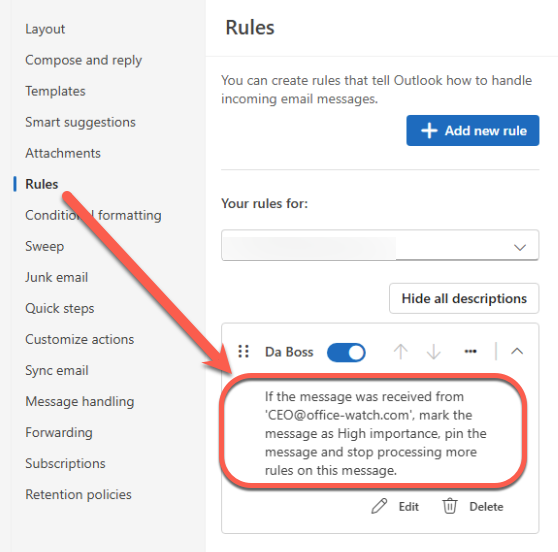
Here’s a rule that checks for messages from the boss and marks them as High importance and Pin the email.
What runs the rule?
Rules are run by Outlook software or the online mailbox in two different places:
- Locally by Outlook software. Outlook classic for Windows only. “Client only” rules are applied as email arrives into the software on a computer. These rules only work when that software is running.
- In the cloud when the mailbox is stored online in a Microsoft hosted mailbox “server based rules” are applied 24/7 as new messages arrive. No “Outlook” software has to be running. All modern Outlooks including Outlook (new) for Windows and Outlook for Mac only have cloud or server based rules.
Whether a rule is ‘local/client’ or “server based” is decided automatically by Outlook classic for Windows and Microsoft’s labelling isn’t always clear.
If possible, rules are “server based” (in the online mailbox) with the rest setup as “client only”. Some actions like alerts or moving to local storage (.PST) only work on Outlook software (i.e. client side).
Client/local rules are only available in the classic versions of Outlook for Windows or Mac.
The new Outlook for Windows, Outlook for Mac and Outlook on the web only have server-based rules.
Outlook mobile apps don’t have rules, only the server-based ones are applied.
Gmail also has server-side rules, but they are setup via the web browser (not Outlook) and are called “Filters”.
Rules (or Filters) are one way for messages to be redirected but not the only way. Many mailboxes have auto-forwarding to send all incoming messages to another email address.
Outlook (classic) for Windows
Start Outlook Rules from Home | Move | Rules.
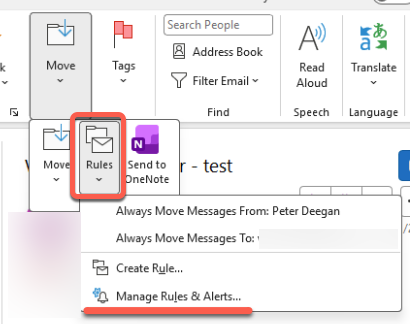
The easiest way to make a new rule is to select a message that you want to be triggered by a rule then go to the Rules menu.
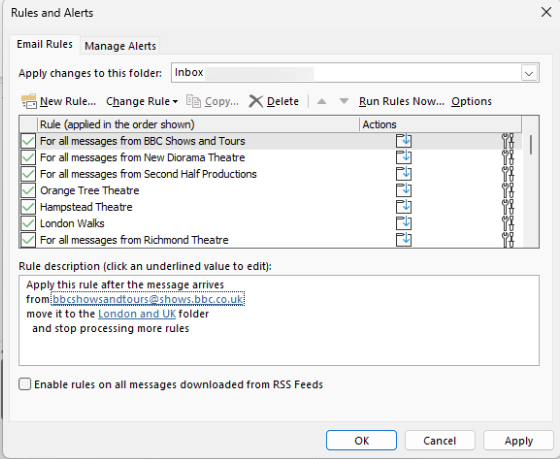
To see the existing rules go to the Manage Rules & Alerts option.
Outlook (new) and browser
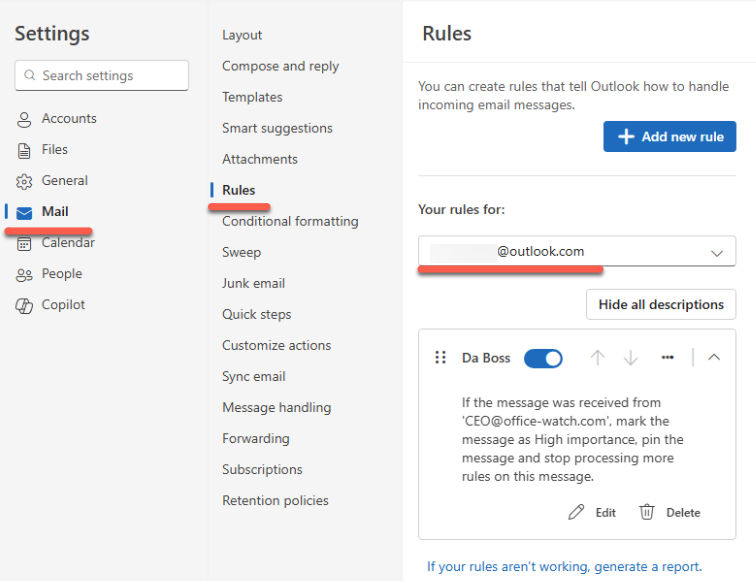
In Outlook (new) for Windows and in a web browser, go to Home | Rules | Manage Rules, then choose a mail account
Outlook for Mac
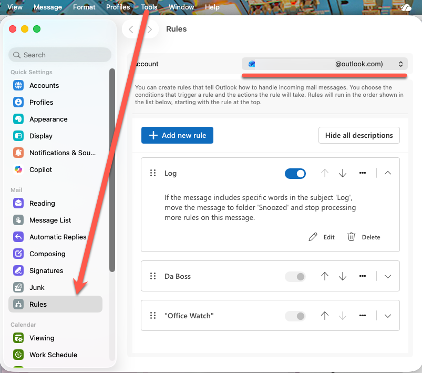
Rules are displayed the same way in Outlook for Mac, but not from the toolbar, instead go to the Tools menu then Rules.
Beyond Outlook Rules: 8 Hidden Features That Manage Your Email Without You Knowing
Outlook Focused Inbox Explained: How to Train It, Control It, or Turn It Off
Outlook Categories: why and how
How to ‘ignore’ emails in Outlook
Understanding Outlook (New) for Windows: An Independent Guide
Email templates give you faster messages in Outlook
Get the most from Plus addresses in Outlook
Important changes for your Microsoft and Outlook.com email
Untangling Microsoft Outlook: Navigating the Complexities of the Software and Email Service