Beyond Outlook Rules: 8 Hidden Features That Manage Your Email Without You Knowing
Outlook Rules are not the only way your email gets sorted, moved, or deleted. Microsoft has built at least eight other features into Outlook and Microsoft 365 that can manage messages automatically or with a single click. From Focused Inbox and Sweep to Quick Steps, Archive, and retention policies, each one works differently and knowing where to look can save you hours of frustration when an important email seems to vanish. Here is what each feature does, how it differs from Rules, and where to find it.
Focused Inbox
Focused Inbox keeps all your email in the Inbox folder, just displays the messages in a split Focused/Other tabs.
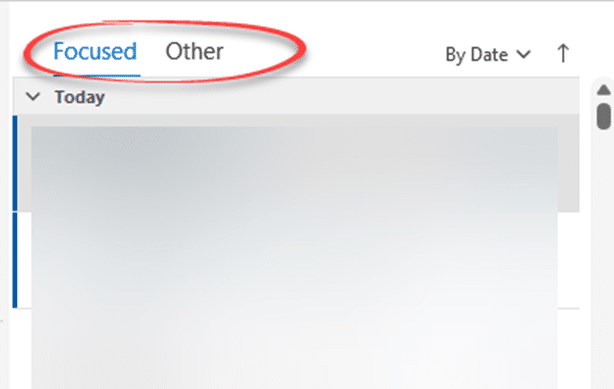
With a little training, it’s a good way to keep important messages in one list with the rest just a click away. Searching for emails includes both types of messages because they are all still in one Inbox folder.
Clutter
The Clutter feature for Microsoft email was supposed to move low-priority messages to another folder. After four years, Clutter was dropped and replaced with Focused Inbox.
Quick Steps
Outlook Quick Steps aren’t automatic but they are a fast way to take action on messages, including moving them to other folders or email addresses.
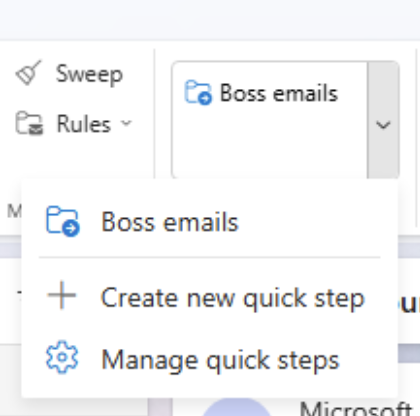
Quick Steps are similar to Rules except they are done manually, not automatically.
Quick Actions
Only in Outlook (classic) for Windows, are Quick Actions
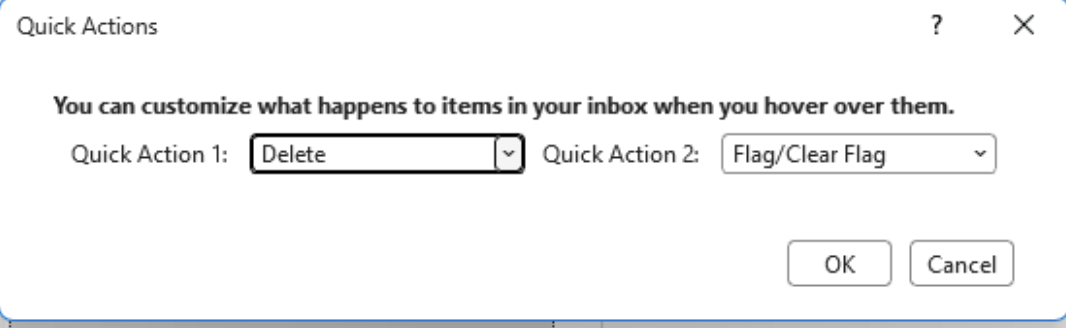
It’s one of the features quietly dropped in newer Outlook.
Junk Email
Online systems check incoming emails for unwanted ‘spam’ or dangerous messages. The worst offenders are deleted automatically but others, that the software is unsure about, are put into the Junk Email folder.
The Junk Email folder is where possible spam is put for one of us humans to check. Occasionally the automated spam filters are wrong and a message you want is put into the Junk Email folder.
Archive
The Archive feature in Outlook gives you a one-click way to move messages out of your Inbox without deleting them. When you select a message and click the Archive button (or press Backspace on Outlook for Windows), Outlook moves it to a dedicated Archive folder.
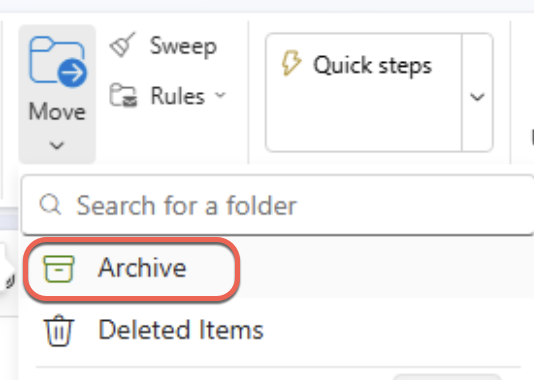
Think of it as a “done with this, but might need it later” button. The message is still fully searchable and sitting in your mailbox; it just isn’t cluttering your Inbox anymore.
Outlook’s Archive button is not the same as the older AutoArchive feature, which moved or deleted old items on a schedule (and in some cases shifted them to a separate .pst file). The modern Archive is much simpler: one tap, one folder, no settings to configure.
Forwarding
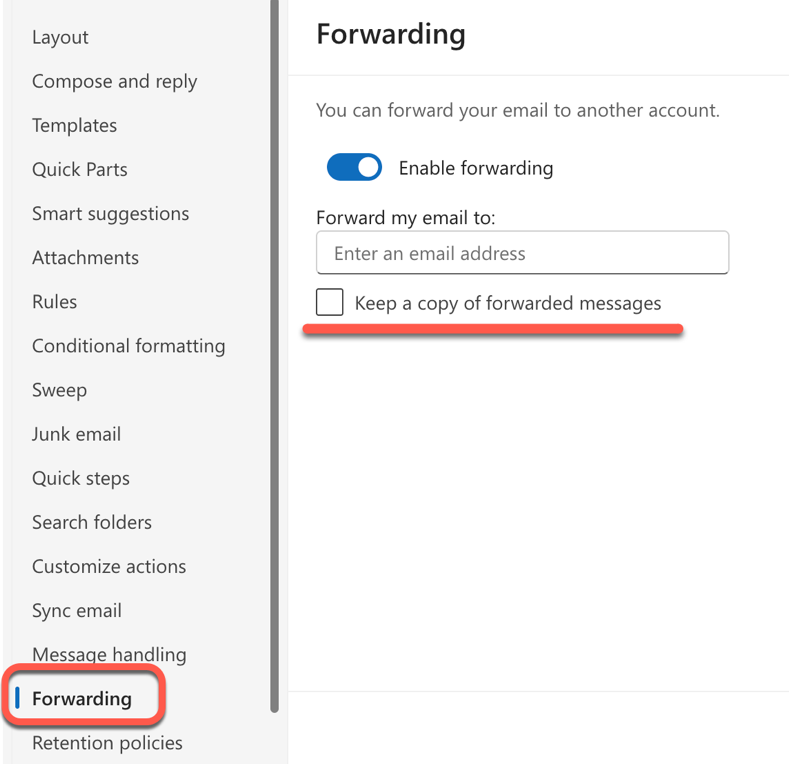
All messages can be automatically forwarded to another email address, with or without keeping a copy on the original mailbox.
Sweep
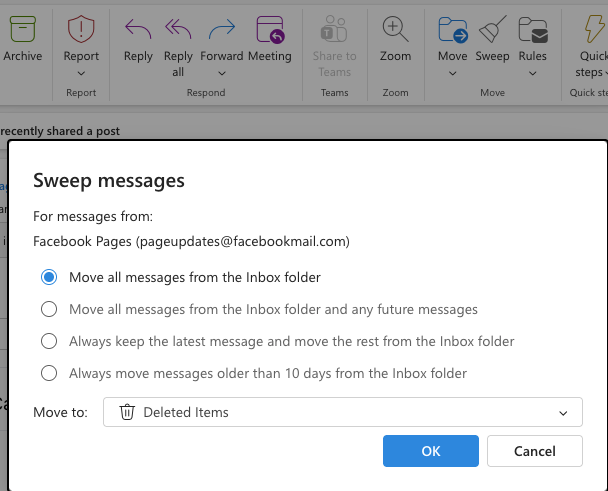
Sweep is another way to handle incoming messages. It’s not on the right-click menu, look instead on the Home tab.
Sweep vs Rules
- Sweep Rules: Focus specifically on the sender and have limited, specialized actions, often running automatically as a cleanup task. Unlike Rules, Sweep does not run immediately a message arrives, instead it happens automatically according to some schedule of Microsoft’s choosing.
- Inbox Rules: More comprehensive and complex, allowing for actions based on keywords, subject lines, or recipient, and apply to incoming emails immediately.
Retention Policies
Retention policies in Outlook are rules set by your organization (or sometimes by you, depending on your setup) that automatically manage how long email messages are kept and what happens to them after that period expires. For example, a company might have a policy that moves everything in your Inbox to a special archive mailbox after one year, or permanently deletes items from your Deleted Items folder after 30 days. These policies run quietly in the background, and you’ll sometimes see them noted in a small label on a message or folder that says something like “Retention policy: Delete after 1 year.”
You can check what policy applies to a folder by right clicking it and looking under Properties | Policy.
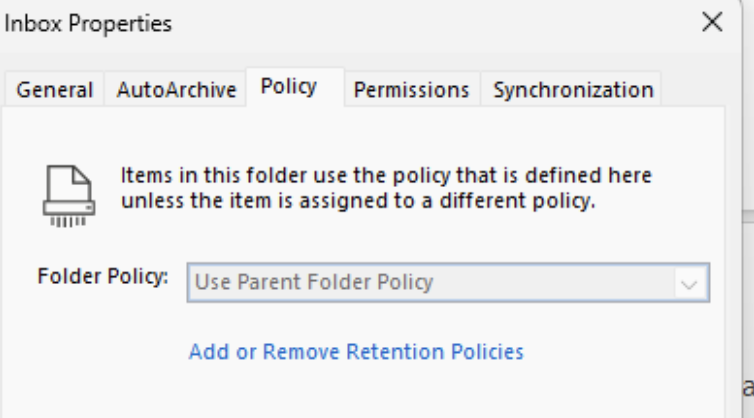
Retention policies exist mainly for compliance and storage management in an organization. Your IT department typically sets them up through Microsoft 365 or Exchange, and in most cases you can’t override or turn them off. If an important email disappears and you weren’t expecting it, a retention policy could be the reason.
If something seems wrong or messages are vanishing too soon, your best move is to contact your IT admin, because they control the rules.
Outlook Focused Inbox Explained: How to Train It, Control It, or Turn It Off
How to Ignore Emails in Outlook
Outlook Categories: Why and How
When Spam Messages Still Get Through, Even with Modern Email Protection