Free PDF Merge and Split on Windows or Mac
You don’t need Adobe Acrobat or any paid subscription to merge, split or combine PDF files. Windows and Mac both have free, built in tools that handle the job in minutes, and there are solid free apps that go further. Whether you want to strip out the fine print from a travel booking, combine reports into a single document, or pull a few key pages from a long PDF, this guide walks through every free method that actually works, on Windows, Mac, OneDrive and Microsoft 365.
Let’s start with the really easy trick to ‘split’ a PDF or just make a smaller PDF with only some pages from the larger original file.
We often do this with airplane and car rental paperwork. The main info is on the first or second page followed by pages of ‘fine print’ and ads. Here’s how to make a smaller PDF with just the key info pages.
Using ‘Print to PDF’ to save some PDF pages
The simple way to split up a PDF is to open the file in any PDF viewing program then ‘Print’ to another PDF file.
Both Windows and Mac have in-built PDF viewers and also ‘Print to PDF’ options that take the print commands from any program and save them to a PDF file (not a printer).
All you do is open the PDF in any viewer then ‘print’ the pages you want to another PDF file.
For example, a 10-page PDF can be compressed to just 3 pages by printing pages 2-4 only. There are options to print non-continuous pages like 1, 3-5 to print page 1, 3,4 and 5.
The result is another PDF file with just the pages you’ve chosen. You’ll be prompted for a new PDF file name and folder to save it.
Merging PDFs into a single file
We often combine PDFs. Separate PDFs saved from Word, Excel or PowerPoint can be mushed into one file. Some printing services charge per document as well as per page so combining PDFs can save a little money.
Ever since Word got PDF import features, it’s been possible to use Word to split or combine PDFs. Just open the PDF in Word and tinker with the pages. But Word doesn’t really let you edit a PDF, instead it’s converted into a Word document. That conversion doesn’t 100% retain the formatting of the original PDF. It’s also a time-consuming process.
The faster and more reliable option is to work with the PDF files and pages directly. Adobe’s PDF software works well, but it costs money and includes many features you probably will not need..
OneDrive PDF tools
OneDrive online has tools to merge PDF files into a single PDF. All the PDFs have to be saved to OneDrive even if just temporarily to make use of the merging feature.
Any account with some paid Microsoft 365 plan has these PDF tools. These tools are not available for free Microsoft accounts.
In OneDrive in a browser, open the first PDF then go to the Merge button at top-left.
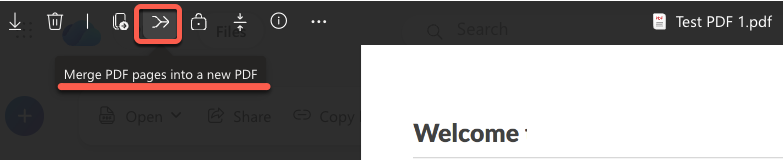
Select other PDF files to merge and the combined PDF will be saved to OneDrive. The extra PDF files have to be saved on OneDrive but there’s an ‘Upload’ option available. It’s easier if all the PDFs to merge are in the same folder, but they can be anywhere in that OneDrive account.
The merged PDF can be downloaded or shared just like any other file.
OneDrive also has an ‘Extract PDF’ feature (next to the Merge PDF button).
Free PDF Merger for Windows
There are various ‘free’ tools out there like PDFMate Free PDF Merger available for Windows.
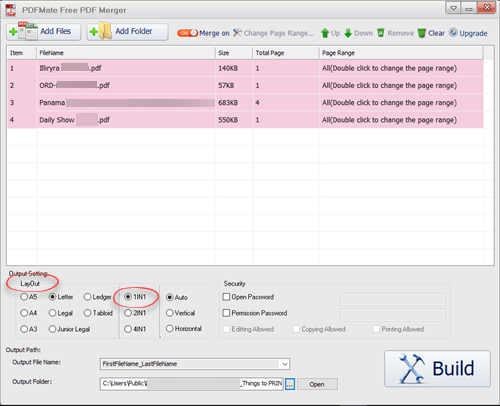
It has various useful options beyond just merging several PDFs into a single file.
You can select pages from a larger PDF. Use that to split a PDF into smaller ones, see below for other ways to do that without a special tool.
The output PDF can be set to a single page format, US or Metric.
Pages can be merged normally or combined into ‘2 pages per sheet’ or ‘4 pages per sheet’ to save paper.
There’s also security / password options.
Alternative PDF merge tools didn’t appeal for various reasons. Some require the Java runtime that we prefer to avoid or aren’t really free. For privacy reasons, we don’t use online services either.
Mac tools for combining PDF
Mac customers don’t need extra tools to combine PDF files because the macOS has two built-in tools.
Using Preview app (Recommended)
This method gives you control over the page order.
- Open your first PDF in Preview.
- Select View | Thumbnails to display the sidebar.
- Drag the other PDF files from the Finder directly into the thumbnail sidebar of the open document.
- The added PDF will be included between the pages in the thumbnail view.

- Rearrange pages by dragging them.
- Go to File | Export as PDF to save the new merged document.
Bonus: rearrange or duplicate PDF pages
Mac Preview app can do other useful things to a PDF.
Reorder Pages
Drag and drop page thumbnails to reorder the pages.
Duplicate Pages
When dragging a page thumbnail, hold down the Option key (a green + icon will appear at the mouse pointer). The selected page/s will be copied (not moved).
Using Mac Finder to combine PDF
The macOS Finder can combine PDFs quickly from the Quick Actions menu.
- Open Finder and locate your files.
- Select the PDF files you want to combine (hold
Commandto select multiple files). - Right-click (or Control-click) on the selected files.Select Quick Actions | Create PDF.

- A new merged PDF will be created immediately in the same folder. It appears in Finder, ready to be renamed.
This choice is quick but doesn’t give any control over the order of the PDFs or the pages. The Preview app features might be more useful.
Making a PDF from Office: Save or Print?
Make a Better PDF from Microsoft Word Using the Hidden Options
Three Ways to Add a PDF into a Word Document
Delete or Reorder PDF Pages for Free
Show Markup and Comments in a PDF Made from Word