What is Markdown and how it works with Microsoft Word
Markdown is a plain text formatting system that lets you write **bold**, # headings, and bullet lists using just your keyboard, no toolbar clicking required. Created in 2004, it has quietly become the common language between humans and AI tools as well as a ‘distraction free’ way to write. We’ll explain what Markdown is, how and why to use it and some simple editing tools to get you started.
Markdown is a lightweight, plain text, way to format text using simple symbols instead of clicking toolbar buttons. You type **bold** instead of reaching for the Bold button, # for a heading, – for a bullet point, and so on.
It was created in 2004 by John Gruber as a way to write for the web without wrestling with HTML and now it’s become a core tool for Artifical Intelligence.
The beauty of Markdown is that the plain text file is still perfectly readable even before it gets converted into anything. That makes it popular with developers, technical writers, and anyone who wants to write without distractions.
Here’s Markdown text on the left with a formatted version on the right.
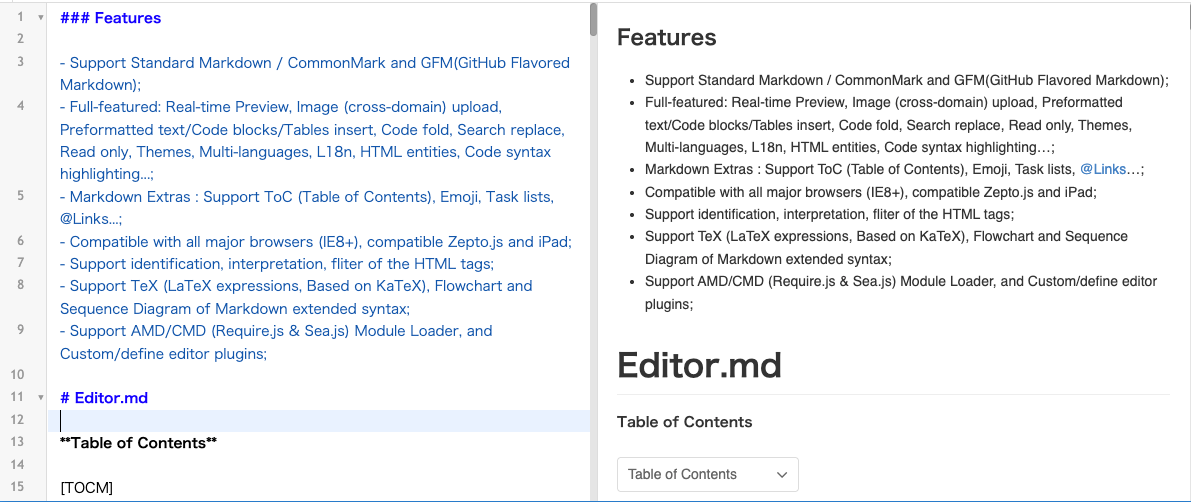
Here’s some Markdown examples.
*Italic* _Italic_**Bold or Emphasis** __Bold or Emphasis__***Bold Italic*** ___Bold Italic___<s>Strikethrough</s>Superscript: X<sub>2</sub>Subscript: O<sup>2</sup>> This is a blockquoteLots of other formatting options are available just by typing plain text including lists (ordered or unordered, tables, code display, flow or sequence charts, equations (LaTeX) and even musical notation.
Markdown itself is quite minimal but there are many extensions available. Some extensions like tables, strikethrough and sub/superscript have become widely accepted. Others like emoji shortcodes, Math (LaTeX) and code blocks aren’t always understood.
Why Markdown, not Word?
Markdown has become the lingua franca between humans and AI systems. It is plain enough that any text editor can open it, structured enough that any AI can parse it reliably, and expressive enough to capture real document structure.
That’s why Markdown .md files are appearing more often. In many cases, what you see from an AI service is a formatted version of the Markdown text that the AI created.
Us humans use Markdown to speed things up. It’s especially useful if you find yourself distracted by Word’s formatting tools when you should be writing. Draft in plain text without fussing too much about formatting, then convert when it’s time to deliver a polished document.
That said, if your work depends heavily on Word specific features like tracked changes, comments, complex tables, or corporate templates, Markdown won’t replace Word. It’s best thought of as a drafting tool that feeds into Word, not a replacement for it.
Getting started with Markdown
If you’re interested in trying Markdown, a good place to start is https://stackedit.io/
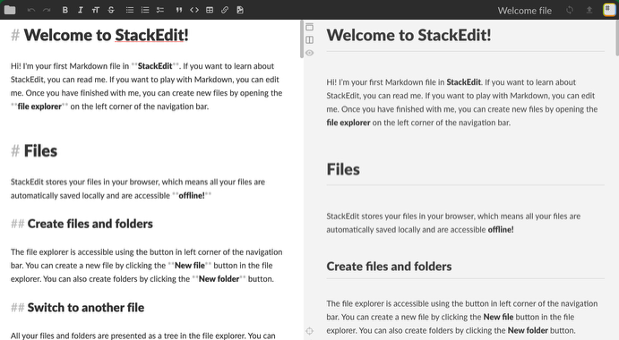
Other Markdown online options
Dillinger is clean and straightforward. It also offers a split pane view and connects to Google Drive, Dropbox, GitHub, and OneDrive. Good if you want something simple that just works.
HackMD stands out for real time collaboration, similar to Google Docs. Multiple people can edit the same Markdown document simultaneously. It’s popular with teams and has a three person free tier.
MarkdownLivePreview.com is about as simple as it gets. Two panes, no account required, no bells and whistles. Good for quick one off work.
Editor.md is an open source option with a nice toolbar for people still learning the syntax. It gives you clickable buttons for formatting while you learn the shorthand.
Word can’t understand Markdown without help
Markdown and Word live in different worlds, but there are several practical bridges between them. Some are good for occasional or ‘one off’ tasks with more powerful tools available for more regular conversion needs.
The real workflow is: write in Markdown, export to .docx.
You write in a distraction free Markdown editor, then convert to a Word document when you need to share or format it professionally.
We found at least 6 Ways to Convert Markdown to a Word Document
Make a distraction free Microsoft Word
Stop Automatic Formatting in Word Easily Today
Word Clear Formatting: Remove Text Formatting in Word Documents
Paste tricks and tips for Microsoft Word
How to Choose Writing Style in Microsoft Word Editor
Microsoft Word Agent Deep Dive: about the New AI Editor and What You Can Really Do With It
Microsoft 365 Copilot Explained: Features, Limitations and your choices
Word Designer: the quick way to better looking documents
Stop Microsoft Word’s Grammar Checker From Driving You Crazy