How to Find inside Text Boxes for Microsoft Word
All about Find in Microsoft Word Text Boxes. Text Boxes in Word have special needs when you’re either looking for text inside Text Boxes only or just the main document.
What’s inside Text Boxes is handled separately to the main document, depending on the options you’ve chosen for the search.
Find in Text Boxes
Standard Find in the Navigation Pane (Ctrl + F) applies to objects and text in Text Boxes as well as the main document. Here the search term is highlighted in the Text Box as well as elsewhere.

Advanced Find
Open the Advanced Find box and choose Find In to search inside Text Boxes only or the main document only. The default (not listed in the menu) is to search both the main doc and Text Boxes.
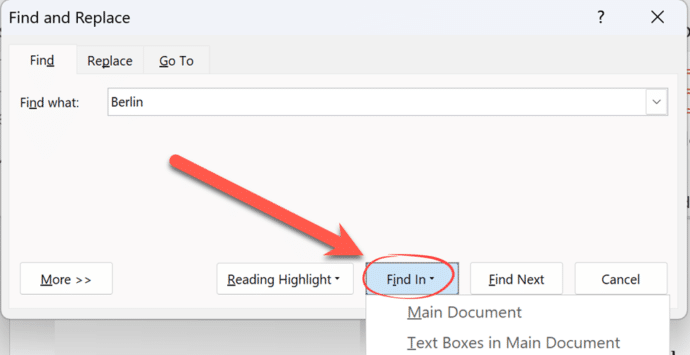
Find Next
Just like any other find, you can leave the Find dialog box open and jump between found items.

If you do that while searching both main document and Text Boxes you’ll notice something strange. Word will jump between each ‘find’ in the main document then go through anything found in Text Boxes. That’s because Word doesn’t see the document in the order we do. To Word there’s a main document then Text Boxes as a separate element.
Replacing text in Text Boxes
It’s a little more complicated to replace text in Text Boxes but still possible see How to Find and Replace in Word Text Boxes