Add the US Flag to Word, Excel and PowerPoint in High Quality
Want to add the US flag to Word, Excel or PowerPoint without ending up with a blurry, stretched mess? This guide shows you exactly where to get a high quality flag image, including the scalable SVG version that stays sharp at any size, how to insert it in seconds, the official red, white and blue color codes, and the flag etiquette rules that apply to documents. You will also see three simple picture effects that add polish without disrespecting the flag.
The same help can be used for any other national flag, just look for a different source or our articles about using many national flags in Microsoft Office.
Get the US Flag image
For users interested in the US Flag in Word Excel PowerPoint, high-quality images are essential.
There are many, many copies of the US flag available. We’ve opted for the Wikipedia site because it has an SVG scalable version (preferred) and PNG versions for older MS Office and other programs.
SVG graphics are supported by Microsoft 365, Office 2019 and later. They maintain high quality regardless of resizing.
Go to https://en.wikipedia.org/wiki/File:Flag_of_the_United_States.svg . Below the image are a choice of images to download – right-click and choose ‘Save link as…’ (or similar depending on browser).

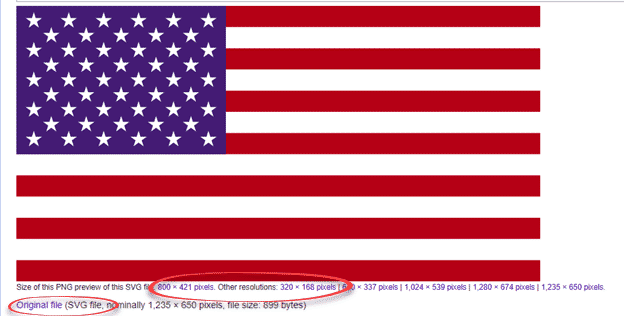
For Microsoft 365, Office 2021/2019 choose ‘Original file’ which is the SVG version.
Otherwise choose one of the ‘PNG preview’ options. Select a resolution larger than what you’ll need in your document.
An alternative source is the Office image search at Insert | Online pictures. It gives you many variations to choose from.
Make sure the US Flag Word Excel PowerPoint is properly inserted to maintain professionalism.
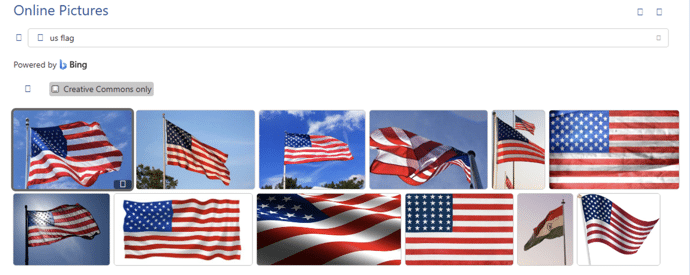
The US Flag Word Excel PowerPoint serves as a symbol of patriotism in your documents.
Click the funnel icon to filter the search.
Insert US Flag to Word, PowerPoint or Excel
Once the flag image is saved to your computer, it’s the usual process to insert into a document. Go to Insert | Pictures, choose the image you just downloaded.
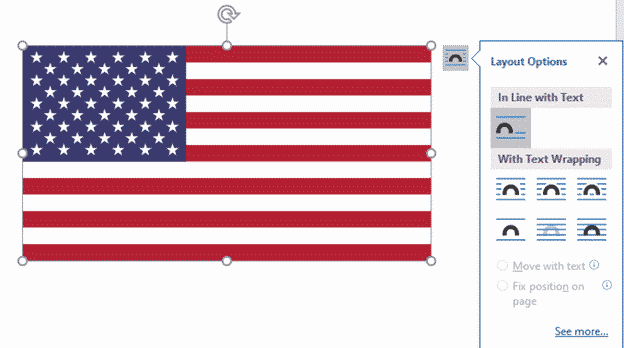
In Office, you can resize and position the image just like any other.
US Flag Colors
The specific colors in the flag are useful to know when designing a document, worksheet or slide. It helps choose matching or contrasting colors
There’s a US Federal Specification for the flag colors but they are for cloth. Converting those colors to screen display isn’t exact and there are different values given by various sources, even within the US government, see Wikipedia.
Red: 197, 14, 61 #B31942 (PMS 193C)
Blue: 4,30, 66 #0A3161 (PMS 282C)
White: 255,255,255 #FFFFFF
(Using the US State Department style guide with the Pantone PMS codes, as quoted on Wikipedia)
Use the # Hex color code in modern Office.
Flag etiquette
The United States Flag Code has the rules for the use and display of the US national flag. The penalties are not enforced and some of the code is widely ignored.
Most of the rules apply to physical flags but these two are relevant to computer documents:
“ The flag should never be used for advertising purposes in any manner whatsoever. It should not be embroidered on such articles as cushions or handkerchiefs and the like, printed or otherwise impressed on paper napkins or boxes or anything that is designed for temporary use and discard.”:
This rule might be the US law that’s most commonly broken! Look in any souvenir shop.
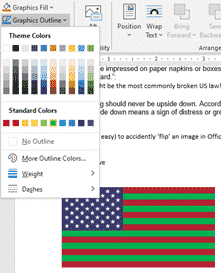
“ The flag should never be upside down. According to the United States Flag Code, an American flag upside down means a sign of distress or great danger. “
Flag Effects
Once you have the image in Office, all the usual Office Graphic or Picture Format options are available.
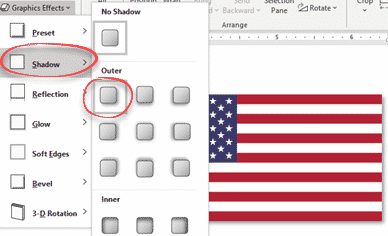
Some of the Graphics Effects like Shadow, Reflection and Bevel add a little visual interest without distorting the flag to a level that might offend.
Shadow
For a nice little shadow effect, try Graphics Effects | Shadow | Outer which adds a little ‘shadow’ to the right and bottom of the image.
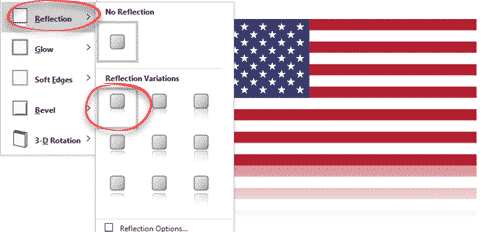
Reflection
Reflection is another way to add a little effect to an image.
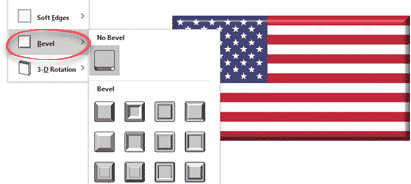
Bevel / 3D
Bevel is another choice for a slight 3D effect
Beyond these choices there are many more available, especially if you’re using an SVG. Graphics Fill or Graphics Outline can change the colors of an image.
National Flags in Microsoft Office
Canadian Flag into Word, Excel or PowerPoint
Australian flag and more into Word, Excel or PowerPoint docs
Insert the British ‘Union Jack’ flag into Word, Excel or PowerPoint
Add the Irish Flag into Word, Excel or PowerPoint