Six ways to Subscript or Superscript in Word and Office
There are SIX ways to add text that appears smaller and slightly below (subscript) or above (superscript) in Word, PowerPoint and other Office apps. This kind of text is commonly used in mathematics (e.g. X2) and other technical fields (e.g. H2O), but can also be used for something as simple as a date or other ordinal number (e.g. 25th).
Automatic Superscript
You’ve probably already seen this in Word. Type a date or ordinal value like 1st, 2nd, 3rd, 4th, 55th etc and Word will change the following letters (‘st’ ‘nd’, ‘rd’ or ‘th’) to superscript automatically.
This little bit of Word magic happens with an AutoFormat setting at File | Options | Proofing | AutoCorrect options | AutoFormat.

If you don’t want the superscript in individual cases, press Ctrl + Z (Undo). The AutoFormatting is a separate ‘do’ in Word that is reversable, as you can see from the Undo list.
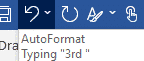
If it’s a long time later and Undo isn’t available, select the number and text then press Ctrl + Space . That will remove the extra formatting. Or the harder way is to select just the ‘th’, ‘nd’, ‘st’ or ‘rd’ and uncheck the superscript button on the ribbon.
Ribbon Buttons
In Word, PowerPoint and Outlook there are subscript and superscript buttons on the ribbon under Home | Font. Simply highlight the text that you want to turn into subscript or superscript, and click the appropriate button.

Subscript

Superscript

Font Dialog Box
Subscript and superscript can also be added via the Font dialog box. You may prefer to use this method if you want to make other formatting changes to the text as well, such as changing the font style, size or color.
The Font dialog box is opened by:
- Clicking on the arrow at the bottom right corner of the Font group.

- Typing the keyboard shortcut Control + D.
Then simply tick the subscript or superscript box, make any other changes you want to the font, and click OK.

Keyboard Shortcuts
You may prefer to use keyboard shortcuts if you want to make the change on the fly while typing. Before typing the sub/superscript text, type the appropriate keyboard shortcut, type the text that you want changed, and then type the shortcut again when you want to return to normal text.
The keyboard shortcut for subscript (e.g. H2O) is Ctrl + =

The keyboard shortcut for superscript (e.g. X2) is Ctrl + Shift + + (above the equals sign)

Equation Editor
If you’re making equations with super or sub scripts galore, use Word’s Equation Editor from Insert | Symbols | Equation …

All 42 Superscript and Subscript characters
Some fonts support the Unicode range of superscript and subscript characters. There are 42 characters in this list.
Use these characters if the subscript/superscript options aren’t available or aren’t exactly what you need.
- Use the Search box at right to find symbols by name.
- Click column headings to sort.
- Select the symbol from the left column, Copy then paste into a document, sheet, slide or email.
- Unicode value column works in Word for Windows, type the value then press Alt + X makes the symbol appear. In other dialog boxes, such as Insert Symbol, use the Unicode value to jump straight to the emoji you want.
| Symbol | Name | Unicode (Alt+X) |
|---|---|---|
| ⁰ | Superscript Zero | 2070 |
| ⁱ | Superscript Latin Small Letter I | 2071 |
| ⁴ | Superscript Four | 2074 |
| ⁵ | Superscript Five | 2075 |
| ⁶ | Superscript Six | 2076 |
| ⁷ | Superscript Seven | 2077 |
| ⁸ | Superscript Eight | 2078 |
| ⁹ | Superscript Nine | 2079 |
| ⁺ | Superscript Plus Sign | 207A |
| ⁻ | Superscript Minus | 207B |
| ⁼ | Superscript Equals Sign | 207C |
| ⁽ | Superscript Left Parenthesis | 207D |
| ⁾ | Superscript Right Parenthesis | 207E |
| ⁿ | Superscript Latin Small Letter N | 207F |
| ₀ | Subscript Zero | 2080 |
| ₁ | Subscript One | 2081 |
| ₂ | Subscript Two | 2082 |
| ₃ | Subscript Three | 2083 |
| ₄ | Subscript Four | 2084 |
| ₅ | Subscript Five | 2085 |
| ₆ | Subscript Six | 2086 |
| ₇ | Subscript Seven | 2087 |
| ₈ | Subscript Eight | 2088 |
| ₉ | Subscript Nine | 2089 |
| ₊ | Subscript Plus Sign | 208A |
| ₋ | Subscript Minus | 208B |
| ₌ | Subscript Equals Sign | 208C |
| ₍ | Subscript Left Parenthesis | 208D |
| ₎ | Subscript Right Parenthesis | 208E |
| ₐ | Latin Subscript Small Letter A | 2090 |
| ₑ | Latin Subscript Small Letter E | 2091 |
| ₒ | Latin Subscript Small Letter O | 2092 |
| ₓ | Latin Subscript Small Letter X | 2093 |
| ₔ | Latin Subscript Small Letter Schwa | 2094 |
| ₕ | Latin Subscript Small Letter H | 2095 |
| ₖ | Latin Subscript Small Letter K | 2096 |
| ₗ | Latin Subscript Small Letter L | 2097 |
| ₘ | Latin Subscript Small Letter M | 2098 |
| ₙ | Latin Subscript Small Letter N | 2099 |
| ₚ | Latin Subscript Small Letter P | 209A |
| ₛ | Latin Subscript Small Letter S | 209B |
| ₜ | Latin Subscript Small Letter T | 209C |
Halloween icons and symbols for Word, Powerpoint and more
Try the old Alt + X trick for Word and Outlook
Inserting Symbols is harder in Office for Mac
About Unicode, fonts and symbol codes
Word’s symbol substitution, the good and the bad