New Outlook’s 5 “Productivity” Features: What Microsoft Isn’t Telling You
Microsoft’s June 2026 blog post pitches five new Outlook for Windows productivity features as reasons to abandon classic Outlook. The reality is less impressive. Two of the five already exist in classic Outlook, often in a stronger form, a third has a close equivalent. Three only work properly on Microsoft hosted mailboxes like Microsoft 365 and Outlook.com. If you use Gmail or another non Microsoft account, several of these “features” barely work at all. Here is an honest, feature by feature comparison of what Microsoft is really offering.
It’s a typical Microsoft trick to get customers to new Outlook. They sell new Outlook features without telling the whole story, leaving out important details like availability in Classic Outlook or a “Microsoft mailboxes only” limitation.
Two of the five “productivity features” are in classic Outlook and have been for years, sometimes in a stronger form. A third “new” feature has an equivalent in classic Outlook.
And three of the five features only work properly (or at all) for Microsoft hosted mailboxes. As we’ve mentioned before, new Outlook features very much depend on the type of mailbox connection. Some features (usually the most hyped ones) aren’t available to Gmail or other non-Microsoft mail services.
Here’s an honest summary of the five Outlook features Microsoft highlighted.
Pin a message
- New Outlook only
- Microsoft hosted mailboxes, mostly.
New Outlook: Hover over a message and click the pin icon. The email sticks to the top of your inbox in a dedicated Pinned section, no matter how you sort. Pins sync to Outlook on the web and mobile.
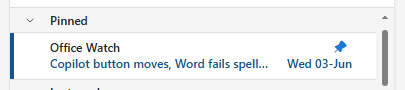
Outlook classic: Not available. It has been requested for years with no result. Messages pinned in the web app do not sync to the classic desktop app either.
Pinning relies on the mailbox storing a pin state in the cloud, so it works cleanly on Microsoft hosted mailboxes (Microsoft 365 / Exchange Online and Outlook.com). For Gmail and IMAP accounts it depends on the cloud sync being in place, and even then it’s inconsistent.
Snooze a message
- New Outlook only
- Microsoft hosted mailboxes
New Outlook: Right-click a message, choose Snooze, pick a date and time. The email vanishes from the inbox and reappears when you said it should. It syncs across web, desktop, and mobile.
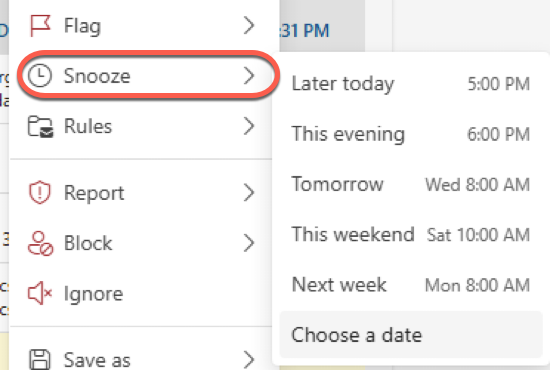
Outlook classic: No native Snooze. Microsoft has confirmed it won’t be added.
The closest classic substitute is Follow Up flag with a reminder (right-click the message, Follow Up, Add Reminder, set a date). The difference is important: a flag pops up a reminder but leaves the email sitting in your inbox, whereas Snooze actually hides it and brings it back.
Add multiple categories at the same time
- New and Classic Outlook
- All accounts but works better with Microsoft accounts.
New Outlook: You can assign multiple categories to an email through a single, simplified interface. The category picker stays open so you can tick several in one pass.
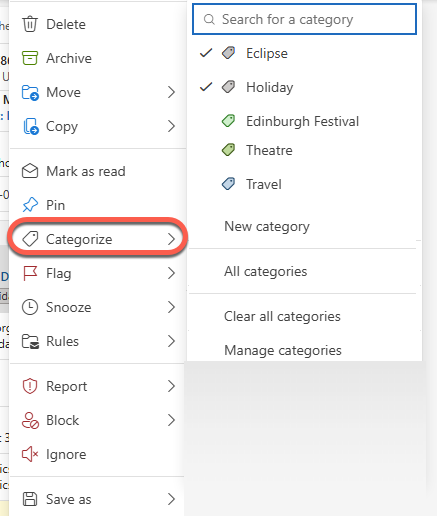
Outlook classic: Already does this, and arguably better. Classic has had multi-category support for years through its Master Category List, with the bonus of assignable shortcut keys. You can also select several emails and apply a category to all of them at once.
This is a catch-up feature, not a new one. If you live in categories, classic is still the stronger tool. One wrinkle worth knowing: new Outlook only shows one category color on calendar events even when several are applied, while classic shows them all as little colored rectangles.
Categories on non-Microsoft accounts can behave oddly because they aren’t stored the same way, and shared mailboxes have had category bugs.
Sweep
- New Outlook only
- Microsoft hosted mailboxes only
New Outlook: Sweep lets you move emails in batches and apply rules to future incoming messages, for example automatically deleting promotional mail from a sender after a set period
Outlook classic: Not branded as “Sweep,” but a similar job is done by Rules and Quick Steps, which are far older and more powerful. Classic rules can move, delete, flag, categorize, and forward based on dozens of conditions. Quick Steps bundle multiple actions behind one button or keyboard shortcut.
Sweep works by running a rule on the mail server (move or delete messages from a sender, now and going forward), so it needs a server that supports it. That means Outlook.com and Exchange Online get it properly. For other mailboxes it might work but is less dependable.
Keyboard shortcut style choice
- New Outlook only
- All mailboxes
New Outlook: You can choose between Outlook for Windows shortcuts, Outlook for the web shortcuts, or turn them off completely. At Settings | General | Accessibility. Microsoft frames this as easing the transition from classic.
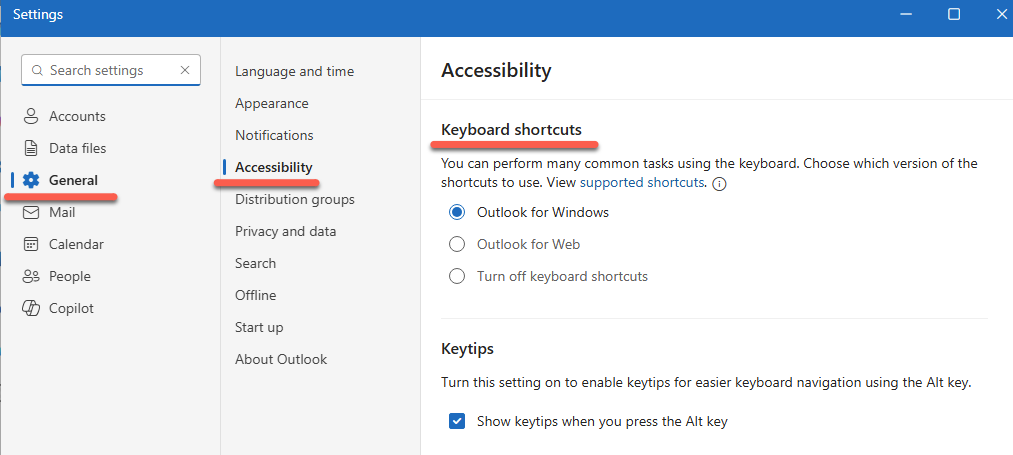
Outlook classic: Obviously classic uses the traditional Outlook for Windows shortcuts, the ones built up over two decades.
This is only a “feature” because new Outlook changed the shortcuts and now lets you switch back toward what classic users already know. If you’re on classic, you already have the muscle memory this setting is trying to restore.
New Outlook Is Slow and a Memory Hog: More Reasons to Avoid It
Understanding Outlook (New) for Windows: An Independent Guide
New Outlook Email Rules Limitations You Should Know
New Outlook Windows Privacy: What You Need to Know
How to Install Outlook Classic on Windows Instead of New Outlook
Outlook New to Classic: How to Revert Back
Too Many Microsoft Outlooks? Clear Up the Confusion in Simple Terms