What anyone can do with PDFs in OneDrive PDF Editor: Free Tools You Didn’t Know You Had
OneDrive has a built-in PDF editor that lets you highlight, annotate, rotate pages and more — right in your browser, no extra software needed. Whether you have a free Microsoft account or a Microsoft 365 subscription, here’s what you can do and how to get started.
Anyone with a Microsoft free account can view, mark up and rotate PDFs. Any modern compatible browser is enough.
All these features are available with OneDrive in a browser and that’s what we’ll focus on here. Some features are also available in the OneDrive mobile apps.
There are more PDF tricks available for Microsoft 365 customers, we’ll cover those in a separate article.
Go to https://onedrive.microsoft.com and login. That will show all files saved online including PDFs or upload any PDF you want to work with. Click on the PDF to open a viewing and editing windows with options across the top row (left and right) plus a bottom toolbar.
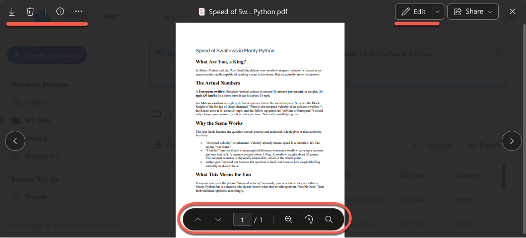
What you see in the menus depends on your Microsoft license (none/free, Microsoft 365 plan, Copilot).
The top left tools are file management; download, delete and copy.
Alas, Microsoft’s own feature lists don’t include changing existing text or electronic signatures. For those jobs you still need Acrobat, Word (which can convert and edit PDFs) or another PDF app.
Filling PDF forms is promised by Microsoft to some Microsoft 365 customers. Look on the menus to see if you’re among those blessed <g>.
Free OneDrive PDF Editor Tools
These are the features Microsoft classes as free. Microsoft’s official list marks annotation, page rotation and table of contents navigation as available for both OneDrive for home and OneDrive for work or school.
Anyone with a Microsoft account gets 5GB of OneDrive storage, more than enough to save PDF files. The PDFs only have to be on OneDrive while being edited then you can download to your computer.
Mark up a PDF
You can add digital ink, highlight text, draw shapes and insert sticky notes directly on the PDF.
- Open the PDF in OneDrive and select Edit from top-right.
- Select lets you select text or objects in the PDF to copy. This depends on the permissions given in the PDF.
- Text, Pen or Highlighter to annotate the PDF. You can also adjust ink thickness and transparency.
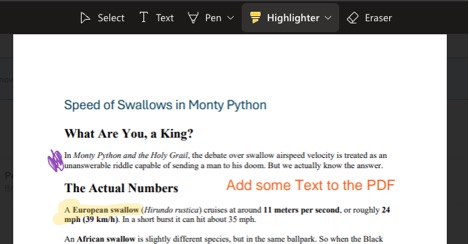
- Select Done, then Save, to write your changes back to OneDrive.
Save changes the original file, it doesn’t create a copy. Microsoft says anyone you share the annotated PDF with will see your annotations. If you need a clean version, copy the file before you start scribbling.
Rotate pages
This fixes sideways or upside-down scans. Each click turns one or more pages 90 degrees clockwise.
What’s Next: PDFs, OneDrive and Beyond
When it’s time to create the PDF in the first place, Word has settings most people never touch. Make a better PDF from Microsoft Word using the hidden options shows you what they are, and PDF Save As or Print: Best Methods Explained compares the two main export paths so you pick the right one.
If you need to pull data out of a PDF rather than mark it up, How to Import PDFs into Excel and Auto-Refresh Data Using Power Query turns static tables into live, refreshable Excel data — no retyping required.
Keeping your files safe in OneDrive matters too. Protect Your Files from OneDrive: Beware Microsoft Account Lockouts explains what happens if Microsoft locks your account and how to make sure you always have a local backup.