Office Mobile for Windows 10 updates
The Office apps for Windows 10 continue to receive updates of ‘new’ features. These ‘new’ features are things any Office for Windows/Mac user would take for granted.
Microsoft makes it harder to use these apps with truly awful and disorganized documentation.
There’s a much linked page but the first section only mentions changes they want to boast about. The tables lower down that page do have some indication of what’s possible or not in the Mobile versions.
But there are other changes to the Office Mobile apps that don’t get a mention. The Windows Store page for each of the apps has a few, enigmatic lines about most recent changes, like this for PowerPoint Mobile:

Sometimes, there’s no indication of how to use the new feature. You have to figure it out for yourself.
Apparently there’s no bugs in any of the Office Mobile apps because there’s no listings of bug fixes <g>. If you believe that, I have various bridges to sell you at reasonable prices.
Overall – Word, Excel, PowerPoint
Insert Picture from camera is worth a mention because it’s not in Office for Mac or Windows.
Go to Insert | Pictures | Camera
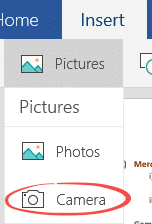
Mind you, we’ve not been able to get this feature to work on multiple machines – only a Windows 10 mobile phone worked. It may be limited to particular types of Windows computers/tablets?
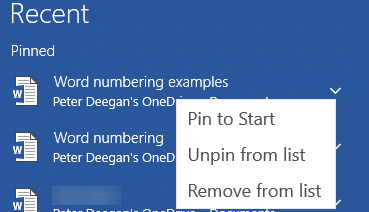
Pin to Start
Regularly used documents can be kept on the Recent documents menu. Use the down arrow on right to pin/unpin or remove a document from the list.
Smart Lookup
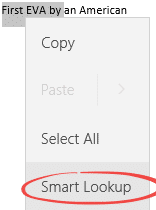
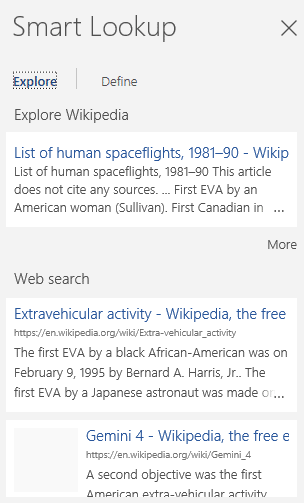
Right-click on a word or phrase, choose Smart Lookup to see Bing search results.
Tell Me
Click on the light-bulb then type in a help question.
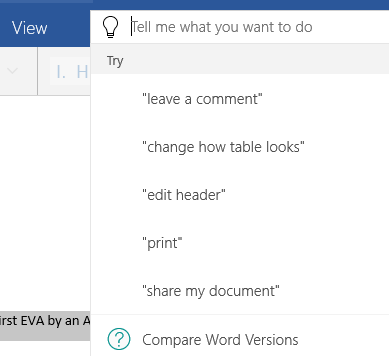
‘Compare Word Versions’ is misnamed. It merely opens up the Help pane to the default page. There’s no comparison to be seen of Word across platforms or versions.
Ink Annotations
The Draw tab has some ink/drawing tools that you can use with a touch screen or mouse.
The color selection menu is a nice innovation. Click the outer circle dots to choose a color, slide the inner slider around to adjust the shading.
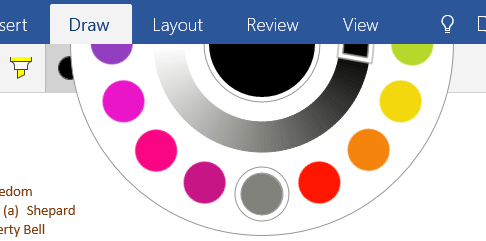
There are drawing, eraser, pen and highlight options.
Note: this is separate from the ‘Ink Workspace’ that’s coming to Windows 10 in the next few months.
Word Mobile
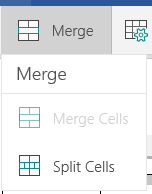
Merge and Split cells – useful for headings in Tables and elsewhere. Select a cell or cells then choose Table | Merge to see the available options.
Touch controls for tables
This is a nice addition but it could have done with a better explanation from Microsoft than just a few words. Tap on a Word Mobile table (not a mouse click) and a series of handles and guides will appear around the table.

The darker arrow is an enlarged pointer to the current insertion point or boundaries for a selection.
Drag the bottom right icon to resize the entire table.
Tap on the grey area above a column to see more handles for the column.
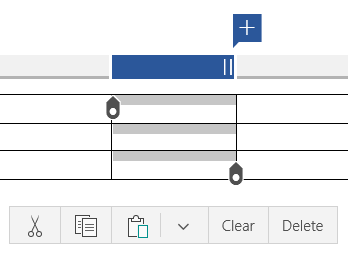
The Plus icon will add a column. Drag the twin vertical bars to resize the column.
Of course, the gray blocks on the left do the same thing for rows.
Tab the top left block to select the entire worksheet.

Excel Mobile
Open comma separated (.csv) files.
Copy Worksheet – is promoted as ” Get a worksheet set up just the way you line [sic], and then duplicate it.”. It’s not clear what’s intended by this mention. There’s a ‘Save a copy of this file’ option – is that what Microsoft is talking about?
PowerPoint Mobile
Superscript and Subscript text are now available.
“Split a block of text into easy-to-read columns” is all Microsoft tells us about this feature. It’s mentioned in the brief notes in the Windows Store but not elsewhere. If you can find this feature in the latest Powerpoint Mobile app (v17.6965.42611.0 or later) please let us know.