How to show the Developer Tab in Microsoft Office (Word, Excel, PowerPoint & Outlook)
The Developer tab in Microsoft Office unlocks powerful tools like macros, form controls, and advanced customization features. Even if you’re not a programmer, many useful option, such as checkboxes, drop-down lists, and macro controls are hidden there. If the Developer tab is missing from Word, Excel, PowerPoint, or Outlook, you can easily enable it in just a few clicks through the Ribbon settings.
If the Developer Tab below is missing in an Office app, there are a few simple steps to enable it.

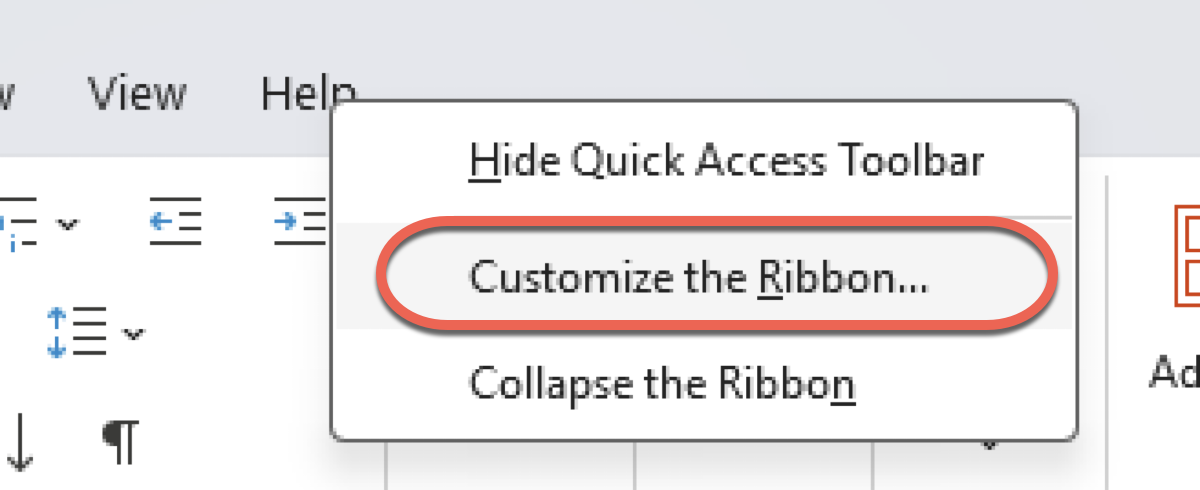
Right-click within any Tab in the Ribbon and select Customize the Ribbon.
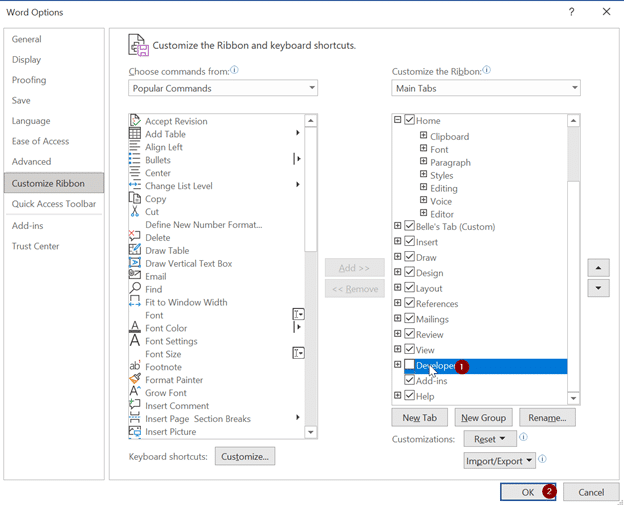
On the right-hand side you will see the Developer tab is unticked, simply tick the Developer Tab box, and select OK to enable the Developer tab.
Simple as that!
You can hide the Developer tab anytime but most people leave it visible. The Developer tab has some space at right that you can use to add your own buttons, see Make the Office ribbon suit you … not Microsoft
Easily create and customize your own tab on Office Ribbon
Outlook’s new Simplified ribbon
Why is there a vending machine on the Office ribbon?