Use WhatsApp to send stuff between your devices
WhatsApp can send any file, photo, video or text notes to yourself, in other words between your computers or devices. Files up to 2GB can be moved quickly and securely between machines.
Sometimes you need to copy something between two computers or devices you have. That could be a little text (a password or web link) or a large file.
WhatsApp can let you share things, big or small, directly, securely and fast. with other people or just yourself. This trick is possible because of a combination of two long-standing WhatsApp features (Desktop apps and sending any file) plus two relatively new ones (2GB attachments and Send to yourself) that we’ll explain below because they are useful features to keep in mind.
Before starting, make sure your WhatsApp apps are up to date on all devices. They should be automatically updated but it’s worth double-checking.
How to WhatsApp to yourself
With modern WhatsApp, the account owner (you) appears in the contacts list either under your name or the linked phone number.
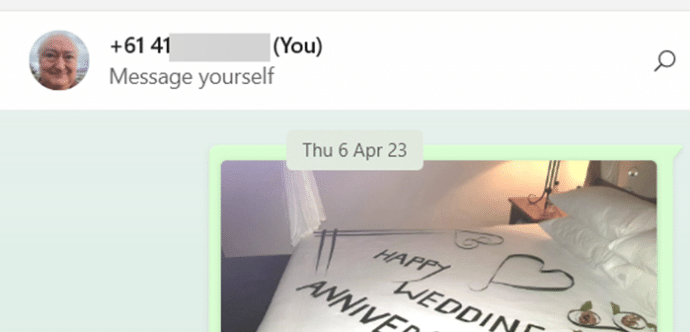
Search for your name or phone number, there should be a “Message yourself” label.
Then you can send any text etc. to yourself, just like any other contact.
On a desktop, a file can be ‘drag and dropped’ into WhatsApp. On a smartphone either select an attachment option or use the Share feature available in many apps to send to WhatsApp.
Send to yourself is just one of the WhatsApp features that let you share files between computers, here’s a quick guide to the other three.
WhatsApp on the desktop
The same WhatsApp account can be accessed from multiple devices at the same time. While the primary connection is via a smartphone (Apple or Android) there are linked apps for Windows, Mac and web browser. Go to https://www.whatsapp.com/download to get each app or go to https://web.whatsapp.com/ to use the browser option.
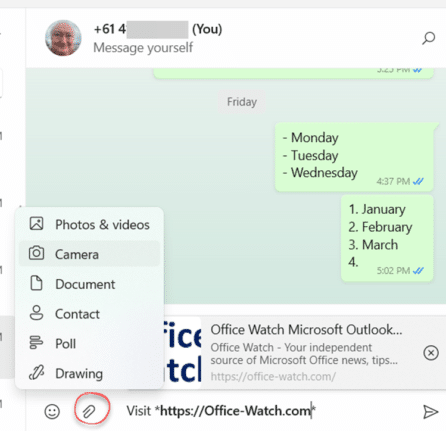
All the Send options are available including the important ‘Document’ option.
I use the Windows/Mac apps for WhatsApp a lot more than the one on my smartphone. Typing is a lot easier on the desktop as well as nicer copy/paste options.
There’s still no WhatsApp app for iPad though a private beta version has been around for about six months. Until that happens, use the browser version https://web.whatsapp.com/ .
Send any kind of file using the ‘Document’ option
WhatsApp has an option to send a ‘Document’ but it should really be called ‘File’ because you can use it to send any kind of file, not just documents.
This is a long standing but hidden WhatsApp feature, see Simple trick to make WhatsApp send full size, original photos.
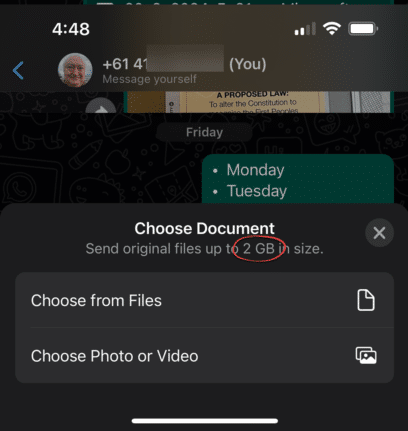
Attachments up to 2GB not 100MB
For a long time, WhatsApp had a limit of 100MB for any file transfer.
Back in July 2022 that was quietly lifted to 2GB (say 2,000MB). So quietly, you’ll see the 100MB limit still widely quoted.
Larger files should be transferred with Wifi connections because mobile phone data links will be slow and gobble up a lot of your monthly data limit.
What about Signal
Signal messaging is our preferred and more secure messaging app. It also lets you message yourself with a feature called ‘Note to Self’ however it still has a 100MB file limit.
More about WhatsApp from Office Watch …
Eight WhatsApp formatting shortcuts including four new ones
Simple trick to make WhatsApp send full size, original photos
Unleash WhatsApp: Complete Guide to Sending Any Document Type, No Matter the File or Size!
Send a full, original image by WhatsApp for iPhone
Send a full size, original image by WhatsApp for Android