Copilot AI makes writing Excel formulas a lot easier but you still need to check the results to make sure Copilot has understood want you want and gives the right answer.
There’s a lot of hype and promises about how AI can help make work easier. That’s not as true as Microsoft and others are selling. Maybe in a few years Copilot will be as good as Microsoft’s 2024 promises.
We wanted to show how Copilot could help writing Excel formulas. It didn’t take long for us to hit problems even with simple formula requests.
It’s similar to the trouble we found a year ago getting VBA code from ChatGPT. Understand Office VBA code with ChatGPT, Easily learn and make Office VBA with AI and More adventures with Office VBA and AI
Here’s how to ask Copilot for an Excel formula and some of the limitations.
We used the free plan at copilot.microsoft.com in the default “Balanced” mode. You can use this for any modern version of Excel on Windows, Mac or other platform.
Simple Markup
Let’s start with a simple example, adding a markup on a cost price.
“In Excel if the cost of an item is in Column D what is the formula for a price with an 12% markup?”
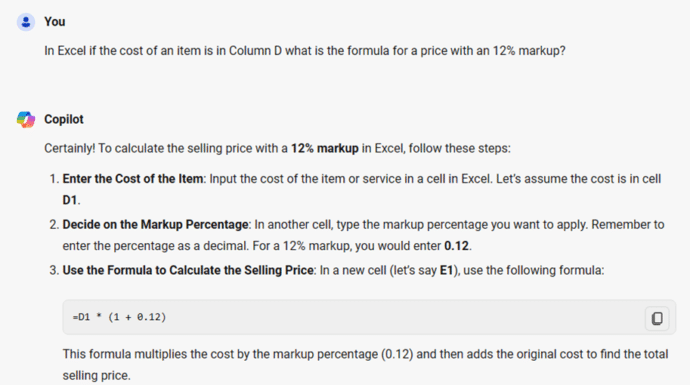
Copilot will tell you to use:
=D1 + (D1 * 0.12)
Which works but you might prefer a more readable =D1 + (D1 * 12%)
Markup with conditions
Now let’s try a more real world example which shows a pitfall of blindly relying on Copilot.
“In Excel if the cost of an item is in Column D what is the formula for a price with an 12% markup where there’s a minimum markup of $1.50 and a 10% markup on items costing over $10”

=MAX(1.5, IF(D1 > 10, D1 * 0.10, D1 * 0.12))
That formula is almost correct BUT doesn’t answer the question which asks for the “the formula for a price with an 12% markup”. We’ve used the same wording as in our first example, but this time Copilot has given a formula for the markup only not the selling price.
The correct answer is
=D1+MAX(1.5, IF(D1 > 10, D1 * 0.10, D1 * 0.12))
It’s an example of why you have to be careful with AI systems, they can change their response in unexpected ways.
A more likely example
A better way to handle that markup situation is to put the values in cells or named ranges so they can be easily changed. Unfortunately, Copilot messes that up.
“ In Excel if the cost of an item is in cell D2 what is the formula for a price with an % markup in a cell called “MarkupStandard” where there’s a minimum markup in a cell “MarkupMin” and a % markup called “MarkupSpecial” on items costing over “MarkupSpecialRate” “

Copilot’s response was both wrong and confusing.
The formula it suggests is:
=D2 + MAX(E1, IF(D2 > F1, D2 * G1, 0))
Which is WRONG because it gives zero markup to some products! But this time it added the cost price, unlike the last example … go figure.
All the named cells in the question were converted to cell references which would be OK if Copilot had included a lookup table of cells to named ranges.
Based on our tests, it’s better to insert specific values in your question to simplify things for Copilot. Then change those values for a cell or name (e.g. 0.12 becomes cell H2 or “MarkupPercent”)
Tip
It’s best to give Copilot specific column/row references. Without them, Copilot gives general advice but not an Excel formula.

Or rather it gives a line like this as an Excel formula:
\(\text{Selling Price} = \text{Cost Price} \times (1 + 0.10)\)
Which is technically correct but not an Excel formula.
Copilot appears in Word whether you like it or not
Copilot in Office mobile apps for some
Image restyling in Copilot
Understand Office VBA code with ChatGPT
Easily learn and make Office VBA with AI
More adventures with Office VBA and AI
