Stop Fighting Word’s Image Placement: One Setting That Actually Works
If you have ever inserted a picture into Microsoft Word and found it stubbornly stuck in the wrong place, you’re not doing anything wrong. Word’s default image setting, “In Line with Text,” treats every picture like a giant letter in your text. The fix that with a single change to Square wrapping. Once you do that, you can drag the picture anywhere you want, left, right, center, or in between paragraphs, and the text flows naturally around it. This works in Word for Windows and Word for Mac, across Microsoft 365 and versions going back to at least Word 2013.
The standard Word image positioning option (the default) doesn’t match what most people want. It’s easy to change once you know how.
In brief: change the image layout to Square. That lets you move the image more easily around the document.
Note: this suggestion is given in some places as a ‘fix’ for placing images in Word. It’s not. Changing the default placement can help because the ‘Square’ wrapping option makes more sense to many people.
What to do
Change the way Word first positions an image when you add it into a document.
Add an image to a document in any way you like; Insert Pictures , Copy/Paste or drag and drop. It doesn’t matter.
Square
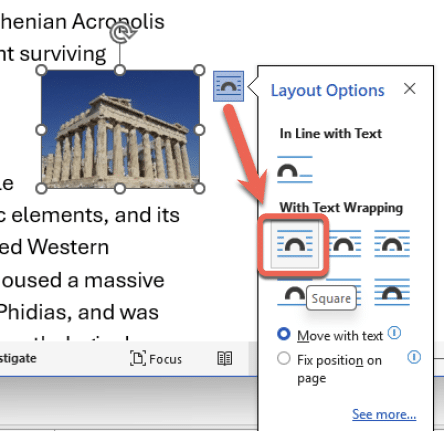
When it’s inserted, click on the little icon at top right of the image and choose Layout Options | With Text Wrapping | Square like this.
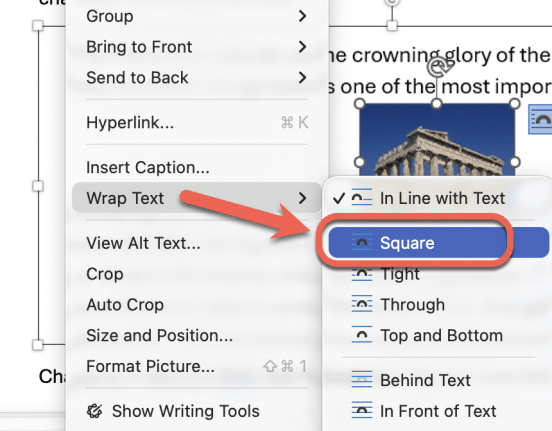
In Word for Mac, right-click on the image and go to Wrap Text | Square.
Now you can drag the image around that part of the document. To one side (left or right) or middle, the text will wrap around the image.
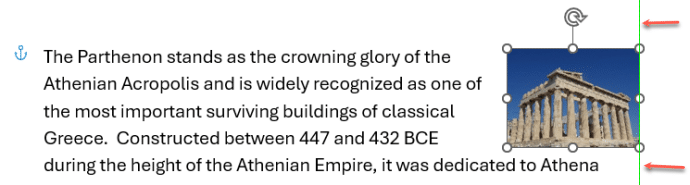
Green positioning lines
In modern Word (and PowerPoint) look for the green positioning lines that help guide you. In the above example, the vertical green line means the picture is against the right margin of the document.
Other choices
There are many other positioning choices available, the other two you might want are:
Tight
Tight – same as Square but will less white space between the image and the text.
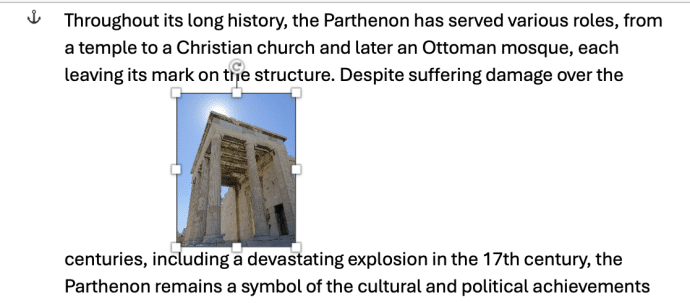
Top and Bottom
Top and Bottom – the picture is on a ‘line’ of its own with text above and below, but not wrapping around it. The image can be dragged along the line to left, center or right.
Change position for every image
You can change the way Word first inserts every image (the default in tech speak).
Word for Windows
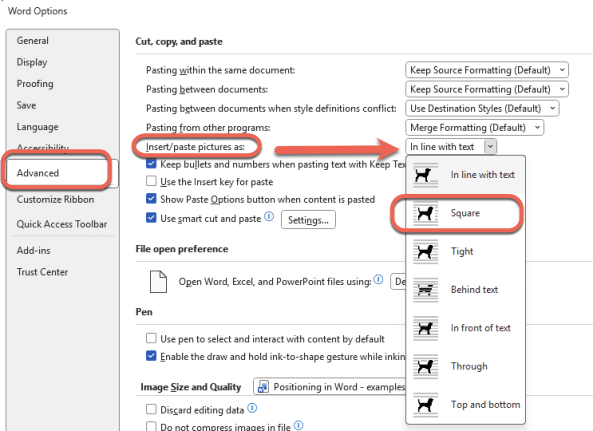
In Word for Windows go to File | Options | Advanced | Insert/paste pictures as | Square.
Word for Mac
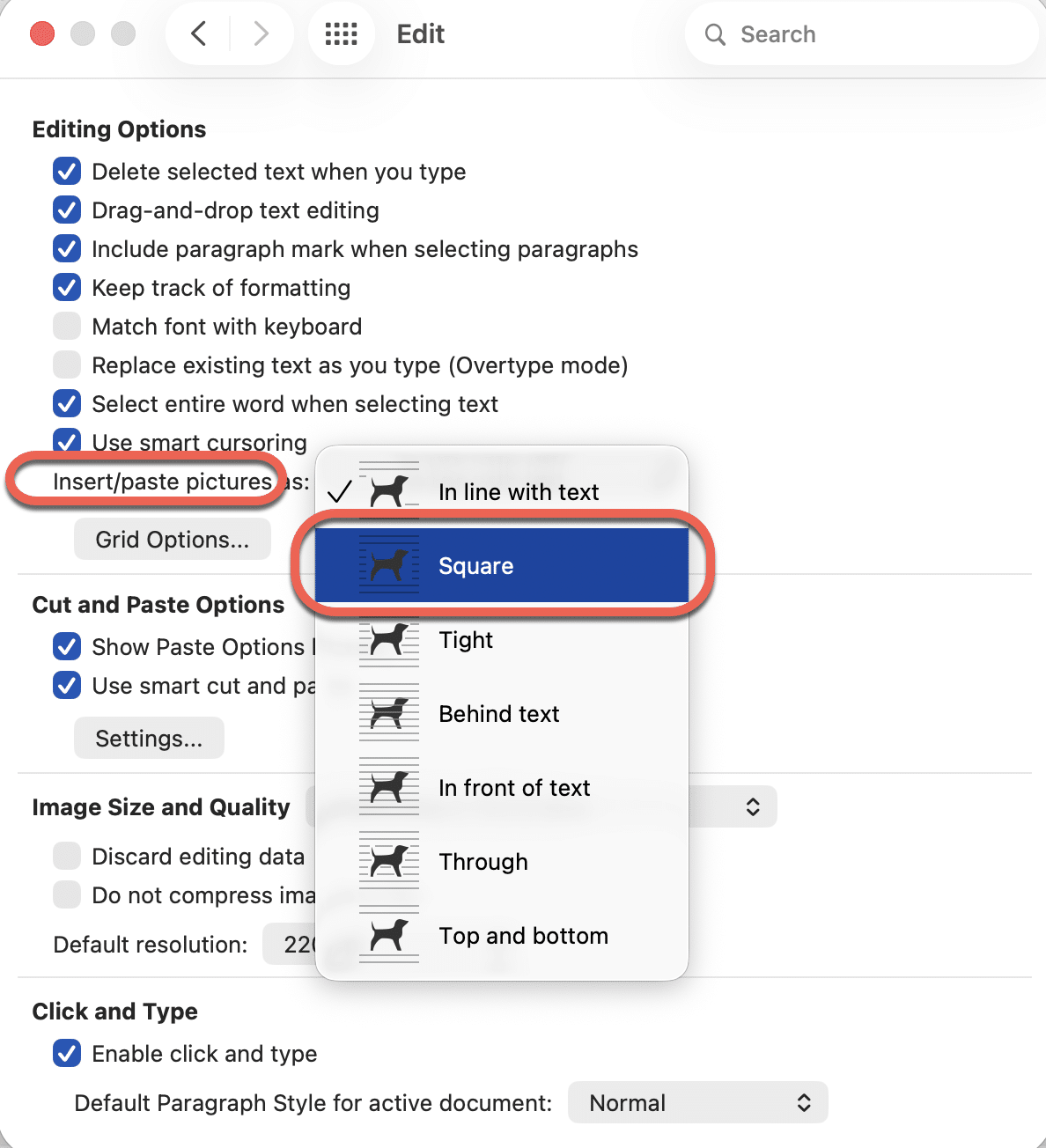
Go to Word | Preferences | Edit | Editing Options | Insert/paste pictures as … change to Square.
Why this works
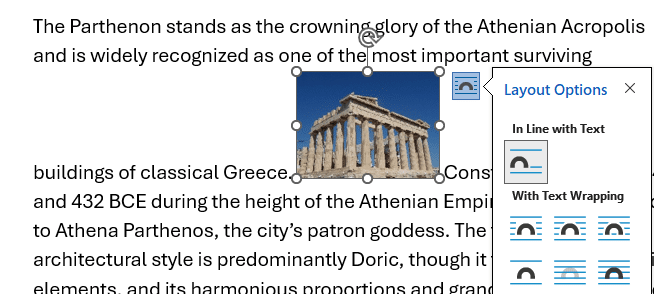
Word has many positioning options for a picture but the default setting doesn’t match what many people expect. Word’s ‘out of the box’ positioning is ‘in line with text’ which treats the image like a big character in the text, like this in the middle of a line.
Changing to Square – With Text Wrapping is more like what many people expect.
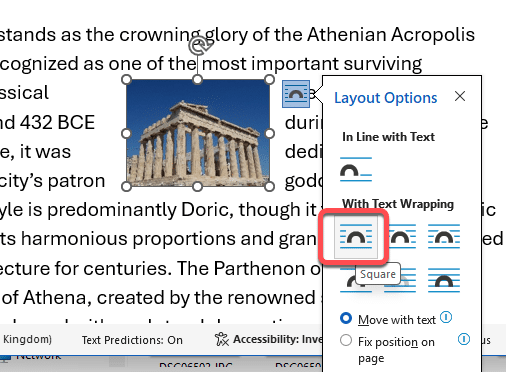
Now you can drag the image around to the place you want – within reason, meaning only on that page.
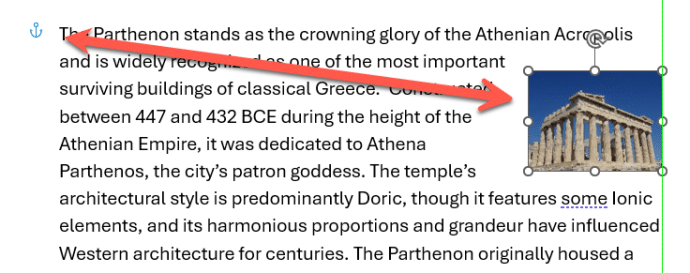
Move with text – see the little anchor icon at left? That shows were the image is linked to the paragraph. In simple terms, if you move that paragraph with the anchor the image will also move.
Fix position on page – the other choice. A more advanced topic
There’s a LOT more
This is just the start of the many image positioning choices in Word.
Experienced Word users know that we’ve just scratched the surface of this topic.
And the same position and wrapping options also apply to other things you can add to a document, such as Shapes, Icons, 3D Models, SmartArt and Charts.
How to Add a Picture with Text Wrapping in Microsoft Word
Easily Overlay Images and Shapes in Microsoft Word and Make Them Stick
How to Use Text Wrapping Breaks in Microsoft Word
Add a Background Image to a Page in Word
Layers in Word: How to Control Text, Images, and Layout Like a Pro
Put Text Around a Shape, Square or Circle in Microsoft Word
Change Picture from Clipboard in Word and Office
Easily Apply the Same Picture Format to Many Images in Word or PowerPoint